
AI Image Generator for Work, Campaigns, and Creative Ideas
Create images that feel ready for the brief, the pitch, the post, or the next creative direction.
See what a prompt can become
A sunlit product scene, a cinematic poster, a fantasy world. Each one starts with a few sharp details that guide the model toward the image you meant.
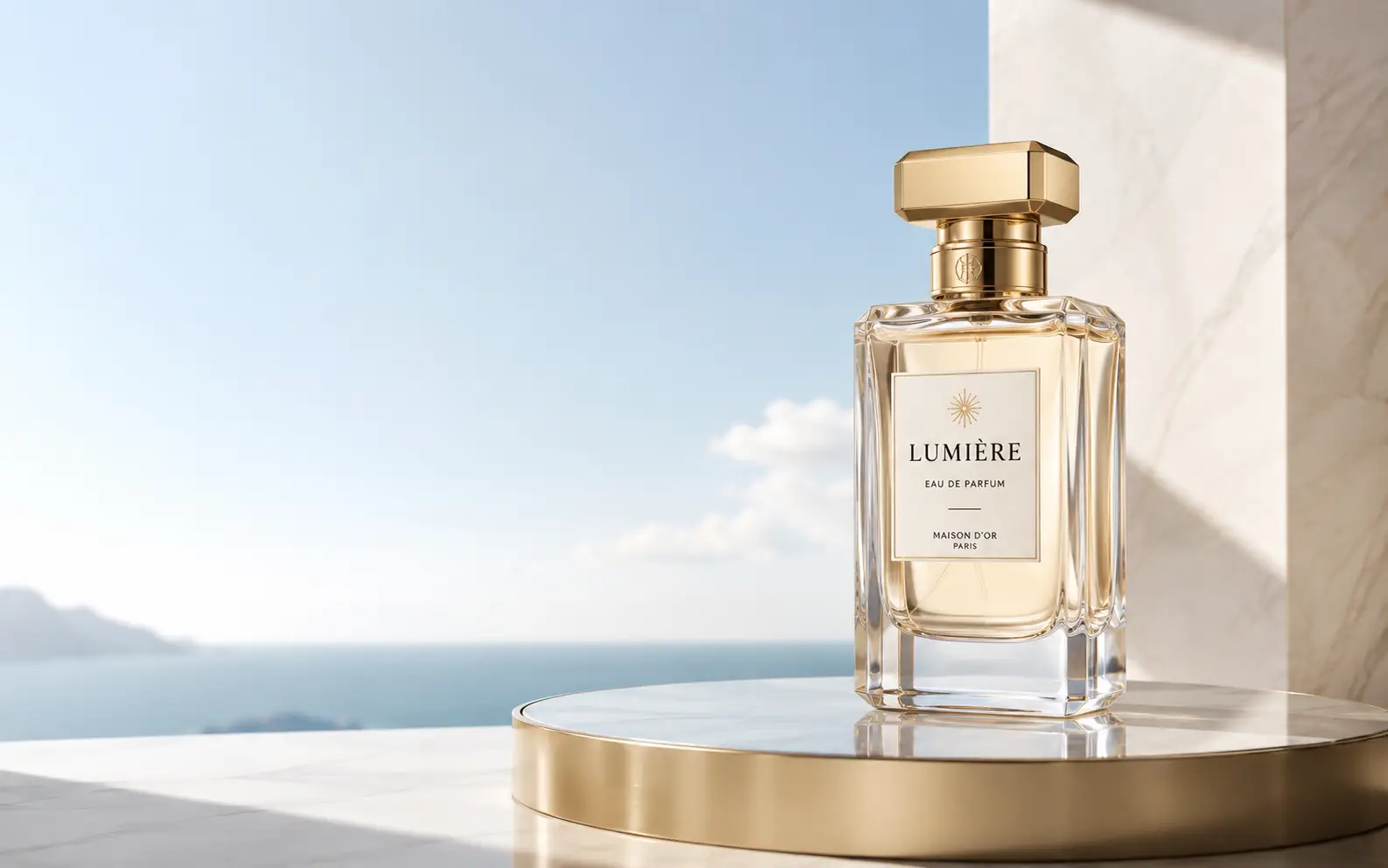
Luxury perfume bottle on a marble pedestal by a sunlit window, ocean view in the background, soft daylight, gold accents, premium skincare campaign style, clean space for headline copy, wide 16:10 landscape
Turn first drafts into better ones
Every version keeps its prompt, model, references, and settings, so you can see what worked and try the next direction without starting over.
- 01
Describe the image type
Tell Ezier whether you need a product shot, poster, avatar, social graphic, background, concept scene, or another visual.
- 02
Add the visual direction
Include the subject, style, mood, composition, lighting, and any reference details that matter.
- 03
Choose model and output settings
Set the model, aspect ratio, resolution, and image count before you generate.
- 04
Generate and refine
Compare the results, keep the strongest direction, then adjust the prompt, reference, or settings.
Create the image your project needs
Go from clean product shots to bold campaign graphics, then use references when the look, layout, or subject already exists.
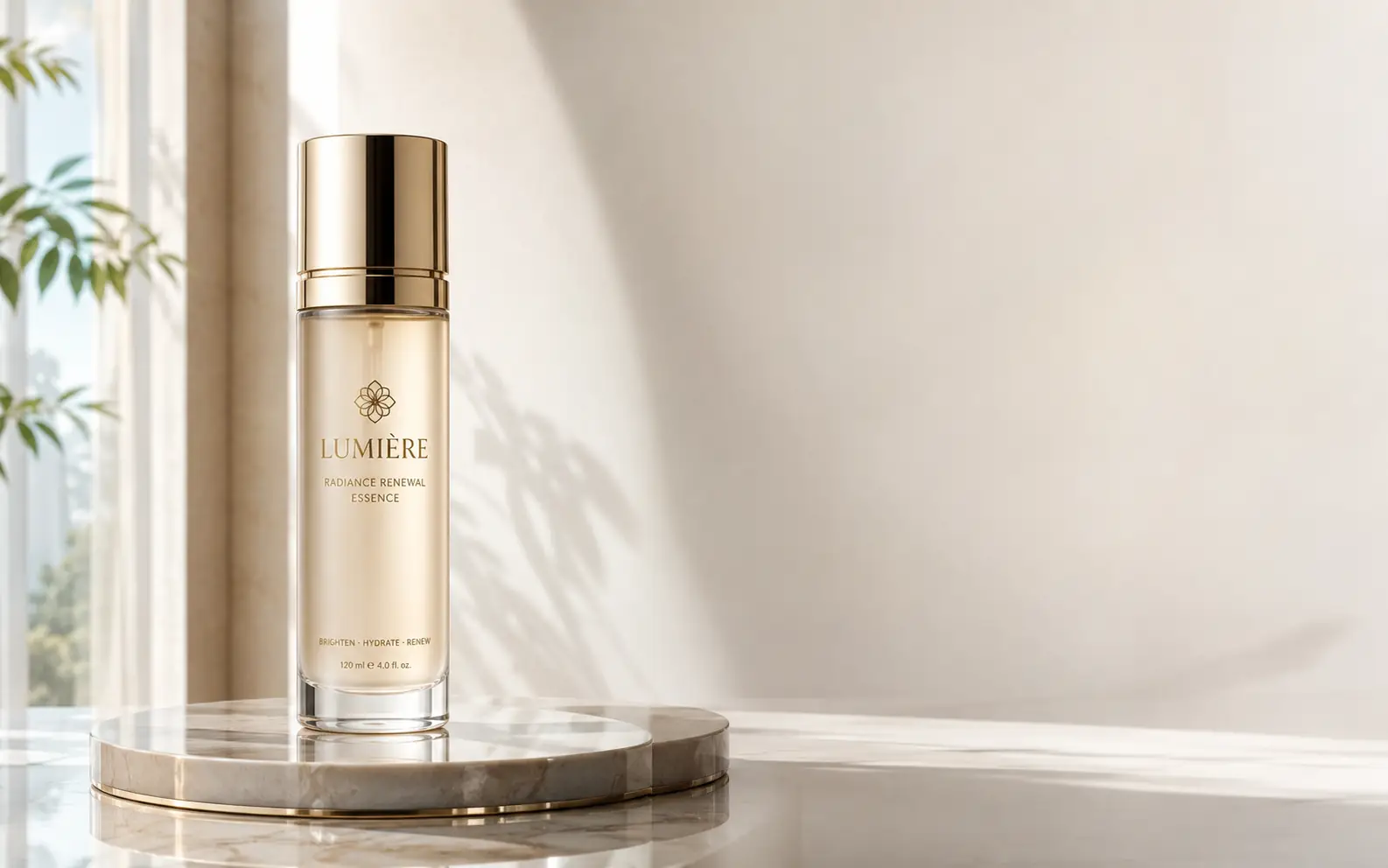
Product visuals and campaign scenes
Create polished product shots, landing page hero images, and campaign visuals before you commit to a final layout.
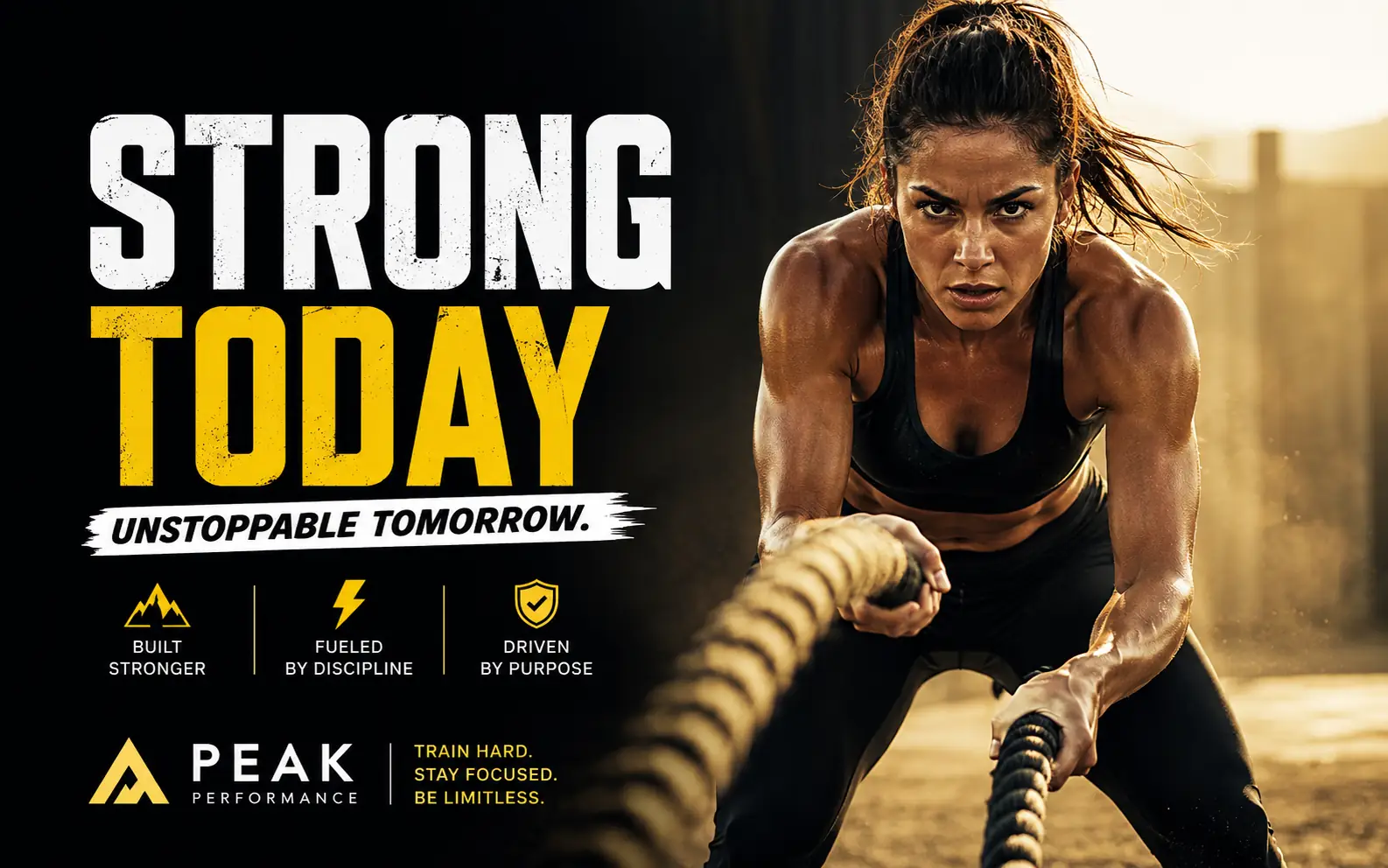
Poster, ad, and social concepts
Explore bold poster layouts, social graphics, and ad concepts with the subject, typography style, and mood described in the prompt.
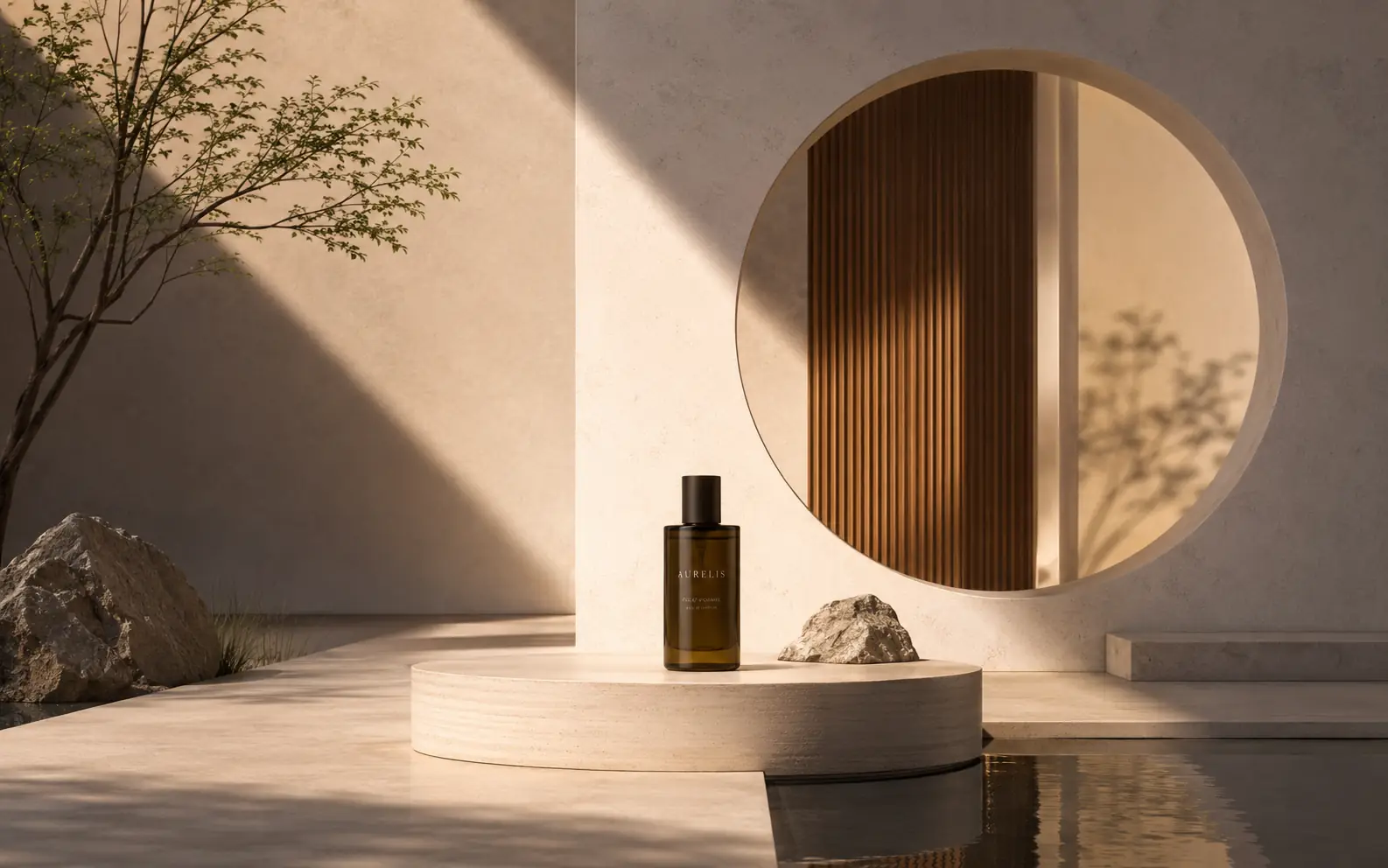
Reference-led variations
Use a reference image when the model supports it and you want a new version that follows an existing product, layout, or style.
Refine without starting over
When an image is close, small changes work better than a full rewrite. Adjust one thing at a time and keep moving from the strongest version.
Use the right model for the job
Switch models when you need sharper text, faster drafts, stronger realism, or a more stylized look.
Use references for precision
Add a reference when the image should follow a specific product, character, layout, or visual style.
Set the frame before the first run
Choose the aspect ratio and resolution early so the result fits the channel instead of fighting the crop later.
Change one thing per iteration
If the image is close, change one variable: prompt, model, ratio, lighting, background, or reference.
AI Image Generator in Ezier
Start with an idea. Leave with a direction.
Choose the model, frame the output, generate a few options, and keep refining the one that feels closest to the image you had in mind.
AI Image Generator FAQ
A few practical details before you generate: prompts, references, models, credits, and where the result goes next.
What is an AI image generator?
An AI image generator creates a new image from the instructions you type. In Ezier, you can start with text alone or add a reference when the model you choose supports image input.
Do I need a perfect prompt to start?
No. Start with the image type, subject, and intended use. After the first result, it is easier to add details, remove noise, or change the direction.
When should I add a reference image?
Add a reference when the result should follow an existing product, character, layout, or style. Use the prompt to say what should stay close and what should change.
How should I choose a model?
Choose based on the result you need: sharper text, stronger realism, faster drafts, stylized concepts, or support for reference images.
Can I control the final format?
Yes. Choose the aspect ratio, resolution, and image count before you generate so the first result is closer to the surface where it will be used.
What happens after I click Generate?
If you have enough credits, Ezier opens your image workspace with the first result ready to review, refine, or generate again.
Related paths
Explore related image tools
Explore another image step, check model options, or make the output move.

AI image tools
More image tools
Create, edit, clean up, or upscale stills.

AI models
Compare image models
Pick a better model before making more versions.

AI video tools
Make it move
Animate a still or turn it into a clip.
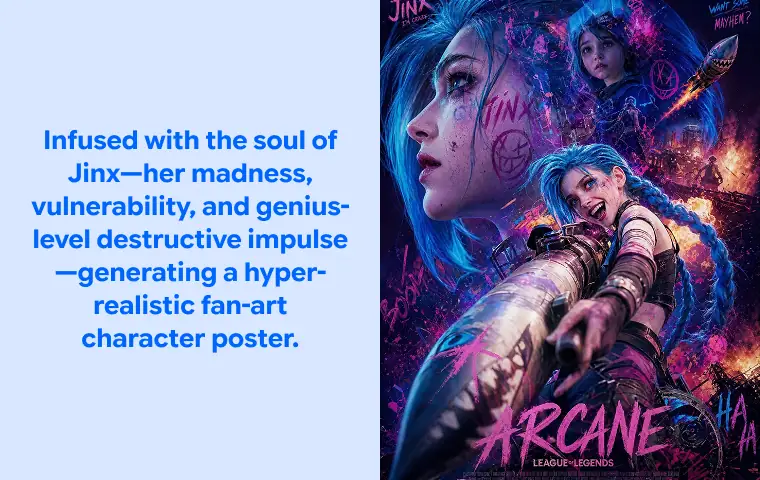
Text to Image
Prompt-first creation
Turn a written idea into an image.

Image to Image
Use a reference
Restyle or revise an existing image.
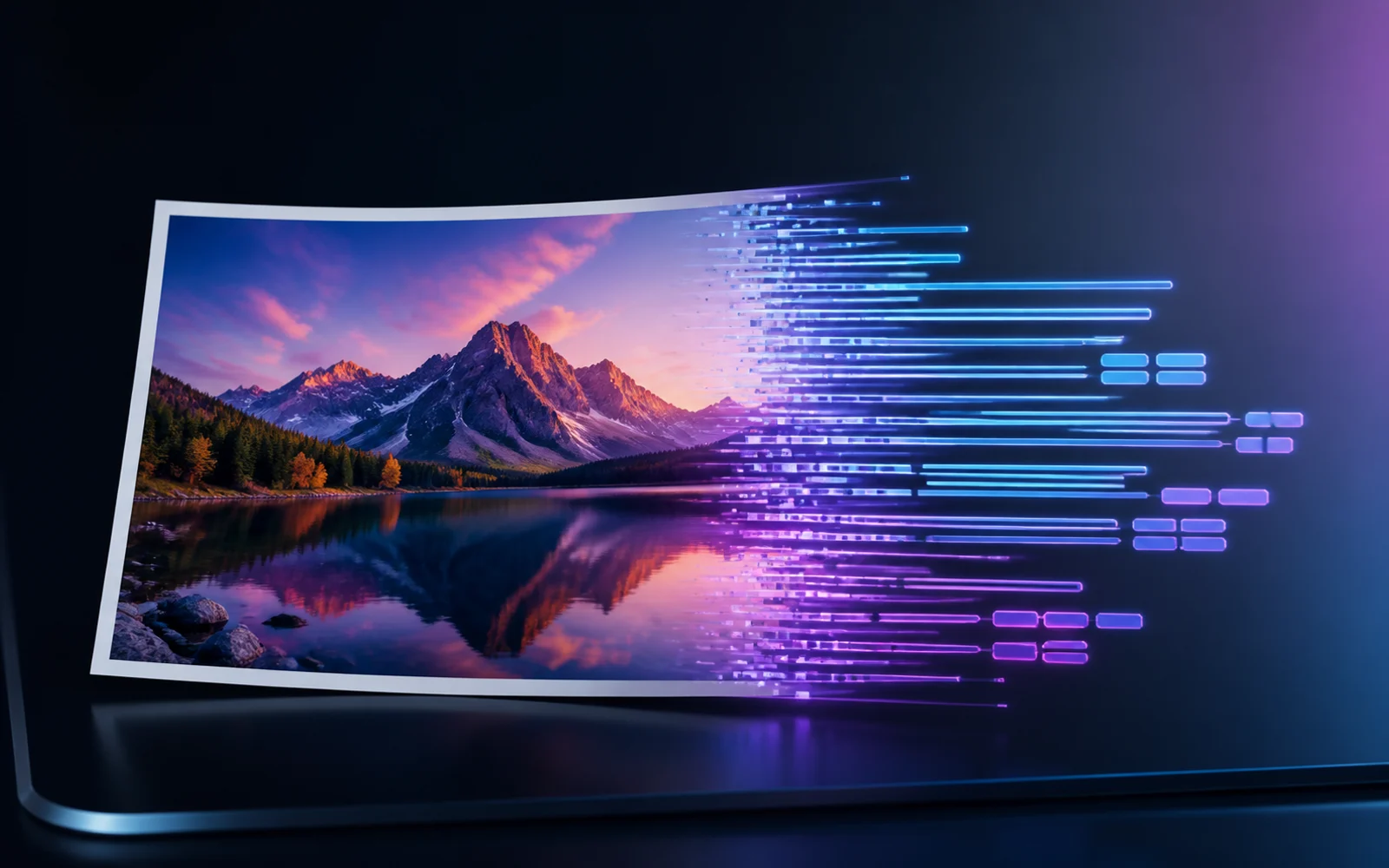
Image to Prompt
Describe a reference
Turn visible image details into a reusable AI prompt.
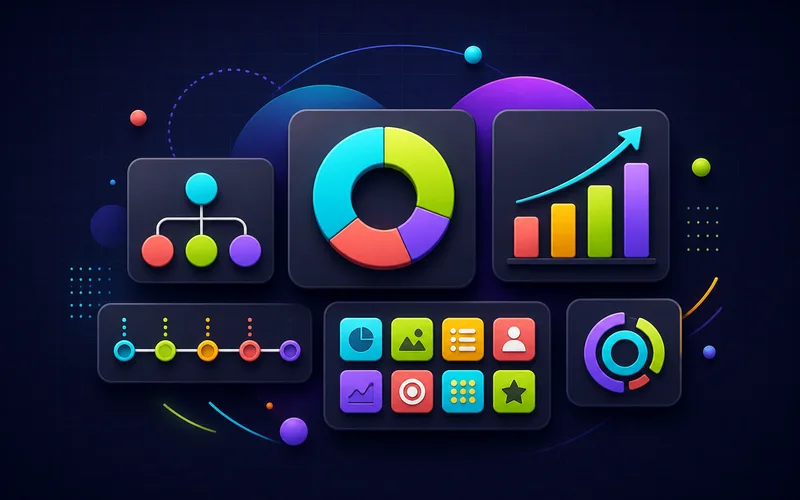
Infographic Generator
Visual explanations
Turn processes, comparisons, timelines, and facts into structured visuals.
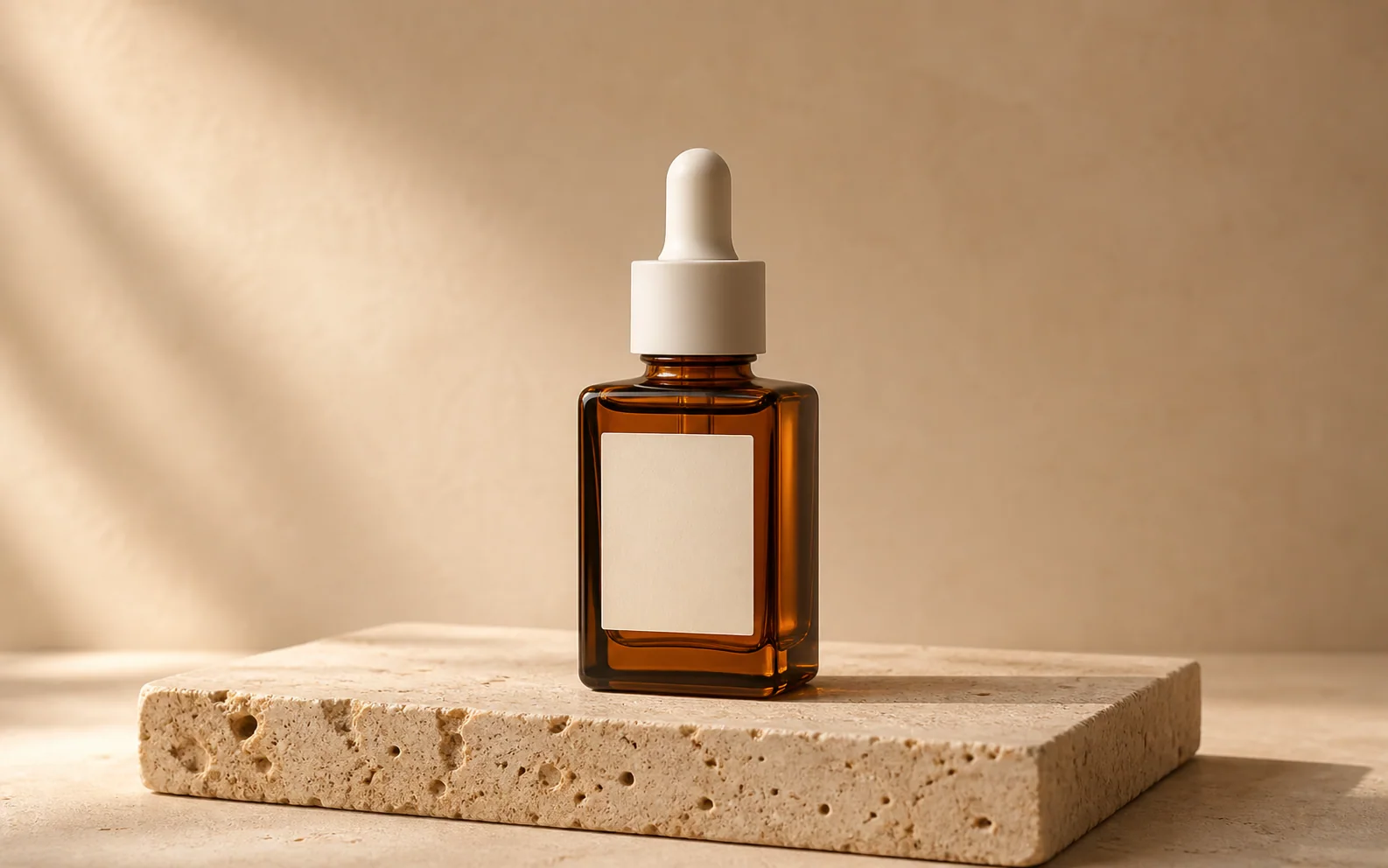
Product Picture Generator
Product visuals
Create polished product photos and campaign scenes.
AI Logo Generator
Brand marks
Create logo ideas from a short brief.
AI image tools
More image tools
Create, edit, clean up, or upscale stills.
AI models
Compare image models
Pick a better model before making more versions.
AI video tools
Make it move
Animate a still or turn it into a clip.
Text to Image
Prompt-first creation
Turn a written idea into an image.