
AI Video Generator for Ideas in Motion
Turn a prompt or starting image into a video you can test, compare, and refine with the model that fits the job.
See what one idea can become
Use these examples to inspect how a clear prompt can become polished motion: a beauty shot, a travel ad, or a surreal fashion concept. Each one gives the model a subject, action, setting, camera direction, and style to work from.
A stylish woman in oversized black sunglasses rises slowly from a turquoise resort pool at golden hour. Water streams down her shoulders and black swimsuit, the pool glows softly behind her, and the camera holds a clean cinematic medium close-up with warm sunset light, shallow depth of field, and a luxury hotel atmosphere. High-end beauty campaign style, realistic detail.
Generate your first clip with less guessing
- 01
Write a prompt or add a starting image
Describe the result you want: subject, action, setting, camera movement, and style. Add a still image for models that accept image input when you want stronger control over the opening frame.
- 02
Choose a model and format
Use the model picker to choose for the output goal. Then set available controls such as ratio, resolution, duration, or audio only when the model offers them.
- 03
Generate and review the first draft
Check the credit estimate, generate the video, then review motion, framing, subject consistency, style, and whether the clip is useful enough for the next creative step.
- 04
Refine the prompt or switch models
Rewrite the prompt when the scene direction is wrong. Compare another model when the direction is right but the motion feel, rendering style, or pacing still misses the goal.
Create the video your project needs
Use AI Video Generator when you are still shaping the creative direction: social hooks, product motion, ad concepts, explainers, or visual tests. If the job becomes prompt-only, continue with Text to Video. If an existing product photo, portrait, concept frame, or artwork should guide the first frame, use Image to Video. For cleanup, editing, enhancement, or other video tasks, open the AI video tools hub.
Build a scene from text
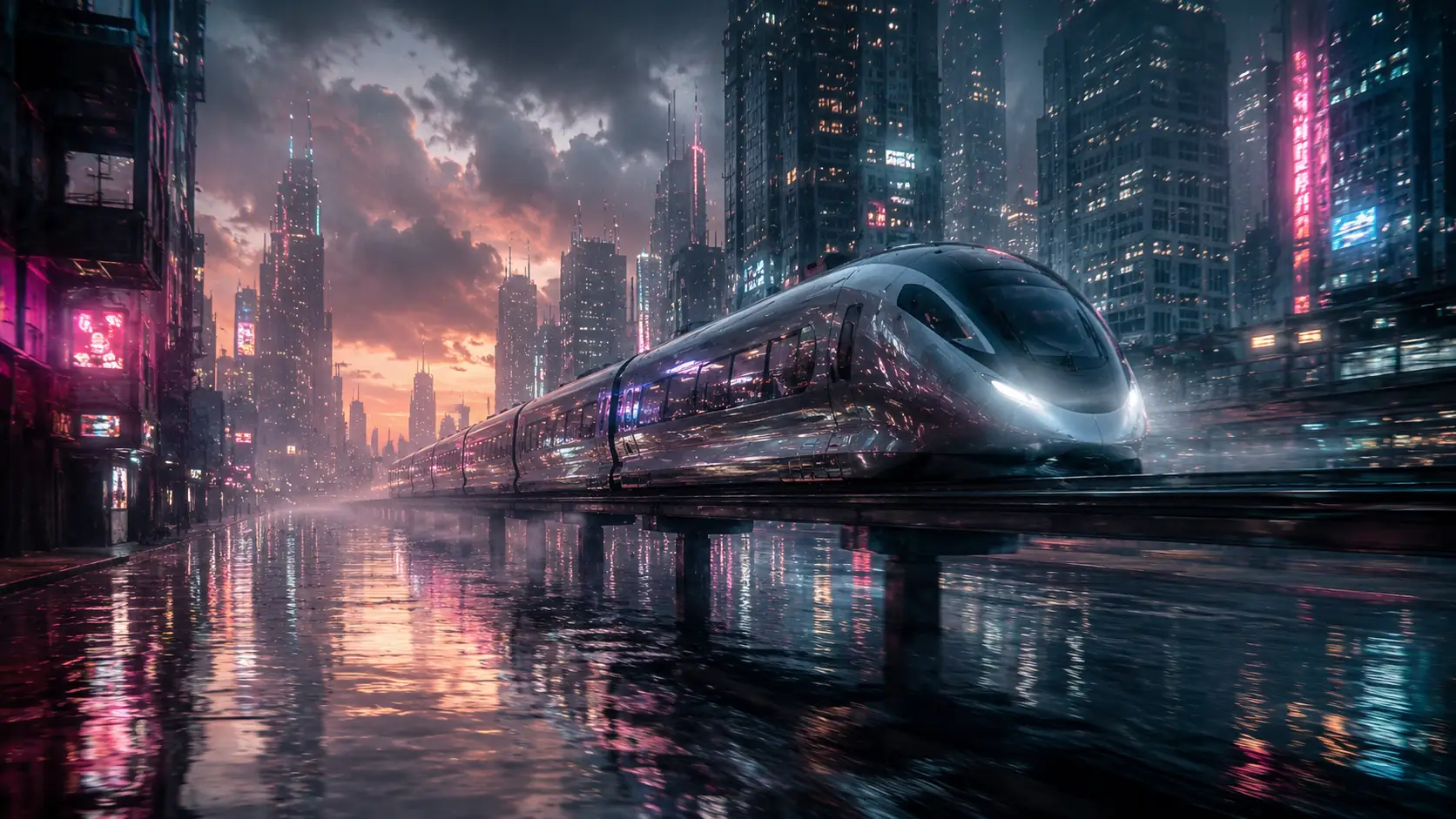
Turn a written shot direction into motion when the scene does not exist yet and you want the model to invent the first frame.

Animate a look you already have
Use a starting image when the product, person, character, or composition should stay recognizable as the clip begins.

Compare models before you rerun
Test the same direction across models when the idea is right but the motion, rendering style, pacing, or audio support still needs a better fit.
Turn the first clip into a better one
A stronger result usually comes from clearer shot direction or a better model choice, not from repeating the same vague request. Review what changed in the clip, keep the useful parts, and adjust one thing at a time before you run another pass.
Write the shot, not just the topic
A good prompt names what the viewer should see: subject, action, environment, camera movement, and visual style. "Product ad" is too broad. "A slow push-in on a glass perfume bottle on wet stone under soft studio light" gives the model a scene to build.
Keep a visual anchor when continuity matters
If the product, person, or scene already exists, use Image to Video or choose a model that accepts image input. A starting image usually gives more control than asking text alone to recreate the same subject.
Judge motion before polish
Check whether the subject stays readable, the action makes sense, and the camera move supports the idea. A pretty frame is not enough if the motion does not sell the clip.
Compare one change at a time
Keep the prompt stable when you compare models. Keep the model stable when you rewrite the prompt. That makes it easier to tell whether the improvement came from the model or the brief.
AI Video Generator in Ezier
Generate the first clip, then decide the next move.
Describe the video you want, choose from the available models, adjust the settings the model provides, and check the credit estimate before you generate. If the idea turns into a focused text or image tool, continue with Text to Video or Image to Video.
AI Video Generator FAQ
Answers about prompts, image starts, model choice, credits, and when to switch to a more focused video tool.
What is an AI video generator?
An AI video generator turns a written prompt, and sometimes a starting image, into a video draft. In Ezier, you can choose from available video models before generating so the model fits the kind of clip you want.
When should I use this broad generator instead of Text to Video?
Use the broad generator when you still want to compare input types or models. Use Text to Video once you know the job is prompt-only and does not need a starting image.
Do all video models accept image input?
No. Some models are prompt-only, and others can use a starting image. Choose a model that matches the input you want to use before you generate.
How should I choose an AI video model?
Choose by output goal. Use the same prompt to compare models for cinematic motion, social clips, product storytelling, stylized visuals, speed, or audio support when available.
How is AI Video Generator different from Text to Video or Image to Video?
AI Video Generator is the broad starting point for exploring the input and model. Text to Video is better for prompt-only scenes. Image to Video is better when a still image is the main creative anchor.
What should I include in an AI video prompt?
Include the subject, action, setting, camera movement, visual style, and any detail that must stay stable. Clear shot direction usually works better than broad labels or long stacks of adjectives.
Do I need video editing skills to start?
No. Start with a clear prompt or image, generate a short clip, then decide whether to refine the prompt, try another model, or continue in a more specific video tool.
How do credits work for AI Video Generator?
Check the live estimate on Generate before you submit. The model and available settings can affect expected credit use, and final credit use is confirmed during generation.
Is AI Video Generator good for ads, social clips, or product videos?
Yes. It is useful for short ad concepts, social motion tests, product storytelling, explainer drafts, and early creative directions because you can test both prompts and models before committing to a narrower tool.
Related paths
Refine the clip another way
Try another video step when the next move is a new source, a different model, or a cleaner result.

AI video tools
More video tools
Generate, edit, clean up, or improve clips.

AI models
Compare video models
Pick a better model before rendering again.

AI image tools
Prepare source images
Create a stronger still for the next video run.
Text to Video
Prompt-first video
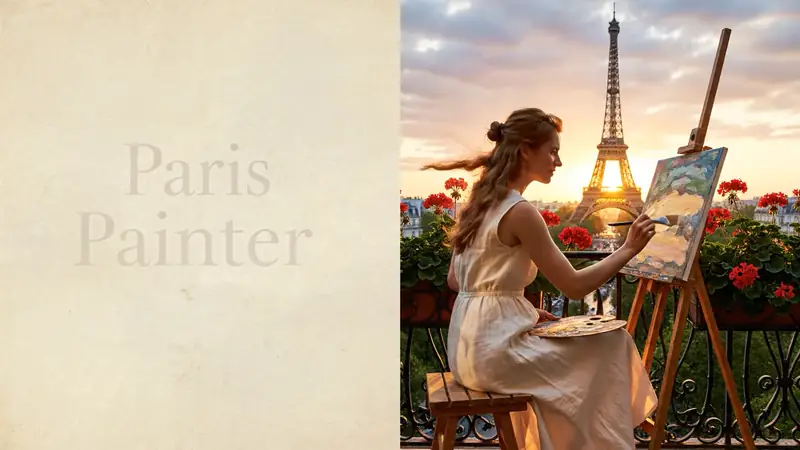
Turn a written scene into motion.
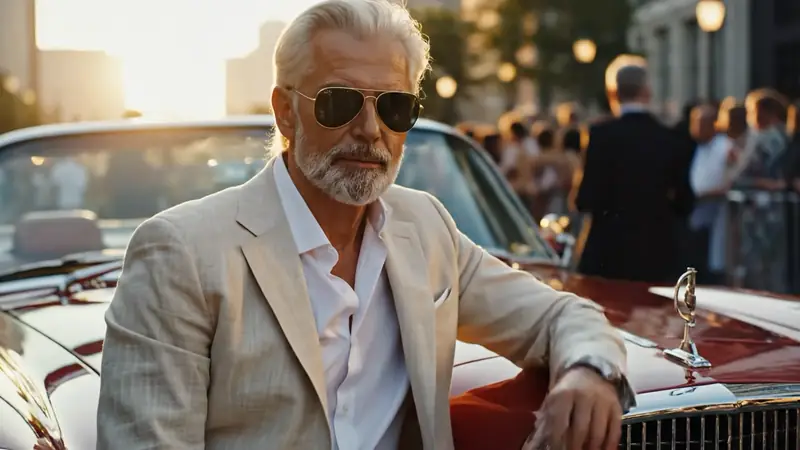
Image to Video
Animate a still
Turn an image into a short clip.
Video to Video
Restyle footage
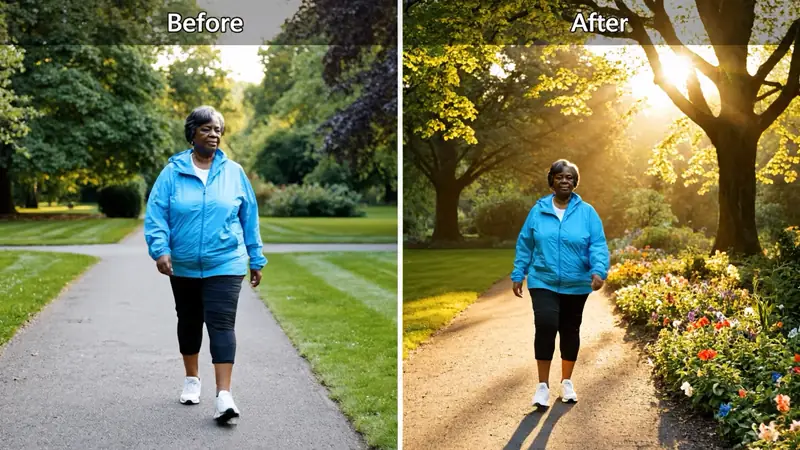
Change the look of an existing clip.
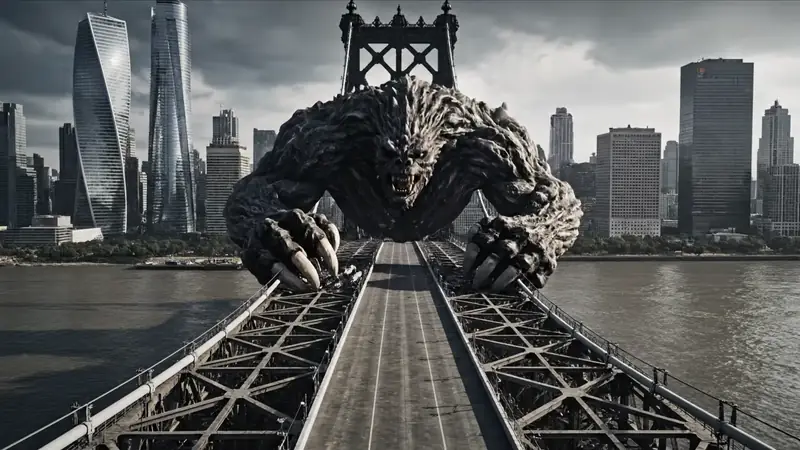
AI Video Extender
Extend a clip
Continue a short video into a longer scene.
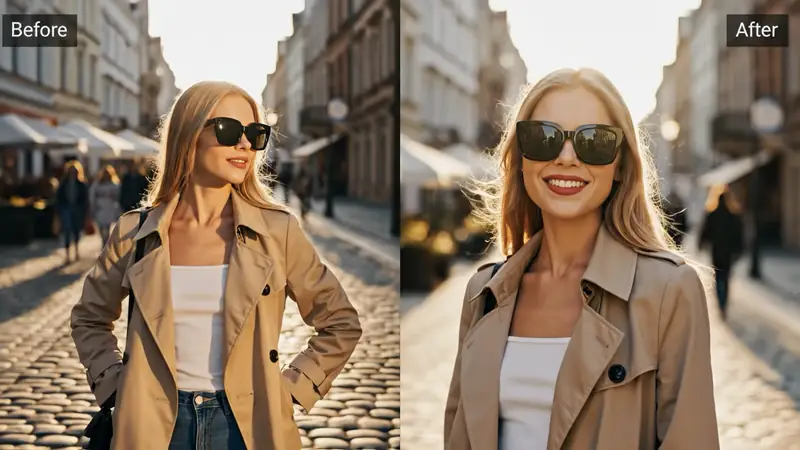
AI Video Editor
Edit with prompts
Revise a clip without a timeline.
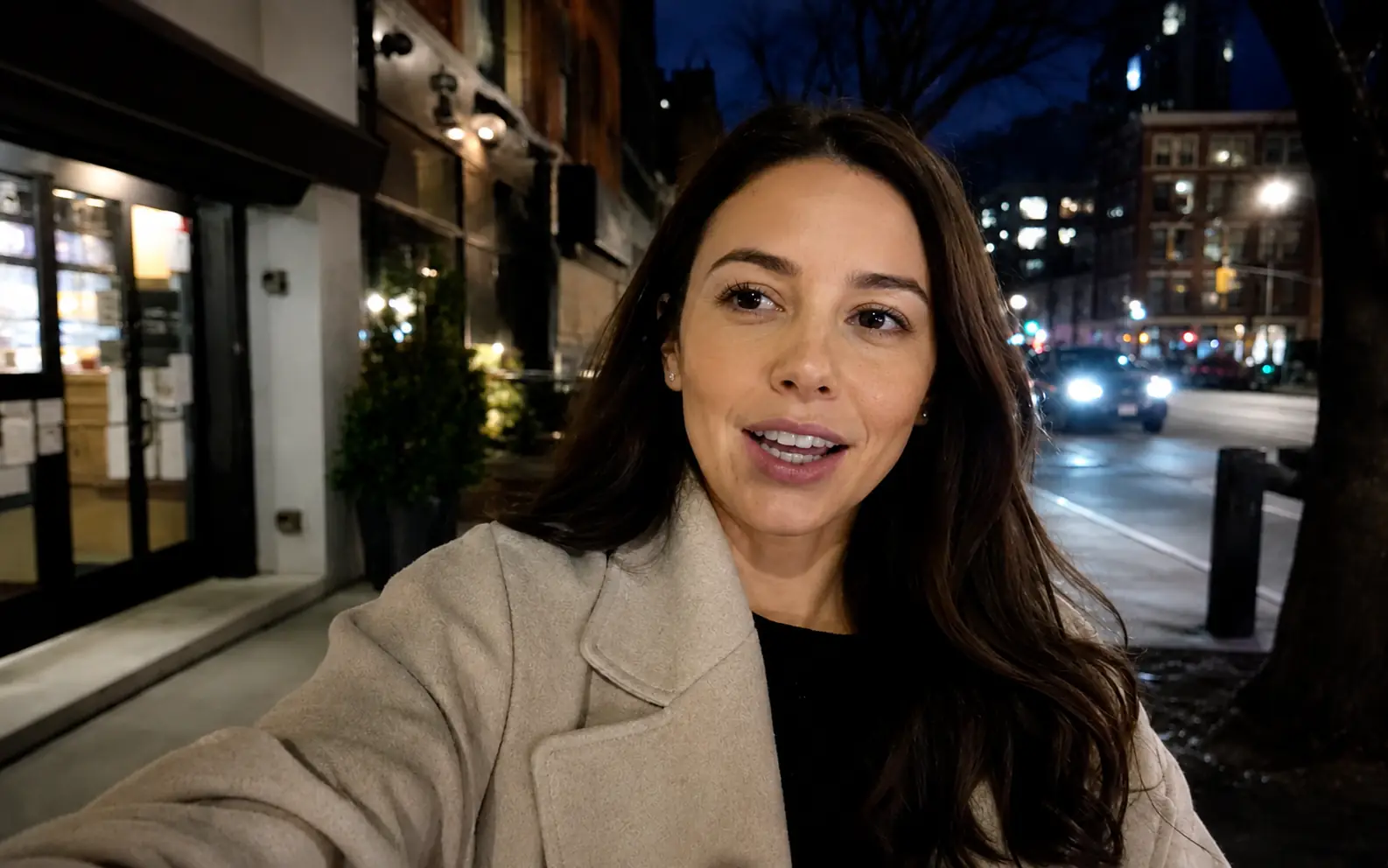
Video Enhancer
Improve quality
Sharpen, denoise, and restore clips.
AI video tools
More video tools
Generate, edit, clean up, or improve clips.
AI models
Compare video models
Pick a better model before rendering again.
AI image tools
Prepare source images
Create a stronger still for the next video run.
Text to Video
Prompt-first video
Turn a written scene into motion.