
Image to Image AI Generator for Guided Edits
Create controlled variations when your source image already has the subject, layout, or mood you want to keep.
See what a reference can become
Restyle a portrait, reshape a product scene, or keep a subject consistent across a set. Each example starts from an image instead of a blank prompt.
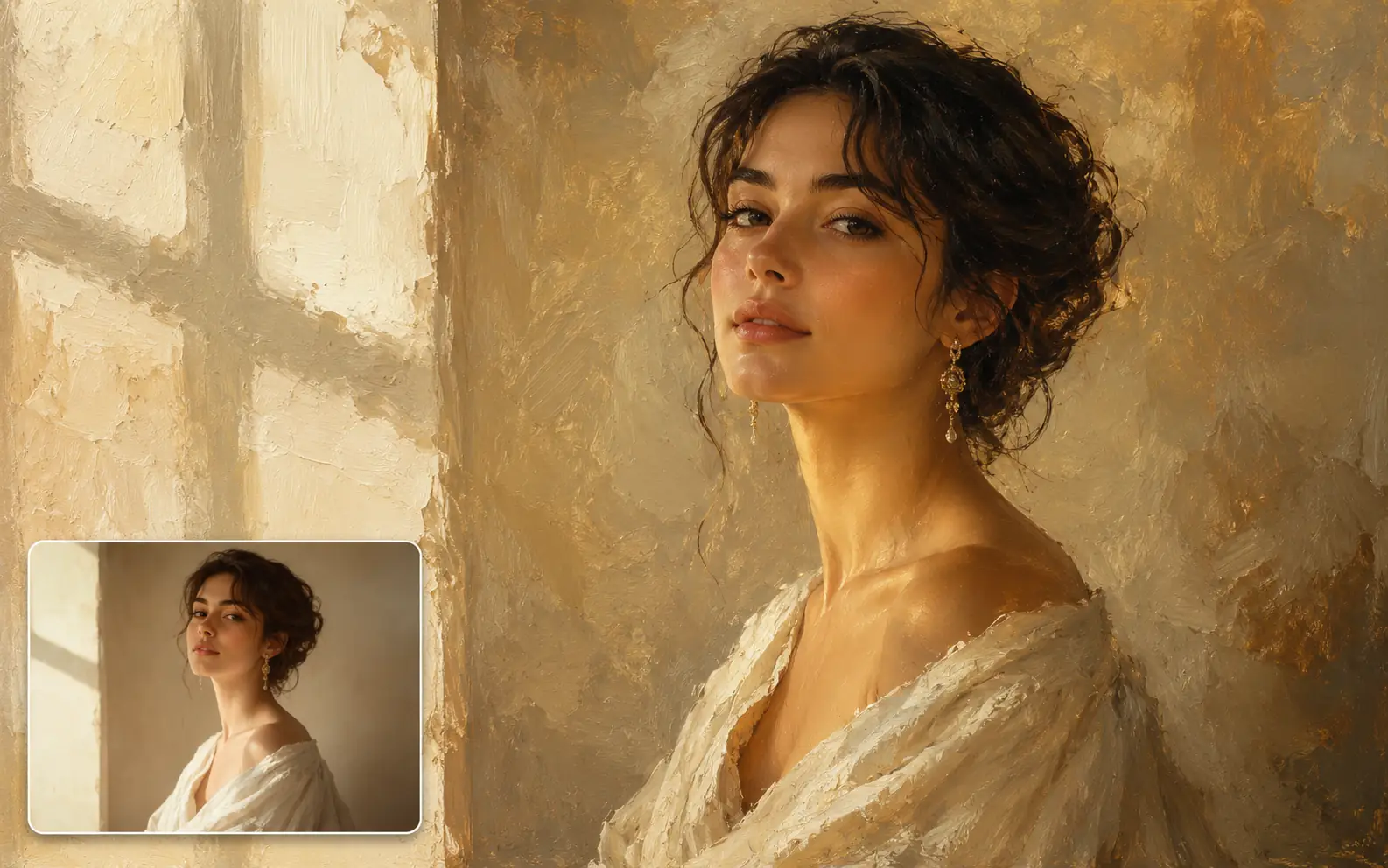
Use this portrait as the reference. Keep the woman recognizable, preserve the three-quarter pose and soft window light, and transform the image into a realistic oil painting with visible brush texture, creamy neutral tones, and a refined gallery feel.
Set up a controlled image-to-image edit
Upload the source, write a focused prompt, choose the model and ratio, then review the first result before rerunning.
- 01
Upload the source image
Choose the image with the subject, layout, style, or mood you want to carry forward.
- 02
Write the prompt in two parts
Say what should stay recognizable, then name the new direction.
- 03
Choose model and format
Pick an image model and ratio that match the final use case.
- 04
Review one variable at a time
If the result drifts, adjust the prompt, model, or ratio before rerunning.
Explore reference-led transformations
Image to Image can use the source as a starting structure while the result moves into a new style, a more realistic scene, or a consistent set.
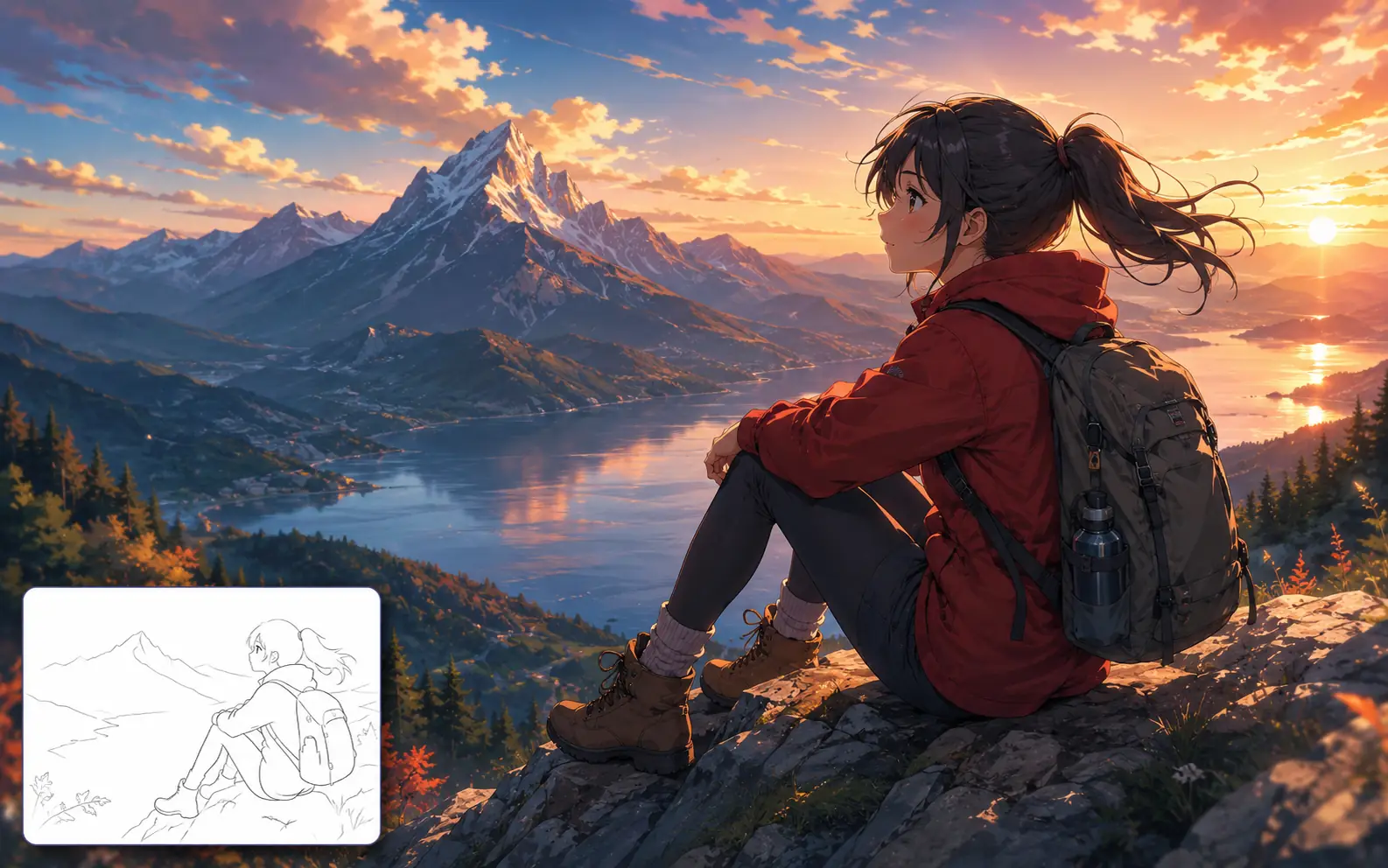
Turn line art into anime artwork
Start from a clean sketch, then keep the pose and composition while building a full anime scene with color, depth, and atmosphere.
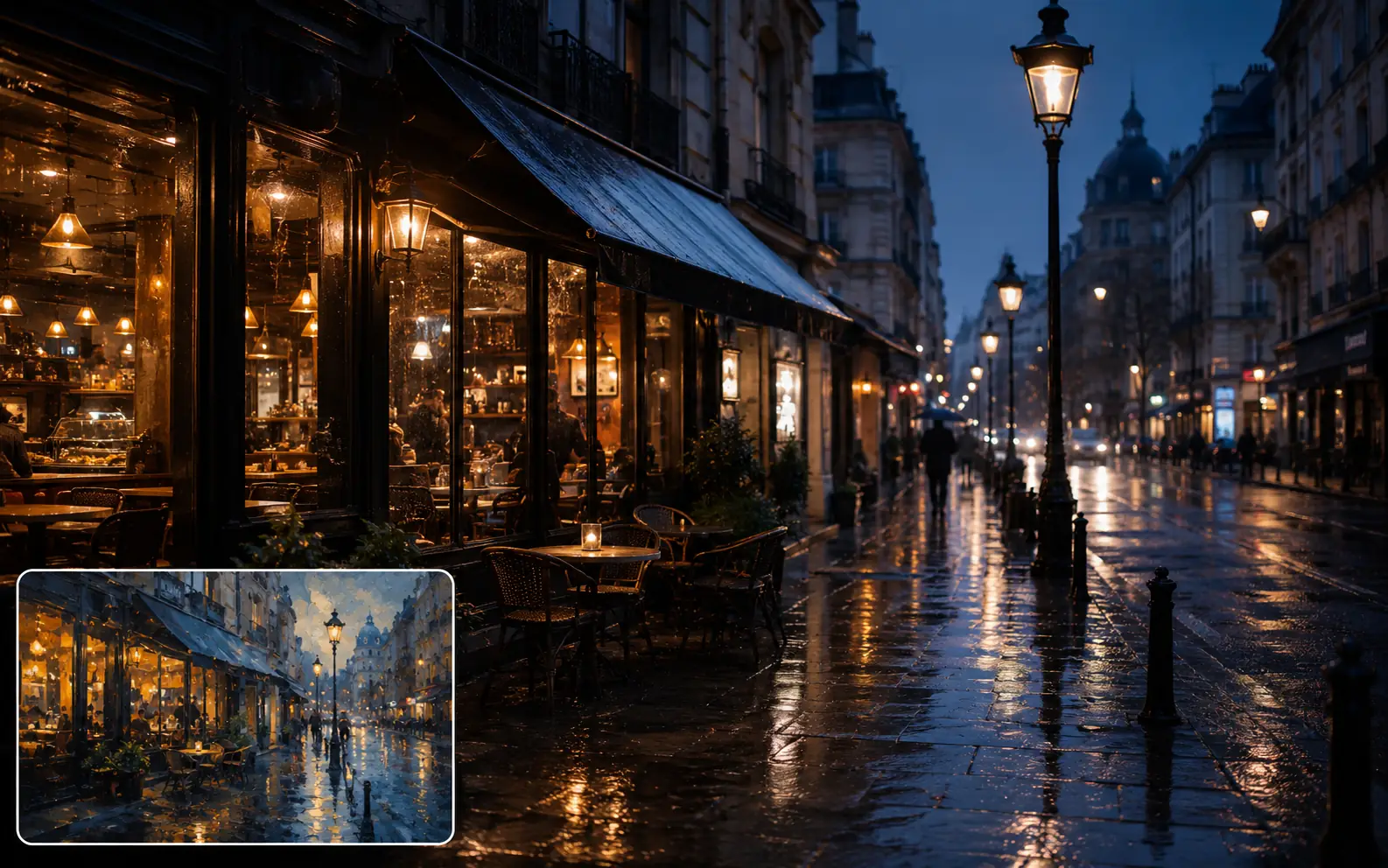
Turn a painted street scene into a real photo
Start from a painterly night street, then keep the cafe glow, wet reflections, and overall composition while resolving it into a realistic city photograph.
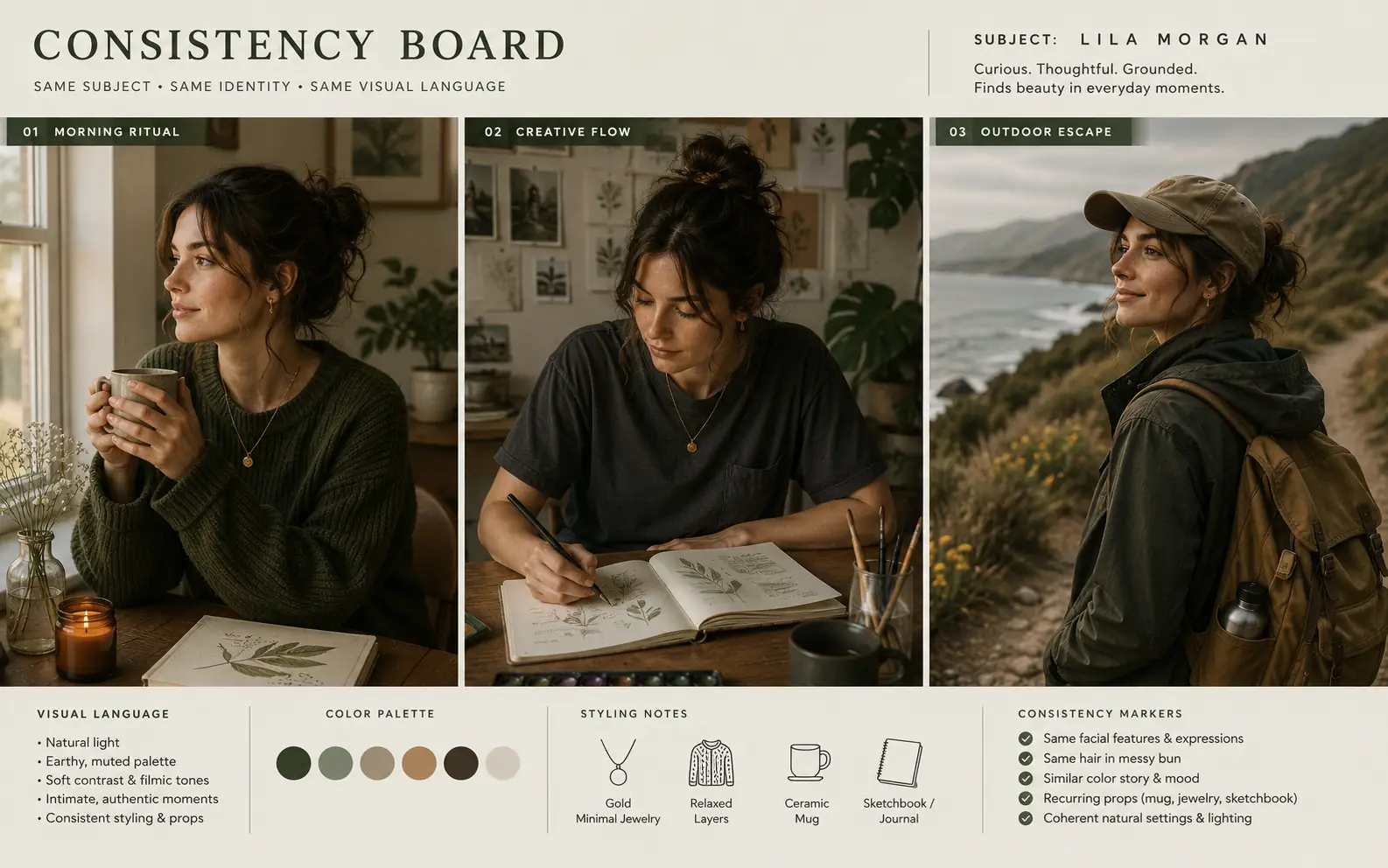
Keep a multi-image set consistent
Repeat the same subject, wardrobe, color palette, and mood across a sequence so the strongest direction is easier to keep.
Avoid drift in image-to-image results
Use these checks when the output loses the source, changes too much at once, or needs cleanup before a creative pass.
Start with a readable source
Use an image where the subject, edges, and important details are easy to see.
Protect one key detail
Name the face, product shape, pose, palette, or layout that matters most.
Make one main change
Change the style, scene, or format in one pass instead of rewriting everything at once.
Repair quality first
If blur, noise, or low resolution is the real problem, clean up the source before restyling it.
Image to Image in Ezier
Turn a source image into the next version.
Upload the closest starting point, write what should stay and change, and generate a reference-led variation.
Image to Image FAQ
Answers about references, nearby tools, and how to review the first result.
What is image to image AI?
Image to image AI takes an existing image as a reference and generates a new version from it. It can preserve structure, style, or identity while transforming other visual elements.
When should I use image to image instead of text to image?
Use image to image when you already have a useful reference and want to transform it. Use text to image when you are starting from a blank idea with no visual anchor yet.
How is Image to Image different from AI Image Editor?
Use Image to Image when you want a new version guided by the whole source image. Use AI Image Editor when one specific area needs to be removed, replaced, or refined while the rest stays stable.
Can image to image preserve a face or character?
It can help keep a face, character, or main structure closer to the source when your prompt says what must stay recognizable. Always review the first result before using it in final work.
What should I inspect after the first result?
Check whether the main subject, structure, and style followed the reference closely enough. If one part drifted, tighten that instruction before changing the whole prompt.
Should I enhance or unblur the image first?
Yes, when quality is the main issue. Use Image Enhancer or Unblur Image before Image to Image if the source is soft, noisy, or too low resolution for the model to read clearly.
Keep creating
Keep working from here
Continue with image edits, compare model quality, or send the result into a video workflow.

AI image tools
More image tools
Create, edit, clean up, or upscale stills.

AI models
Compare image models
Pick a better model before making more versions.

AI video tools
Make it move
Animate a still or turn it into a clip.
Image to Prompt
Describe a reference
Turn visible image details into a reusable AI prompt.
Text to Image
Prompt-first creation
Turn a written idea into an image.
AI Image Generator
Start from any idea
Create a fresh image from a prompt.
Product Picture Generator
Product visuals
Create polished product photos and campaign scenes.
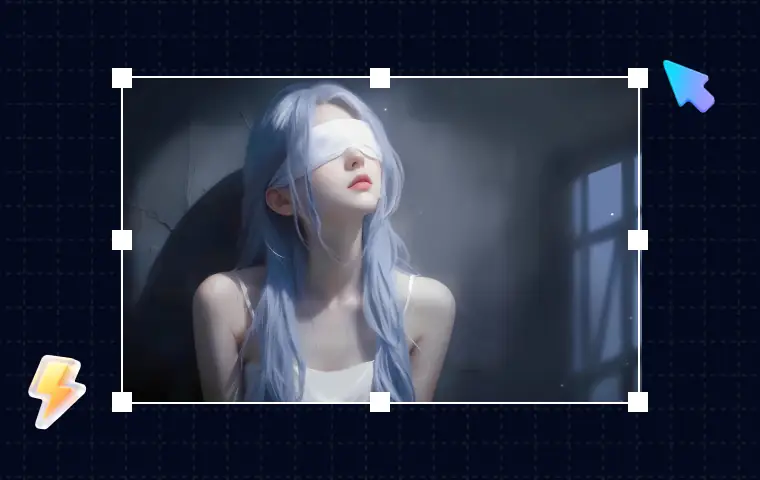
AI Image Editor
Prompt-based edits
Change an image without starting over.
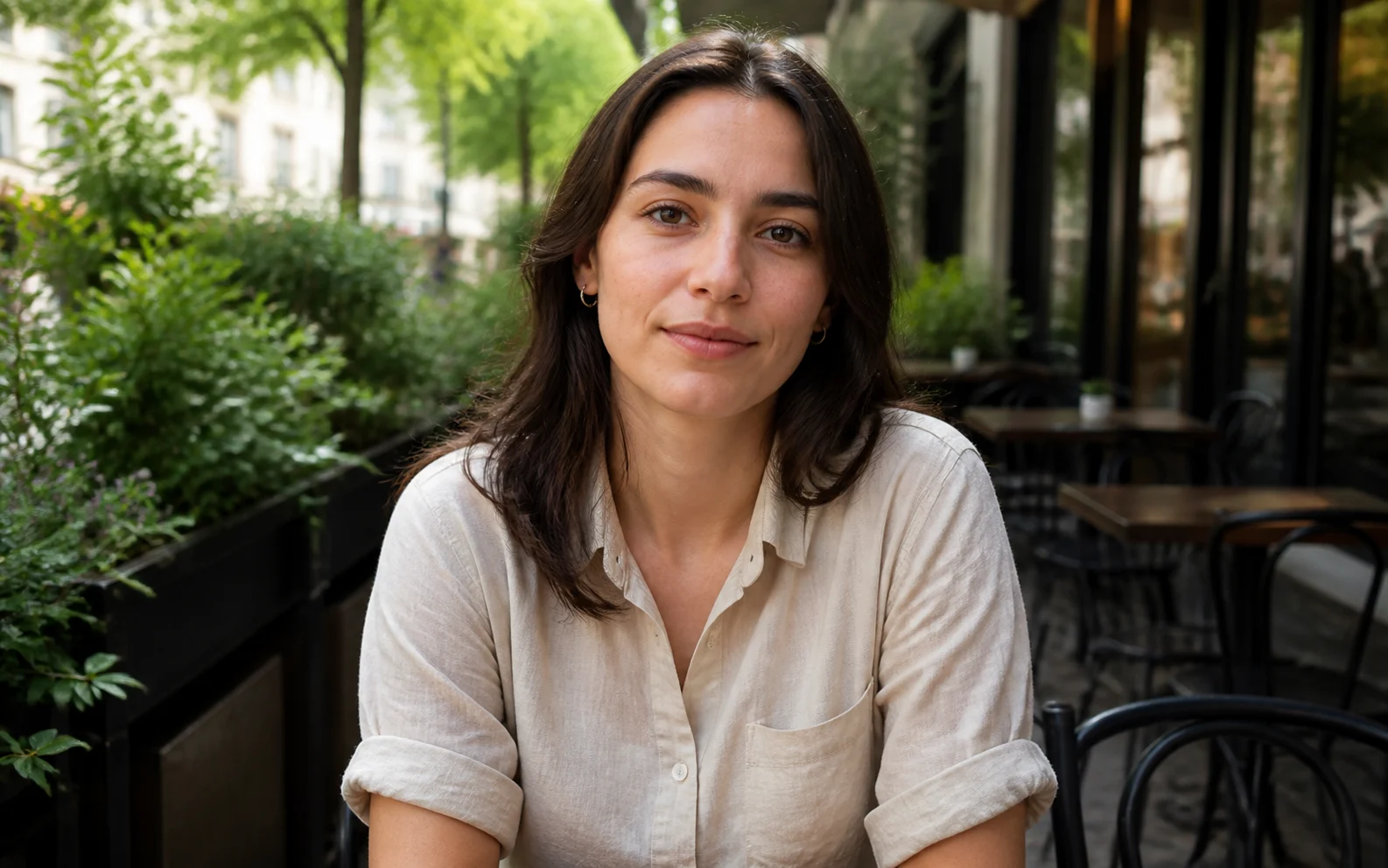
Remove Filter from Photo
Restore natural color
Reduce color casts and heavy filter effects.
AI image tools
More image tools
Create, edit, clean up, or upscale stills.
AI models
Compare image models
Pick a better model before making more versions.
AI video tools
Make it move
Animate a still or turn it into a clip.
Image to Prompt
Describe a reference
Turn visible image details into a reusable AI prompt.