
Video Watermark Remover for Cleaner Footage
Remove corner logos, repost handles, timestamps, and translucent marks from short MP4/MOV clips you can edit, then review the repaired area in motion.
Create
Original Video
Sample videos


How to remove a watermark from a video in Ezier
- 01
Upload the clip
Add one MP4 or MOV file up to 100MB. Use the clip that contains the visible watermark, logo, handle, timestamp, or preview mark you want to clean.
- 02
Run the remover
Click Create after the upload finishes. This page runs directly, so there is no prompt, model choice, brush, or box selection to set first.
- 03
Check the repair
Play the result and watch the cleaned area across movement, edges, text, faces, and textured backgrounds. Video artifacts are easier to catch in motion.
- 04
Download the video
Download the cleaned clip when the repair looks stable. If the mark behaves more like captions, a large object, or a background issue, use the remover built for that task.
What Video Watermark Remover can remove
Clean visible overlays that sit on top of the footage, including corner logos, creator handles, timestamps, platform badges, and preview watermarks.


Remove corner handles and logo badges
Clean small marks near the edge of the frame, such as creator handles, channel logos, repost badges, or timestamps, while the main subject stays in view.
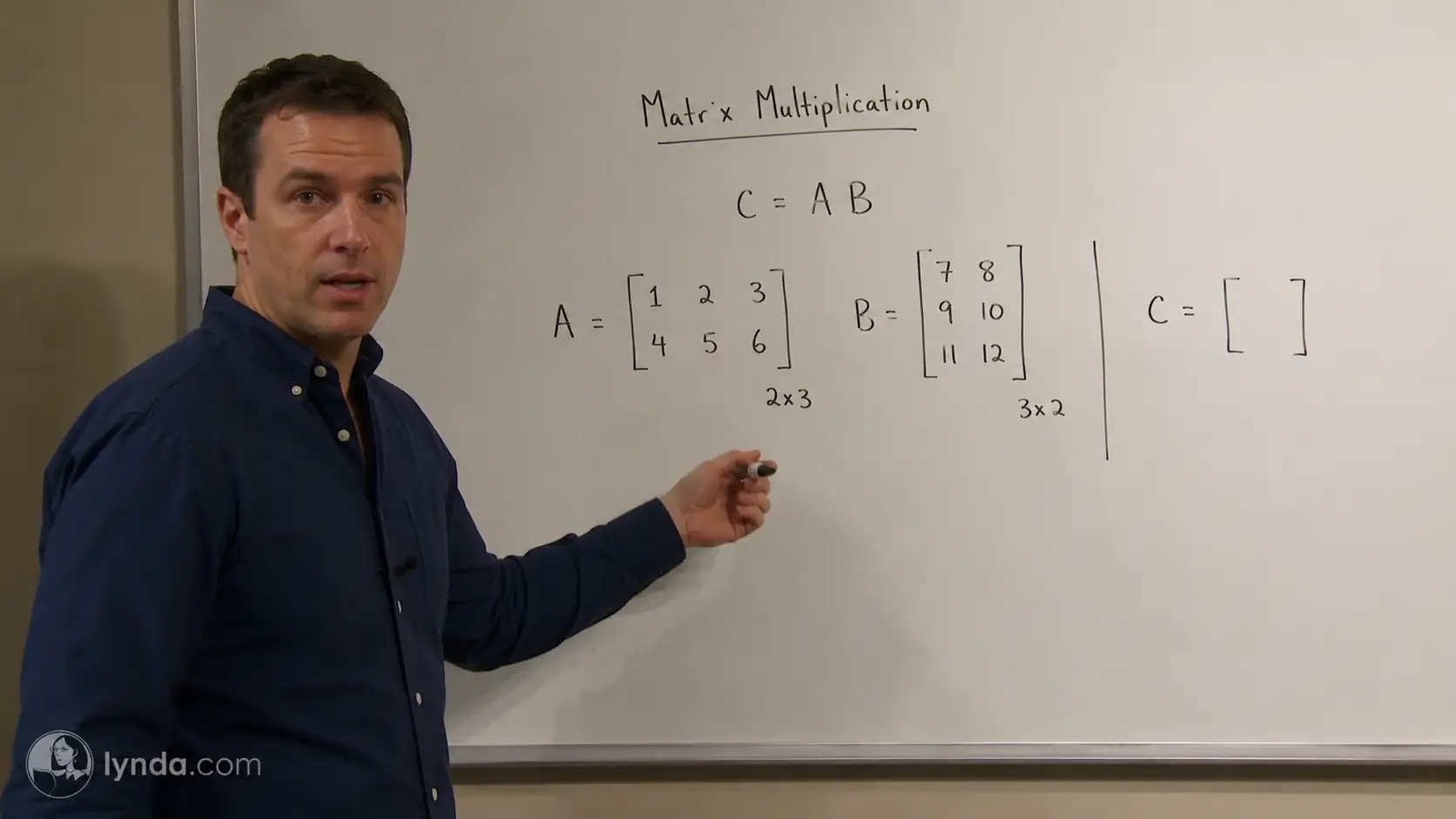
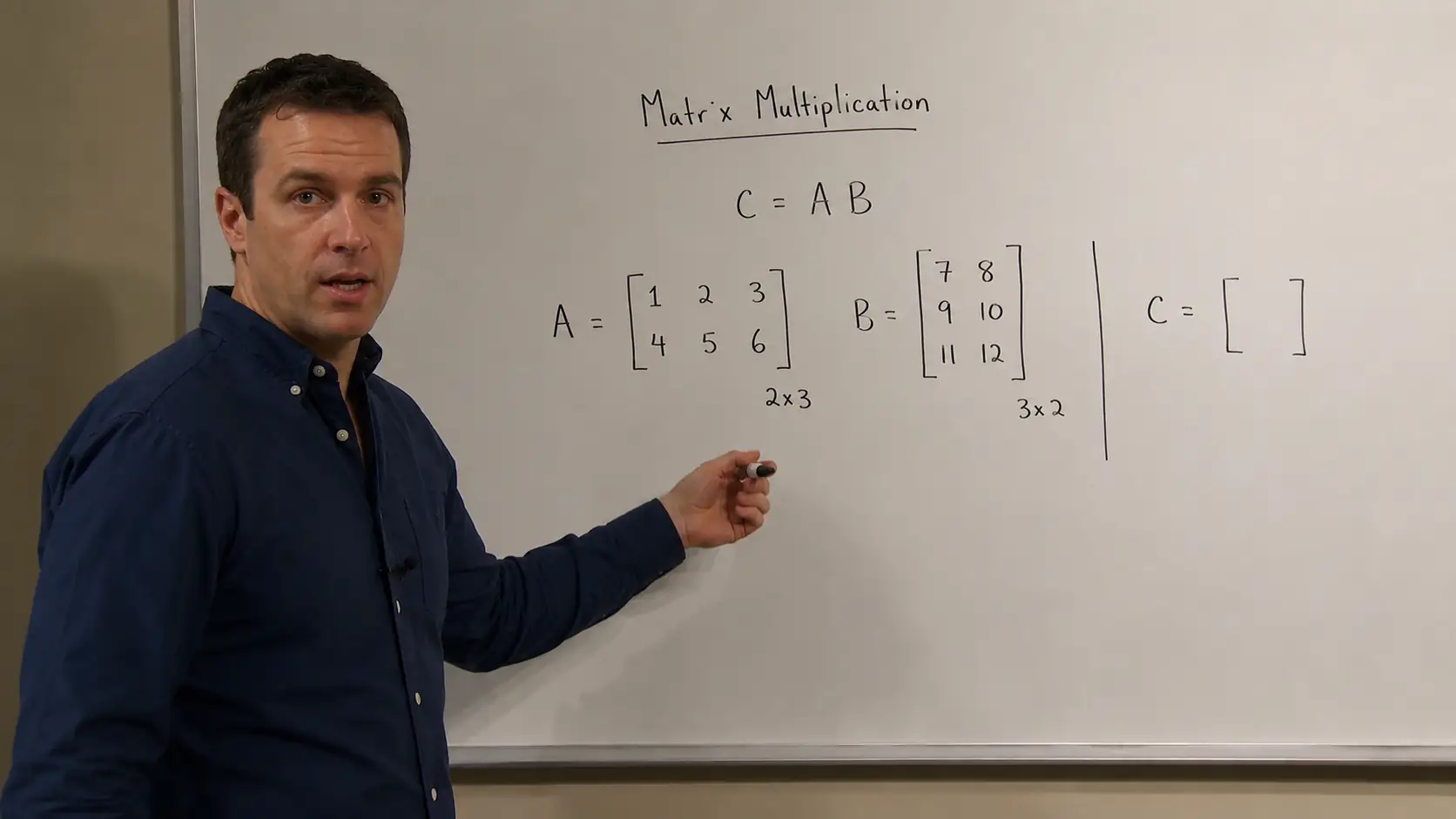
Clear platform marks and source labels
Remove visible platform logos or source labels from lessons, walkthroughs, screen recordings, demos, and review clips without changing the core footage.


Clean translucent preview watermarks
Remove larger semi-transparent preview marks when the original detail still shows through, including overlays across simple backgrounds, windows, faces, or reflections.
Get cleaner video watermark removal results
Watermark cleanup works best when the source clip has enough detail to rebuild, the mark stays visible, and the repaired area can be checked in motion.
Start with the cleanest source file
Use the version with the least compression, blur, and camera shake. The remover has more detail to work with when the original footage is sharp enough to rebuild around the mark.
Test the shortest useful section
If the same watermark appears across a long video, try a short section first. You can judge the repair pattern faster before processing more footage.
Expect cleaner repairs on stable marks
Corner logos, timestamps, and fixed badges are usually easier than marks that drift across faces, hands, product edges, captions, or reflections.
Watch the repaired area while it moves
Do not judge the result from one paused frame. Play the clip and look for smearing, flicker, broken edges, repeated texture, or leftover watermark traces.
Ready to clean a marked clip?
Remove the visible mark without changing the whole video.
Use a focused cleanup pass for logos, handles, timestamps, and preview marks when the rest of the footage should stay as it is.
Video Watermark Remover FAQ
Practical answers about suitable watermarks, tricky overlays, and when another cleanup tool is a better fit.
What kinds of marks is Video Watermark Remover best for?
Video Watermark Remover is best for corner logos, repost handles, timestamps, platform badges, and other overlay marks. Results are usually cleanest when the mark stays in one area and does not cover the subject or important text.
Can I use Video Watermark Remover on any video?
Use it on videos you own or have permission to edit. The tool is designed for cleanup, review, and post-production work on clips you are allowed to modify.
Do I need to mark the watermark by hand?
No. This page runs as an upload-and-create workflow. There is no manual brush, box selection, prompt field, or model picker here.
Can it help with moving or transparent watermarks?
Sometimes, but those cases are harder than fixed corner marks. Results depend on movement, transparency, and whether the mark crosses faces, products, captions, reflections, or other detailed areas.
When should I use Video Subtitle Remover instead?
Use Video Subtitle Remover when the unwanted element is a burned-in subtitle line or persistent caption area across the bottom of the frame. That is a different cleanup job from removing a watermark.
When should I use Remove Object from Video instead?
Choose Remove Object from Video when the unwanted element is larger than a normal watermark or feels more like an object inside the scene than a small overlay.
Should I use this for full background cleanup?
No. Use Video Background Remover when the whole environment behind the subject needs to be removed or changed. Video Watermark Remover is for smaller overlay marks on top of the existing video.
Keep creating
Set up the next pass
Continue with generation, editing, model choice, or source preparation without starting from the sidebar.

AI video tools
More video tools
Generate, edit, clean up, or improve clips.

AI models
Compare video models
Pick a better model before rendering again.

AI image tools
Prepare source images
Create a stronger still for the next video run.
Video Subtitle Remover
Remove captions
Clean burned-in subtitles from footage.

Remove Object from Video
Clean distractions
Remove unwanted objects from footage.

Video Background Remover
Remove backgrounds
Isolate a subject across a clip.

AI Video Editor
Edit with prompts
Revise a clip without a timeline.

Video Enhancer
Improve quality
Sharpen, denoise, and restore clips.

Video Upscaler
Make it larger
Upscale clips for bigger screens.
AI video tools
More video tools
Generate, edit, clean up, or improve clips.
AI models
Compare video models
Pick a better model before rendering again.
AI image tools
Prepare source images
Create a stronger still for the next video run.
Video Subtitle Remover
Remove captions
Clean burned-in subtitles from footage.