
Video Upscaler for Higher-Resolution Clips
Upload an MP4 or MOV and enlarge existing clips for bigger screens, larger embeds, safer crops, or reuse in a higher-resolution edit.
Create
Original Video
Sample videos


How to upscale a video in Ezier
Use Video Upscaler when the clip already works, but the file needs more pixels for playback, cropping, embedding, or reuse.
- 01
Upload the source clip
Add the MP4 or MOV you want to enlarge. The uploader shows a 100MB limit, so short exports, demos, reused social clips, and archive test passes are the practical fit.
- 02
Choose the upscale factor
Pick 2x, 3x, or 4x based on where the clip will be used. Use 2x for a modest size gain, 3x for more crop room, and 4x for larger presentation or reuse needs.
- 03
Create the higher-resolution clip
Check the credit estimate on Create, run the upscale, and compare the result with the original before downloading the larger file.
- 04
Review at the target size
Watch faces, UI text, thin edges, compression blocks, and motion at the size where the clip will be used. That is where the upscale quality matters.
What Video Upscaler can improve
Upscaling helps when the original shot is usable but too small for the next place it needs to appear: a larger screen, a presentation, an embedded lesson, a tighter crop, or a reused edit.
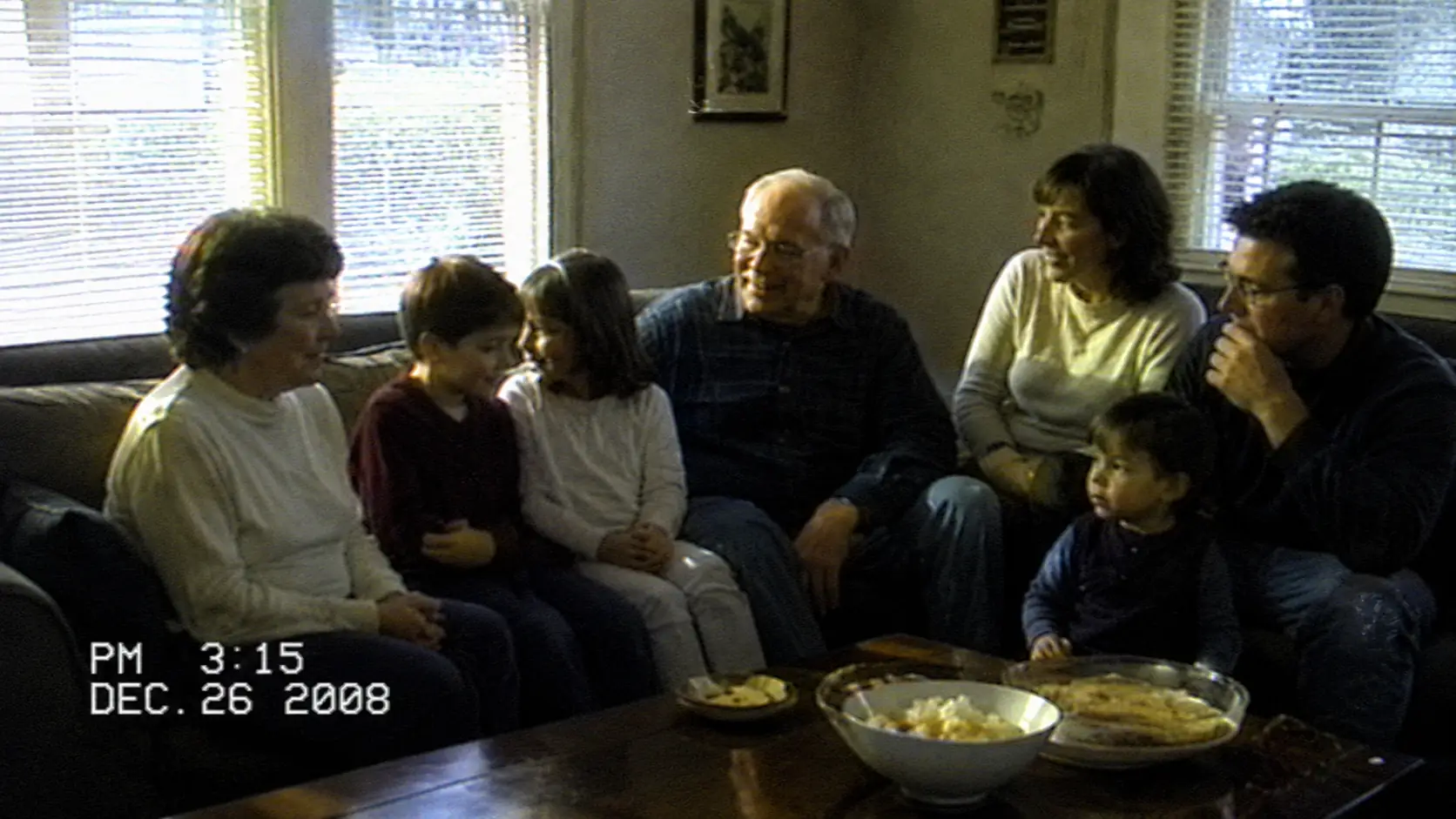

Make older clips hold up on modern screens
Family footage, archive clips, and old exports can still have moments worth keeping even when the file is small. Upscaling gives those clips more usable size for current displays, presentations, and edits.
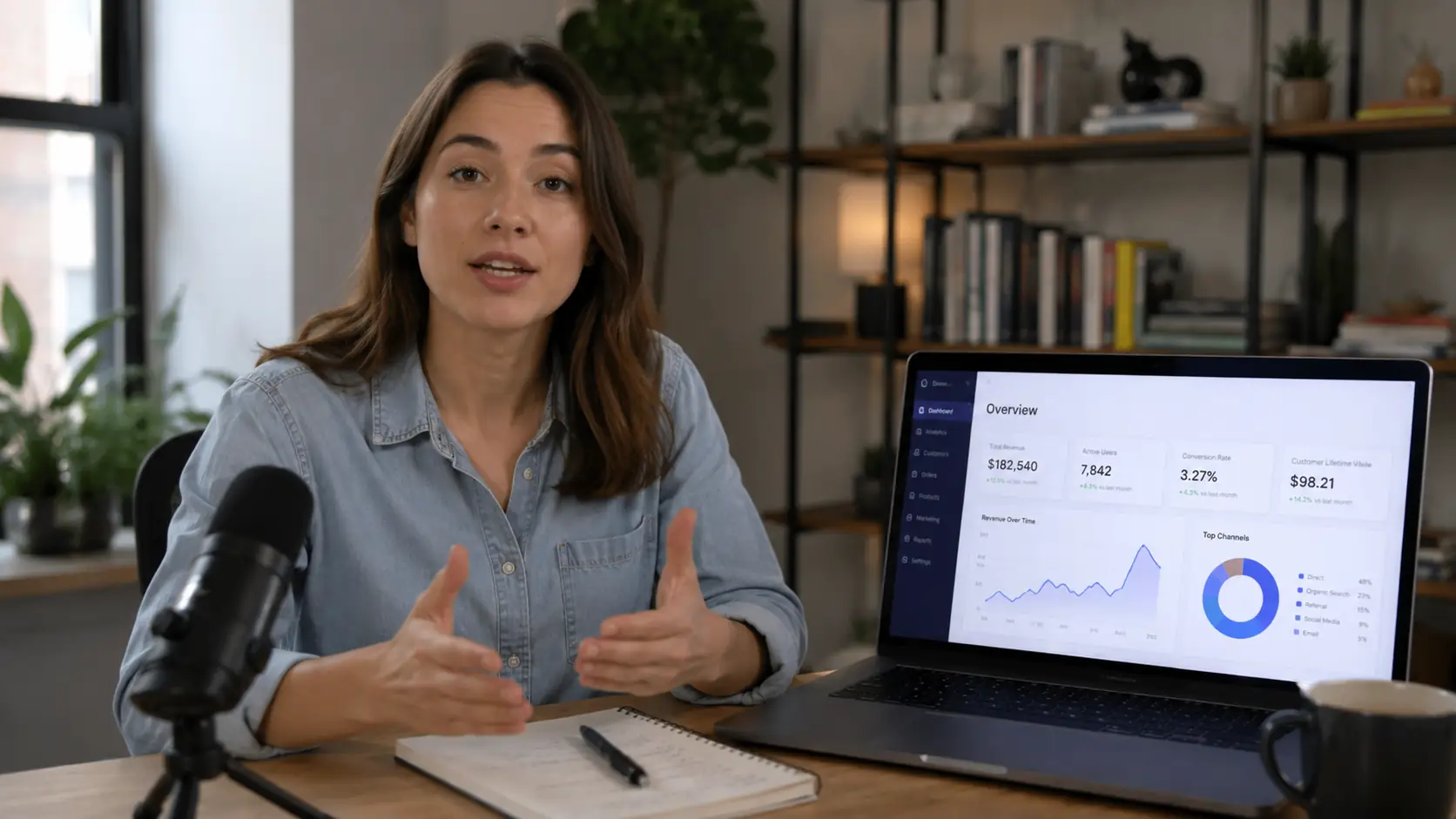
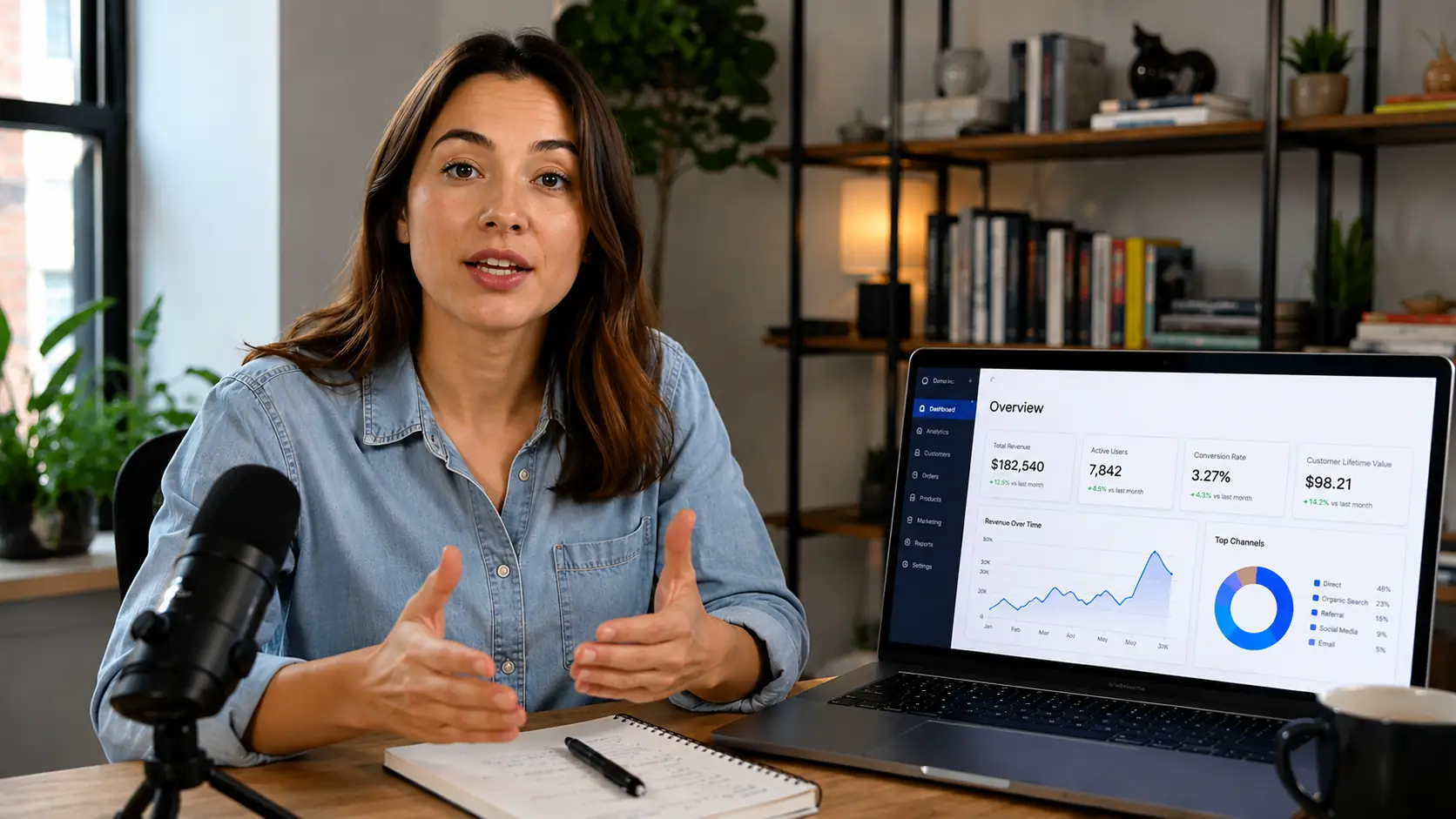
Keep lessons, demos, and screens readable
A tutorial or product walkthrough may look acceptable in a small preview but weak when embedded at desktop width. Upscale when viewers need faces, UI panels, charts, labels, and product details to stay readable.


Create more room for crops and reuse
Short edits, AI-generated clips, and creator footage often need a larger master before they can be cropped, republished, or shown on a bigger canvas. Upscaling helps prepare the same shot for more formats.
Get better Video Upscaler results
Better upscaling starts with the final use. Choose the size that solves the viewing problem, then check whether the source is clean enough to enlarge.
Choose the size by where it will appear
A web embed, course lesson, deck, TV screen, and cropped social edit do not need the same output size. Pick the smallest upscale that solves the real viewing problem.
Do not jump to the largest scale by default
A larger export can add storage weight and make artifacts easier to notice. Pick 2x, 3x, or 4x by the viewing size and crop room the final clip actually needs.
Clean up the source before enlarging it
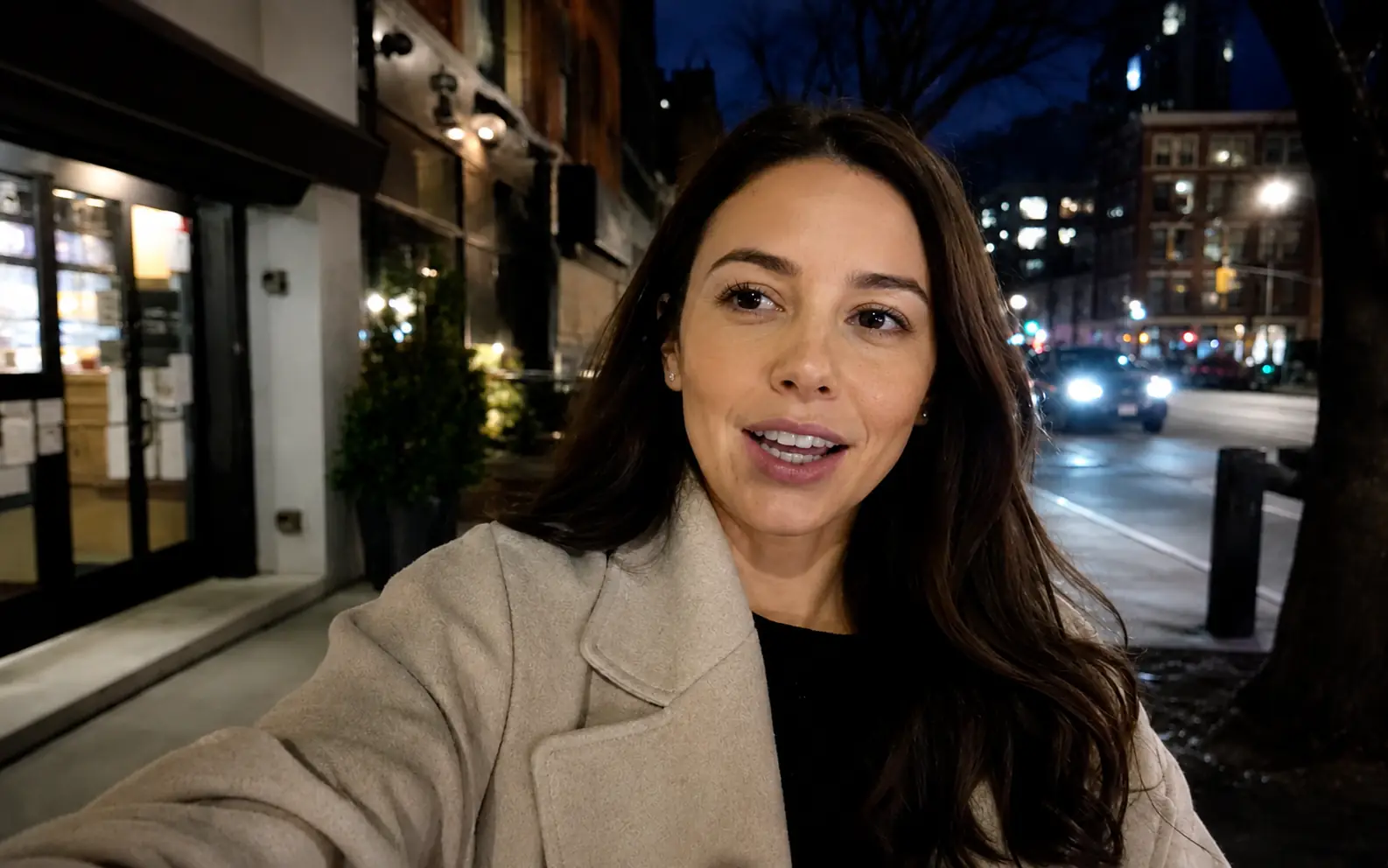
For noisy, dark, or washed-out source footage, start with Video Enhancer . For blur from motion or focus problems, use Unblur Video first so the upscaler has cleaner frames to enlarge.
Review the result at the target size
Compare the original and the upscale where the clip will actually be used. Watch faces, UI text, thin edges, compression blocks, and fast motion before you download the larger file.
Video Upscaler in Ezier
Need a larger version of the same clip?
Upload a short MP4 or MOV, choose an upscale factor, and create a higher-resolution export without changing the original shot.
Video Upscaler FAQ
Practical answers about 2x, 3x, 4x, source quality, and when another video tool should come first.
What does a video upscaler do?
Video Upscaler increases the output resolution of an existing clip so it can hold up better on larger displays, in embeds, or in edits that need more crop room. It keeps the same shot rather than changing the scene.
Is Video Upscaler the same as Video Enhancer?
No. Video Upscaler is mainly for increasing output resolution when the clip already looks reasonably clean. Video Enhancer is better when the source needs noise, color, contrast, or compression cleanup before a larger export.
What source videos work best?
Use the cleanest MP4 or MOV you have. Upscaling works best when the clip is small but still readable, such as archive footage, family videos, tutorials, screen recordings, reused social clips, or AI-generated videos.
Should I choose HD, 2K, or 4K?
Choose the smallest size that solves the delivery need. HD is often enough for web and normal desktop viewing. Larger output makes more sense for big screens, tighter crops, presentations, or footage you plan to reuse later.
Can upscaling fix a blurry or noisy video?
Not by itself. Upscaling adds resolution, but blur, missed focus, heavy noise, and flat low-light footage should be handled before you enlarge the file. Use Unblur Video or Video Enhancer first when those problems are the main issue.
Should I choose 2x, 3x, or 4x?
Choose 2x for a modest upgrade, web embeds, lessons, and normal desktop playback. Choose 3x when you need more crop room or a stronger source for editing. Choose 4x for larger-screen presentation or reuse where the bigger file size is worth it.
Will upscaling change the aspect ratio or framing?
No. Upscaling enlarges the existing video for higher-resolution delivery. It does not rewrite the composition or create a new crop, although a larger file can give you more room to crop later in an editor.
Will the exported file be larger?
Usually, yes. Higher-resolution video contains more pixels, so file size often grows as you move to a larger delivery format. Test a short representative clip before committing to a long export.
What should I check before downloading the result?
Review the upscaled clip at the size where it will be used. Check faces, UI text, thin edges, compression blocks, and motion. A clip that looks larger but still noisy or soft needs source cleanup before another upscale.
Keep creating
Set up the next pass
Continue with generation, editing, model choice, or source preparation without starting from the sidebar.

AI video tools
More video tools
Generate, edit, clean up, or improve clips.

AI models
Compare video models
Pick a better model before rendering again.

AI image tools
Prepare source images
Create a stronger still for the next video run.
Video Enhancer
Improve quality
Sharpen, denoise, and restore clips.
Unblur Video
Fix motion blur
Recover clearer frames in soft footage.
AI Video Editor
Edit with prompts
Revise a clip without a timeline.
Video to Video
Restyle footage
Change the look of an existing clip.
AI Video Generator
Start a video
Create a clip from a prompt or image.

Image to Video
Animate a still
Turn an image into a short clip.
AI video tools
More video tools
Generate, edit, clean up, or improve clips.
AI models
Compare video models
Pick a better model before rendering again.
AI image tools
Prepare source images
Create a stronger still for the next video run.
Video Enhancer
Improve quality
Sharpen, denoise, and restore clips.