
Upload Image
Watermark Remover for Marked Images
Clean authorized images with stock photo text, logo stamps, and semi-transparent watermarks. Repair the marked area, then download a cleaner file.
Samples
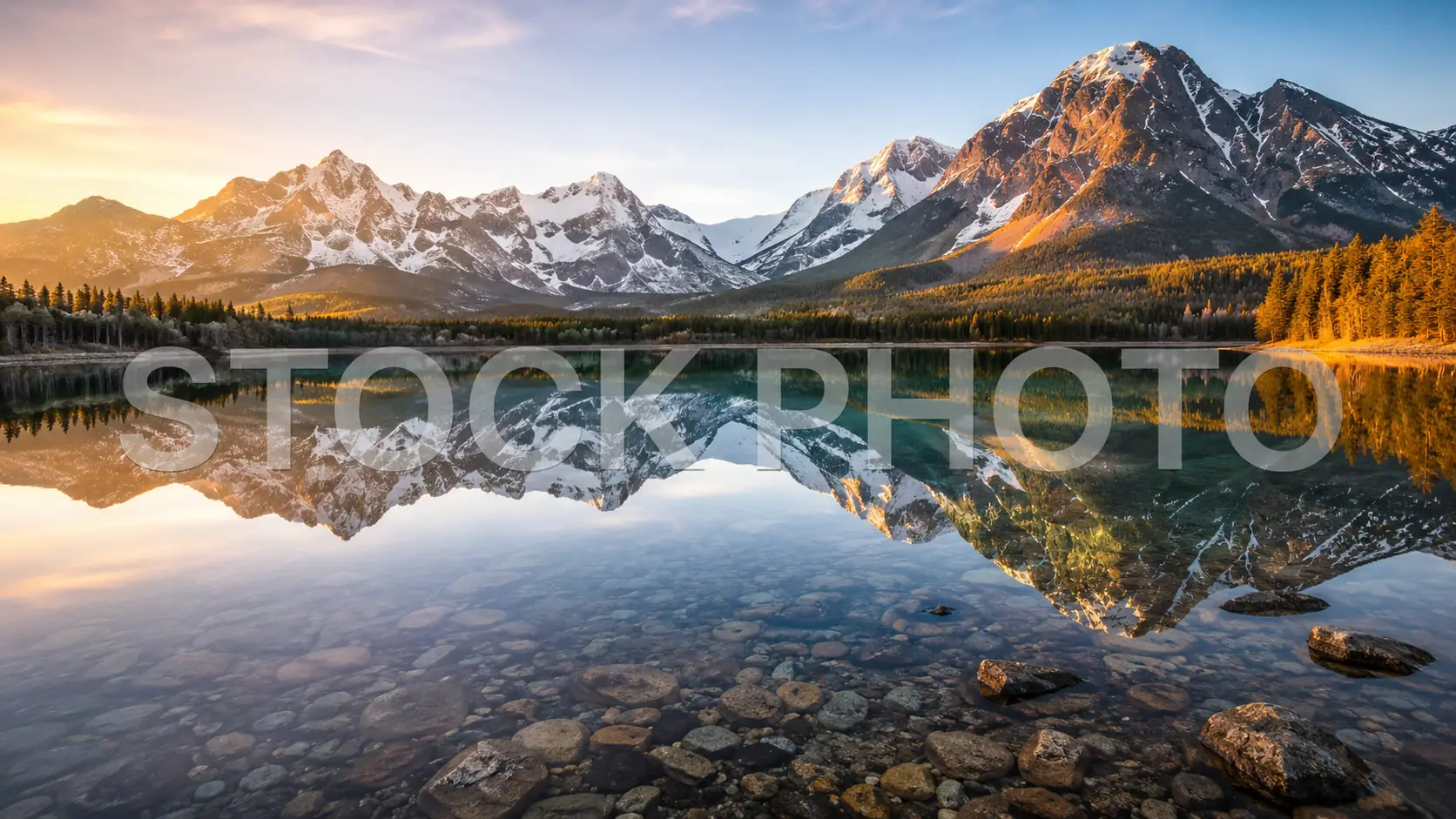
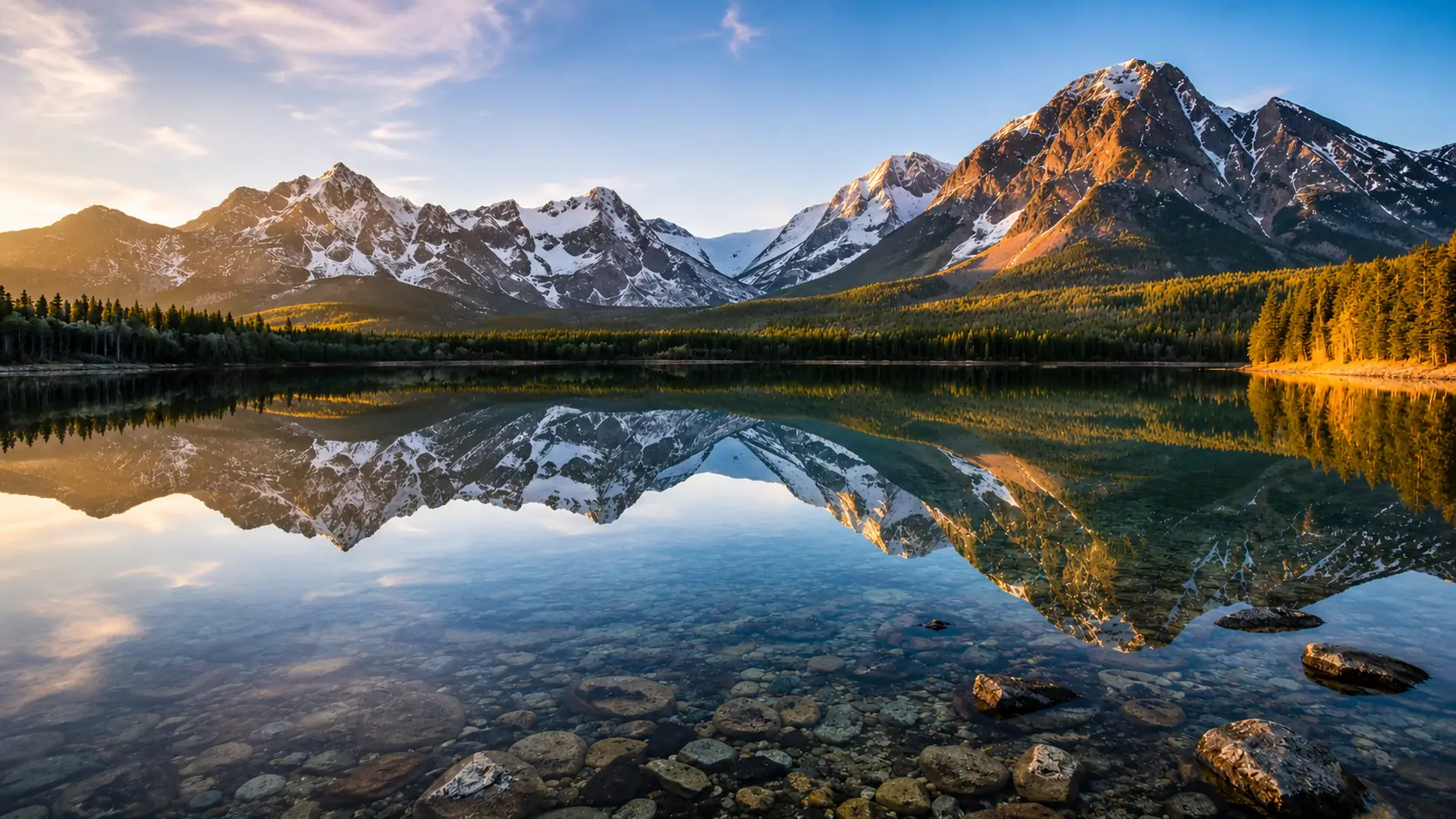
Remove a watermark from an image you can edit
Use Watermark Remover when a licensed or owned image has a stock label, preview text, logo stamp, or translucent mark on top.
- 01
Upload one marked image
Choose a PNG, JPG, WEBP, or GIF that you are allowed to edit.
- 02
Select Remove Watermark
Run the cleanup so Ezier can remove the visible mark and rebuild the area underneath.
- 03
Compare the cleaned area
Look at faces, sky, water, straight lines, and repeated texture where the watermark used to sit.
- 04
Download the cleaner file
Keep the result when the repair blends with the original image at the size where it will be used.
Clean the kinds of marks that block reuse
Use it for broad stock text, diagonal preview marks, small logo stamps, and repeated watermark patterns when the original scene should stay.
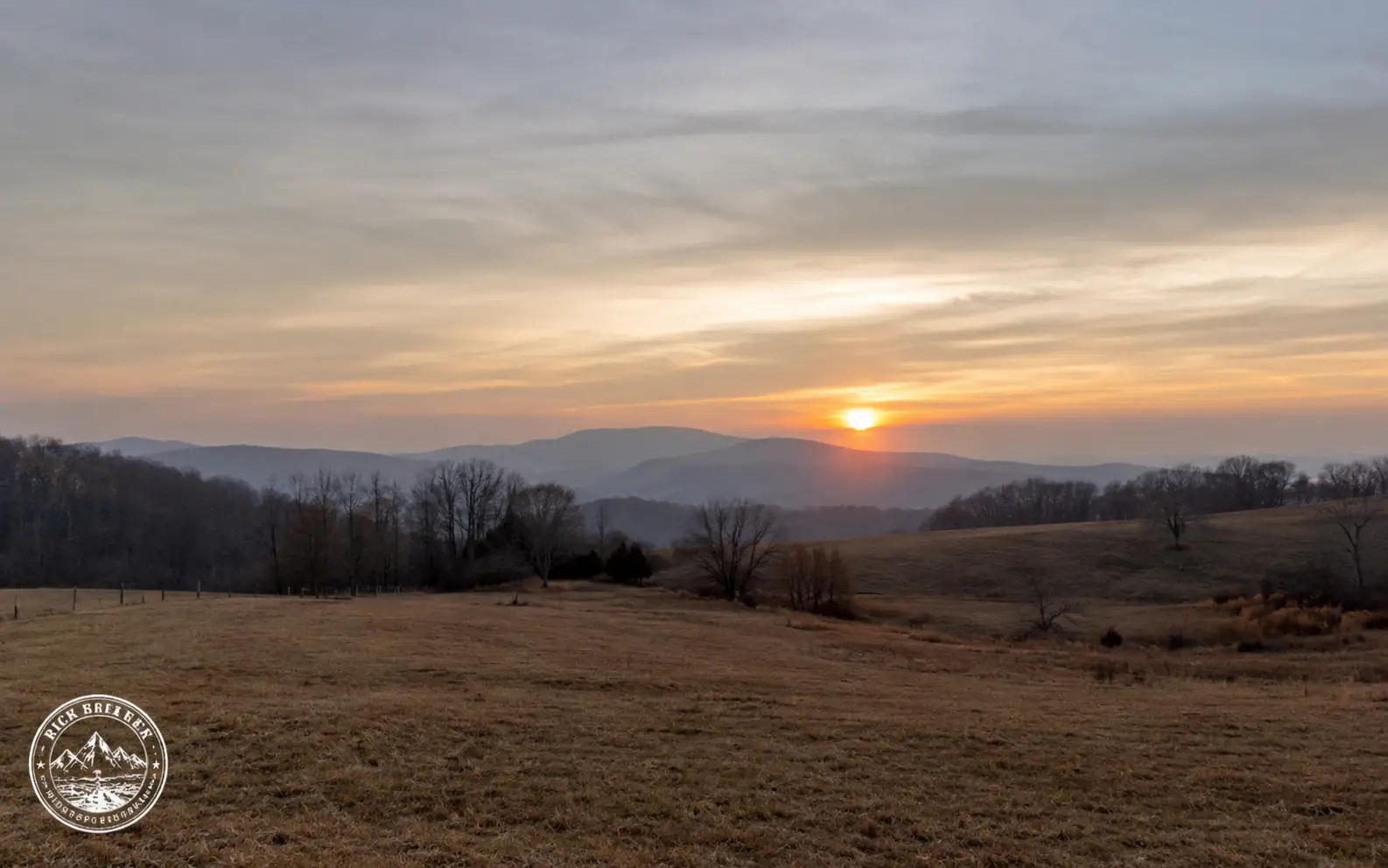
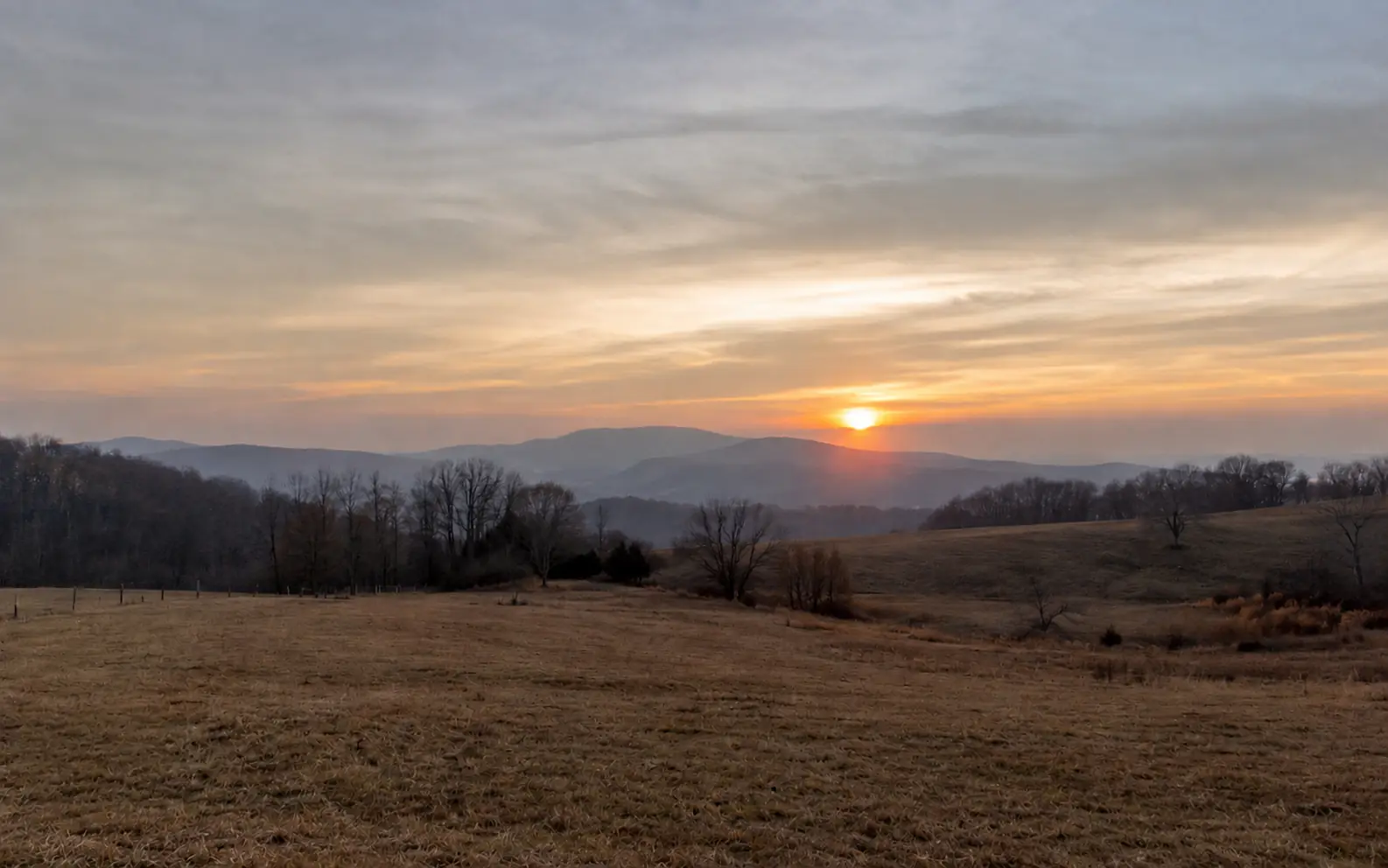
Clean small logo stamps in the corner
Remove a corner stamp from a usable landscape, product image, or archive file while keeping the scene intact.
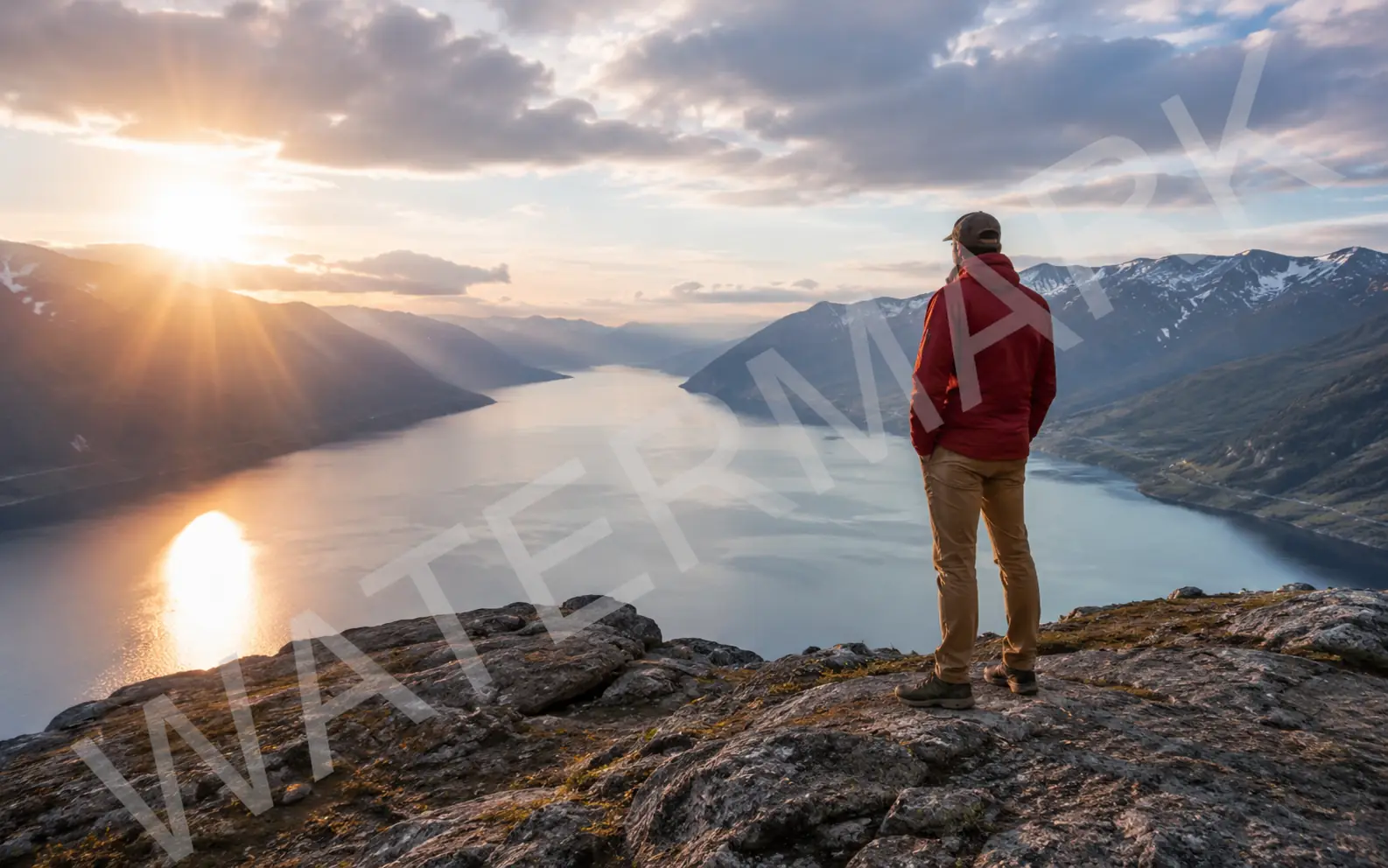
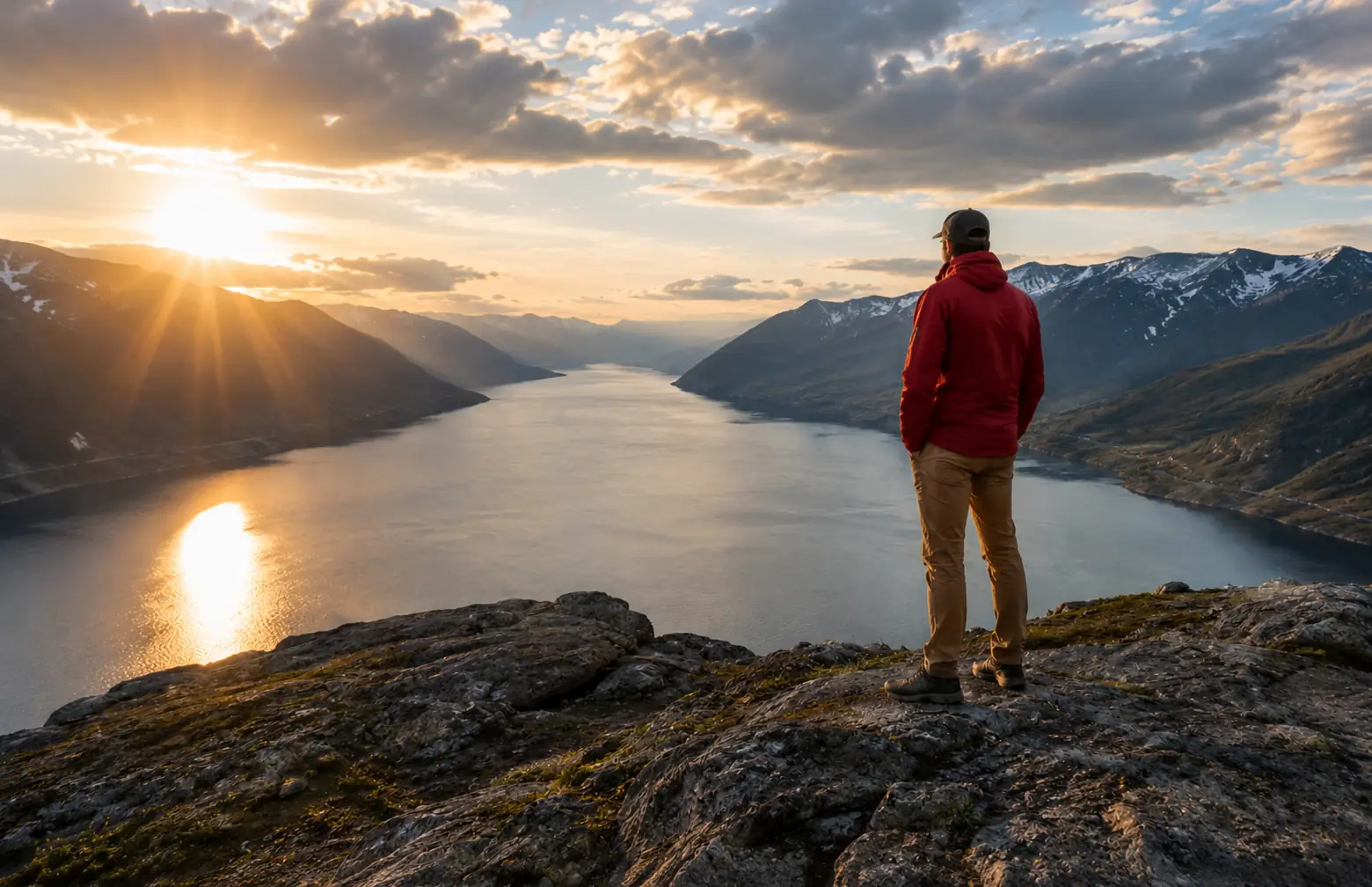
Remove diagonal preview watermarks
Clean a translucent watermark that crosses a subject, sky, water, or other detailed background.
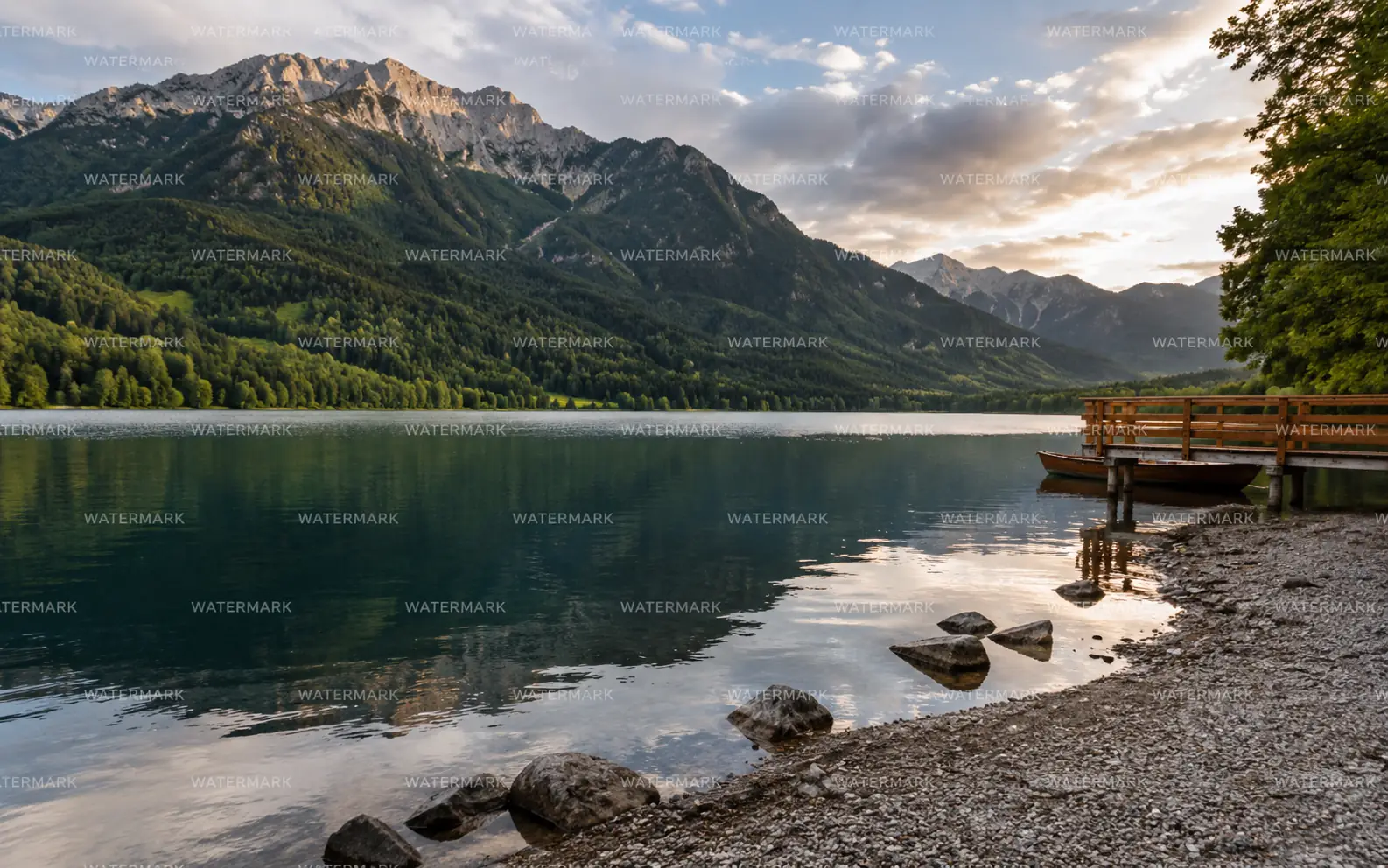
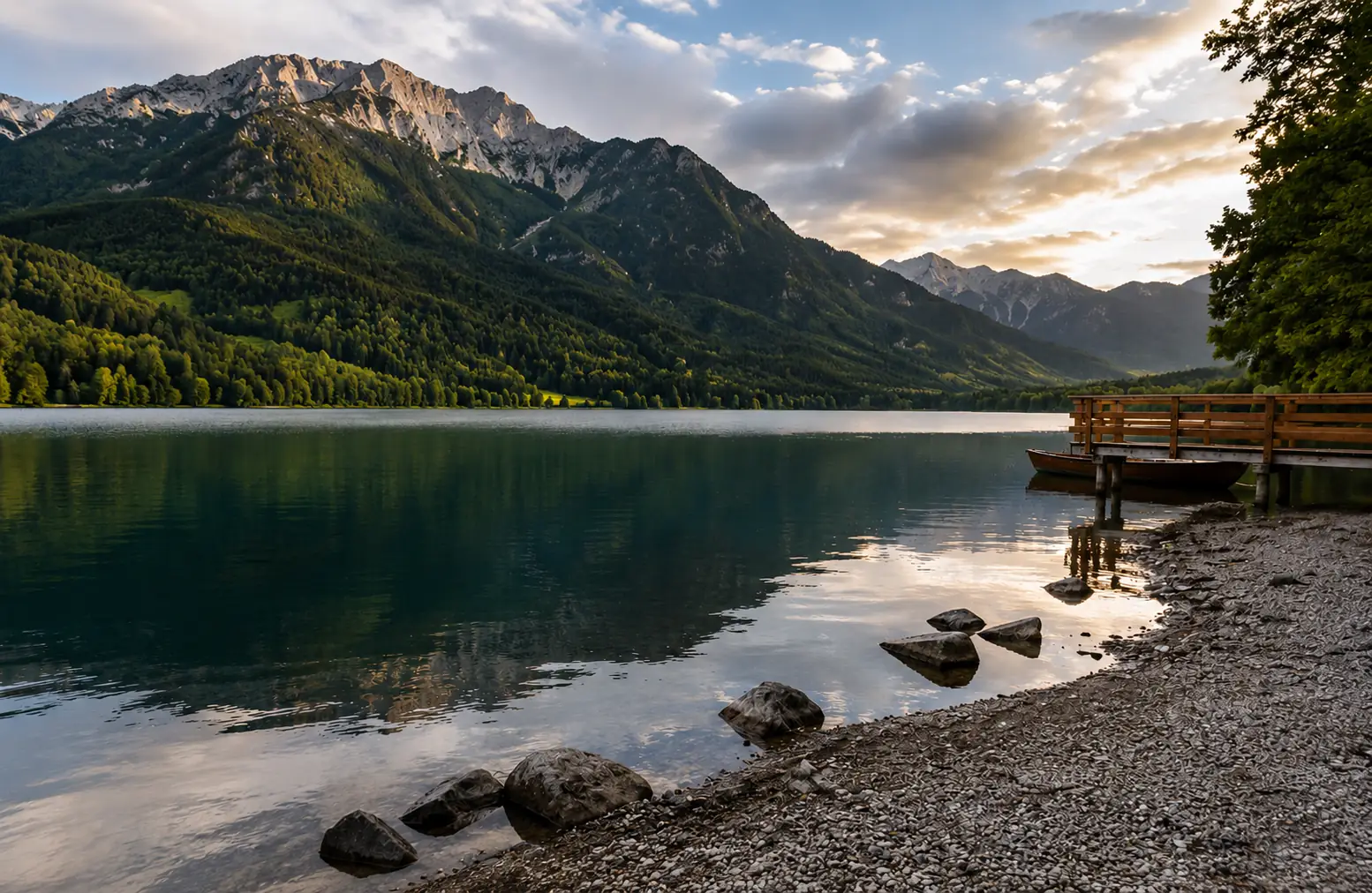
Clear repeated watermark patterns
Use it when a repeating watermark sits across the full image and the underlying scene still has readable detail.
Get a cleaner repair around the mark
Watermarks often cross faces, sky, water, fabric, or fine texture. Check the repaired area before you reuse the image.
Start with the right to edit
Use this tool for images you own, licensed files, or assets you are otherwise authorized to clean.
Improve low-quality sources first
If the image is blurry, noisy, or low contrast, use Image Enhancer before removing the watermark.
Use Remove Text for targeted lettering
If the task is to remove a specific caption, date, label, or UI text, use Remove Text From Image instead.
Inspect detailed areas
Fine hair, faces, reflections, clouds, water, and straight lines reveal watermark cleanup mistakes first.
Clean authorized images
Remove the watermark, then check the repair.
Start with an image you have the right to edit. Download when the cleaned area blends with the original texture, light, and edges.
Watermark Remover FAQ
Answers about stock marks, logo stamps, repeated watermarks, and when another cleanup tool fits better.
Should I use Watermark Remover or Remove Text From Image?
Use Watermark Remover for stock-photo text, repeated logos, diagonal preview marks, and semi-transparent branding. Use Remove Text From Image when you need to remove a specific caption, label, date, or UI text while other text stays.
Should I use Watermark Remover or Object Remover?
Use Watermark Remover when the unwanted mark is a graphic overlay on top of the image. Use Object Remover when a physical object, sign, sticker, prop, or person should disappear from the scene.
Can I remove stock photo preview watermarks?
Only clean stock images you are authorized to edit, such as licensed files or your own assets. Follow the source platform terms before publishing or sharing the cleaned result.
What source images work best?
Watermark cleanup works best when the image still has clear detail around the mark. Dense text, faces, fine hair, reflections, and complex patterns need closer review after the first result.
What should I check before downloading?
Inspect the repaired area for blur, repeated texture, broken lines, color shifts, and leftover watermark edges. Check the image at the size where you plan to use it.
Keep creating
Keep working from here
Continue with image edits, compare model quality, or send the result into a video workflow.

AI image tools
More image tools
Create, edit, clean up, or upscale stills.

AI models
Compare image models
Pick a better model before making more versions.

AI video tools
Make it move
Animate a still or turn it into a clip.

Remove Text from Image
Clean text overlays
Remove captions, labels, or text marks.

Object Remover
Clean distractions
Remove unwanted objects or people.

Background Remover
Cut out subjects
Remove the background from an image.

AI Image Editor
Prompt-based edits
Change an image without starting over.

Image Enhancer
Improve quality
Recover detail, color, and clarity.

Image Upscaler
Make it larger
Increase size for export or reuse.
AI image tools
More image tools
Create, edit, clean up, or upscale stills.
AI models
Compare image models
Pick a better model before making more versions.
AI video tools
Make it move
Animate a still or turn it into a clip.
Remove Text from Image
Clean text overlays
Remove captions, labels, or text marks.