
Create Controllable Images with Seedream 5.0 Pro
Use Seedream 5.0 Pro on Ezier to create structured graphics, multilingual campaigns, reference-led compositions, and precise image edits from one production brief.
Turn complex creative direction into a usable visual
Seedream 5.0 Pro brings generation and editing into one design-focused model for structured graphics, multilingual text, reference-led compositions, and precise visual revisions.
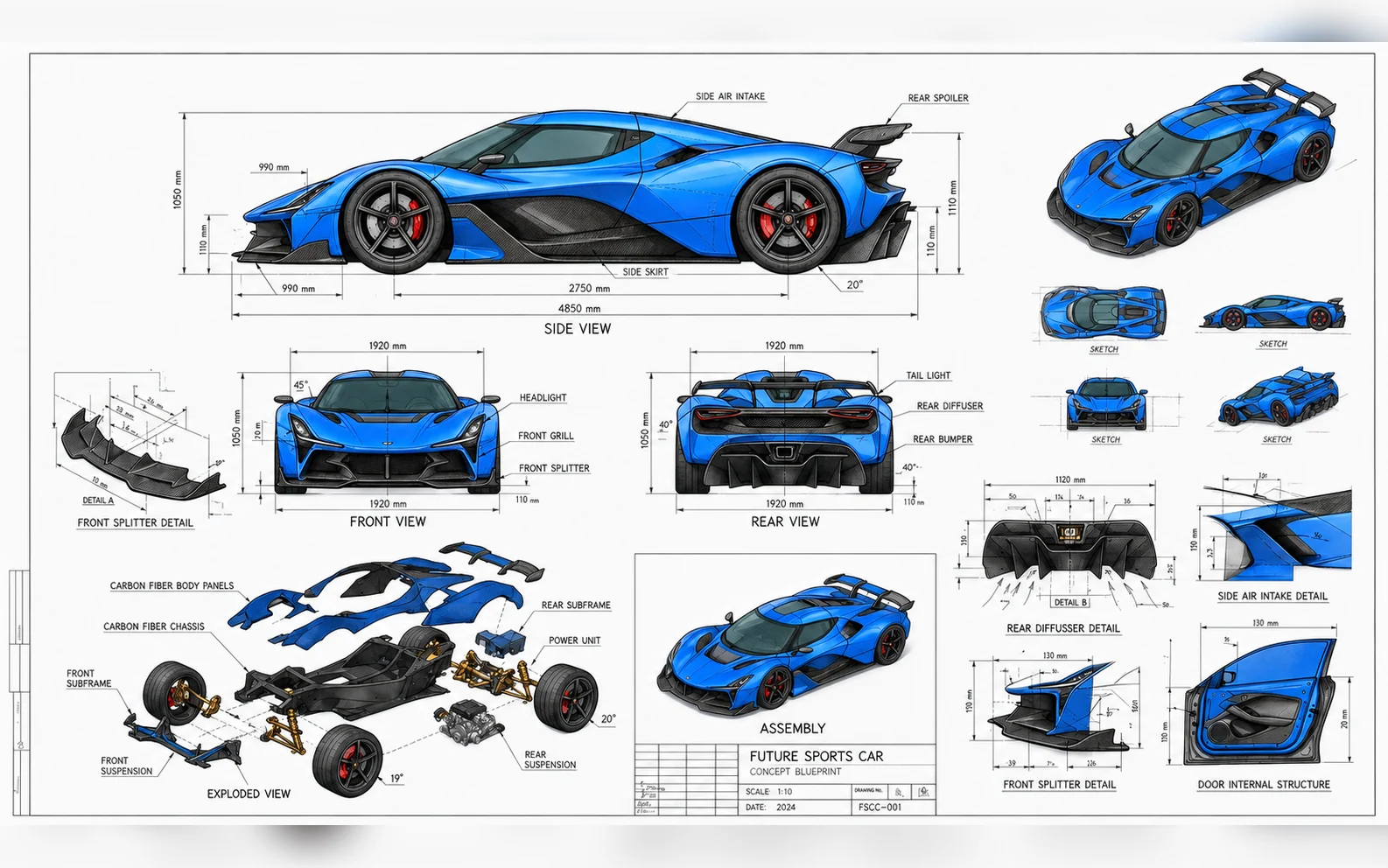
Create a wide, highly detailed automotive engineering blueprint for a futuristic track-focused sports car on clean white technical paper. Organize the board with a dominant side view, front and rear elevations, four small perspective sketches, aerodynamic detail drawings, an assembled three-quarter view, and a complete exploded chassis view. Add precise dimension lines, arrows, component callouts, and readable English labels such as "SIDE VIEW", "FRONT VIEW", "REAR VIEW", "CARBON FIBER BODY PANELS", "POWER UNIT", and "EXPLODED VIEW". Render the body in electric blue, aero surfaces in dark carbon fiber, brake calipers in red, suspension in anodized gold, glass in smoky cyan, and mechanical parts in metallic silver. Keep the same design and material colors consistent across every view, with no brand logos or watermark.
How to use Seedream 5.0 Pro in Ezier
- 01
Select Seedream 5.0 Pro
Confirm Seedream 5.0 Pro in the image model selector so your prompt, references, aspect ratio, resolution, and output count are sent with the intended model.
- 02
Describe the design job
Name the source image, the target element, and the new color, copy, material, scene, or weather condition. Use concrete visual instructions instead of broad style words.
- 03
Set the edit boundary
Attach up to ten references when needed, assign each one a role, and list what must remain fixed—subject identity, geometry, camera, composition, text, nearby objects, light, or shadows.
- 04
Choose the output and generate
Select a supported aspect ratio, choose 1K or 2K output, review the displayed image count and credit estimate, then generate and inspect important text, geometry, and preserved details.
What Seedream 5.0 Pro brings to image production
Its strongest workflows connect information structure, spatial control, editable composition, and multilingual visual communication.
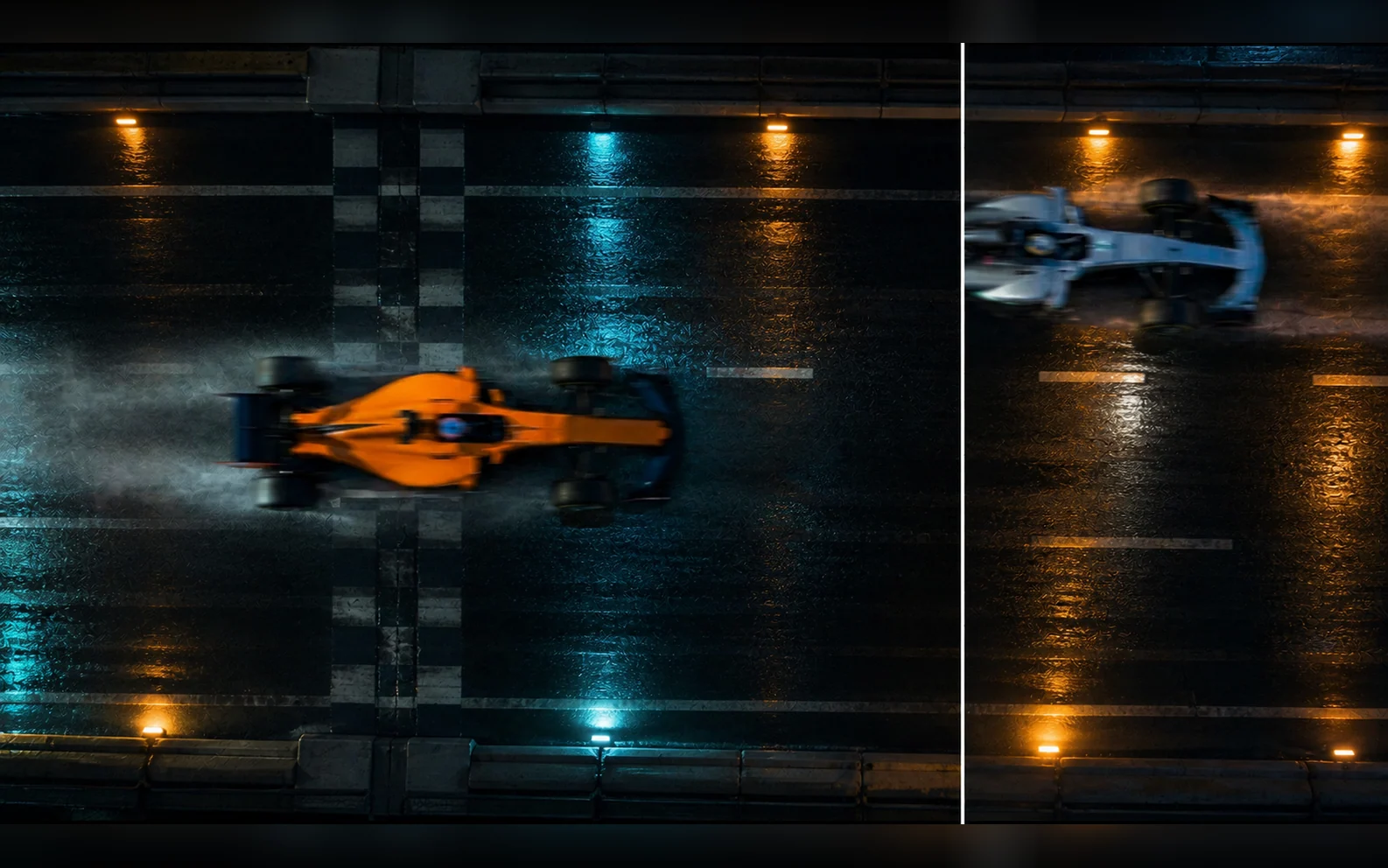
Replace a scene while keeping the action
Change the environment without rebuilding the subjects. Describe the new location, time, surface, atmosphere, and reflected light, then lock the cars, movement, viewpoint, scale, and panel layout so the action remains consistent.
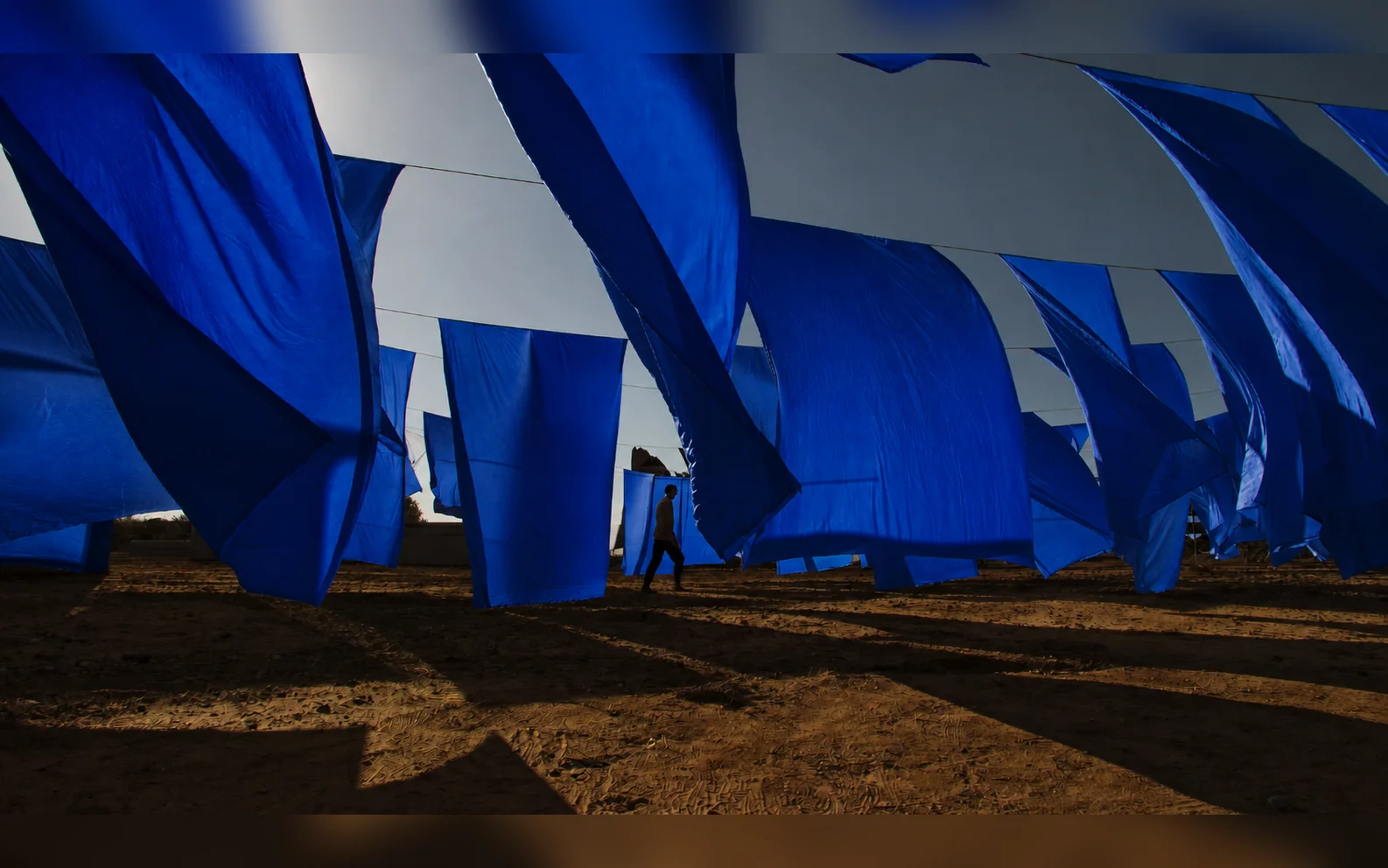
Recolor a material without flattening its texture
A precise color edit should preserve how the material behaves. Name the target color and lock the weave, translucency, wrinkles, motion, edge wear, transmitted light, and cast shadows so the fabric still feels physically believable.
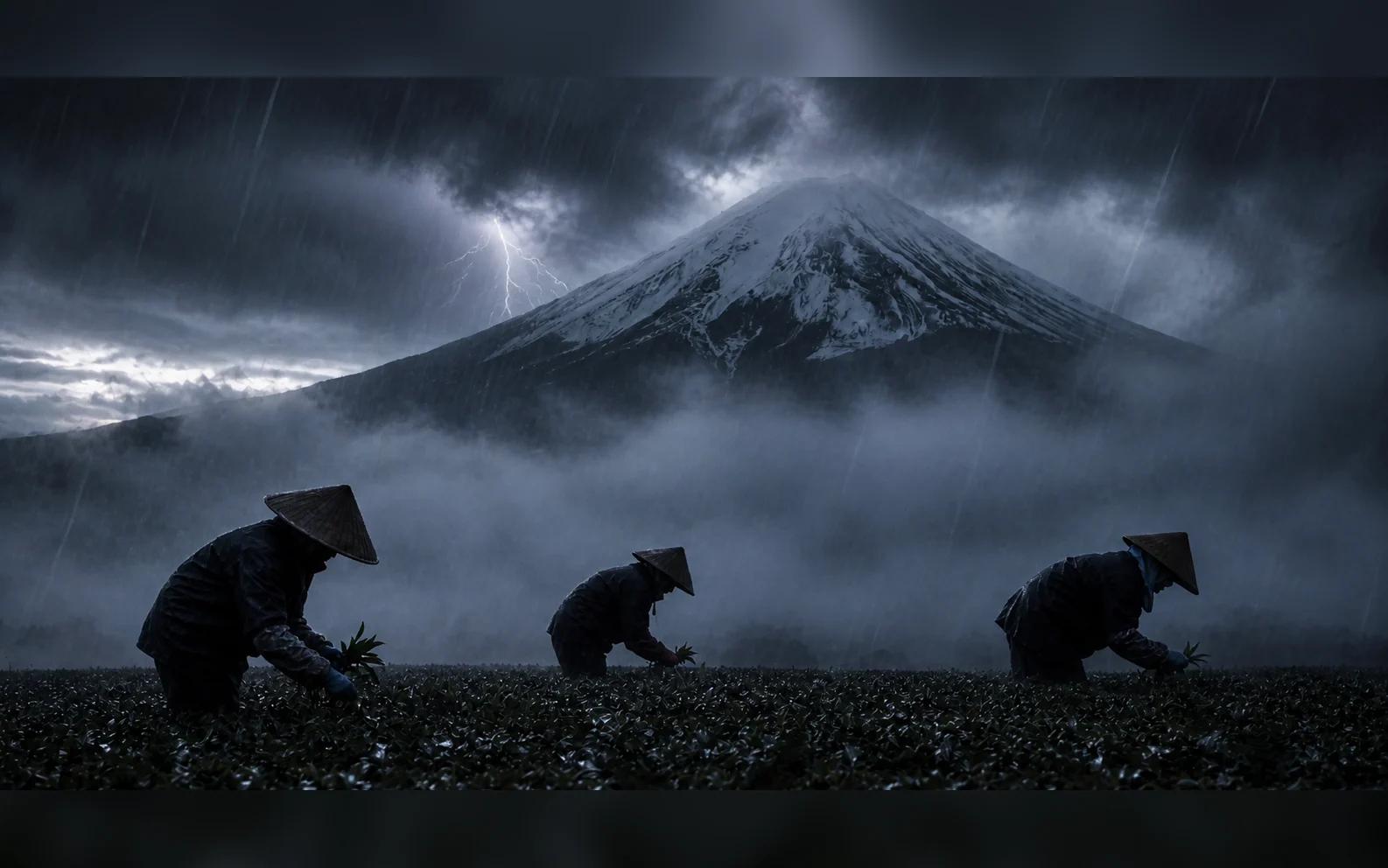
Change the weather without losing the location
Weather edits work best when the environmental change is separated from the scene structure. Specify rain, cloud depth, mist, lightning, wetness, and the new light response while preserving the mountain silhouette, workers, field geometry, and camera position.
Seedream 5.0 Pro settings worth checking
Match the resolution and canvas to the deliverable, assign every reference a role, and keep exact text and edit instructions explicit.
- 10
- Reference imagesPublished integrations describe support for up to ten optional references in one generation or editing task. Give each reference a specific role instead of treating the set as a loose mood board.
- 1K–2K
- Output resolutionPublished model settings include 1K and 2K output. Choose the canvas around the final placement, then inspect text, edges, small objects, and repeated details before publishing.
- 10+
- Native languagesOfficial launch materials describe native input and text generation across more than ten common languages, including right-to-left Arabic and accented Latin scripts.
State the source and intended edit
Begin with “using the uploaded image” and name the exact object or region to change before describing the new result.
Quote replacement text exactly
For localization, provide every final line in quotation marks, define its position and visual treatment, and explicitly remove the source language.
Lock identity and geometry
List the shapes, proportions, viewpoints, poses, spacing, and alignments that must remain unchanged before requesting a visual transformation.
Separate subject from scene
When replacing a background, describe the new environment while preserving subject count, action, direction, scale, camera angle, and composition.
Describe material behavior
A material edit needs more than a color name. Preserve or redefine reflectivity, grain, translucency, seams, wear, folds, and shadow response.
Change one condition per pass
Separate color, text, material, scene, and weather into focused edits so each result is easier to inspect and refine.
Seedream 5.0 Pro in Ezier
Move from a rough brief to a controlled visual
Describe the content, hierarchy, exact copy, references, and finish you need. Generate a strong direction, inspect the result, and refine the region or layer that needs attention.
Seedream 5.0 Pro FAQ
Answers about image generation, reference-led editing, spatial control, layers, multilingual text, resolution, and prompt structure.
What is Seedream 5.0 Pro?
Seedream 5.0 Pro is ByteDance Seed's multimodal image creation model for generation and editing. Its official launch focuses on complex information visualization, spatially precise editing, layer separation, and multilingual image creation.
How do I use Seedream 5.0 Pro in Ezier?
Select Seedream 5.0 Pro, write a structured prompt, attach optional references, choose the available ratio and resolution, review the image count and credits, then generate and inspect the result.
Can Seedream 5.0 Pro generate and edit images?
Yes. The model accepts a text prompt alone or combines a prompt with reference images for generation, composition, and targeted image edits.
How many reference images can Seedream 5.0 Pro use?
Published model integrations list support for up to ten reference images. Assign each input a clear role—such as subject, pose, product, layout, material, or style—to reduce conflicting instructions.
What does precise interactive editing mean?
The model uses spatial grounding to understand where an edit belongs. A point, marked region, lasso, or rough sketch can identify the target while the instruction describes what should change and what should remain fixed.
Can Seedream 5.0 Pro separate image layers?
Yes. Official materials describe separating text, subjects, backgrounds, and effects into independent layers, including reconstructing background areas that were hidden by foreground elements.
Does Seedream 5.0 Pro support multilingual text?
Official launch materials describe native input and generation in more than ten common languages, including Chinese, English, French, German, Russian, Japanese, Korean, Spanish, and Arabic. Important copy should still be checked before publishing.
What resolution and aspect ratios does Seedream 5.0 Pro support?
Published integrations list 1K and 2K output with 1:1, 4:3, 3:4, 16:9, 9:16, 3:2, and 2:3 formats. Use the options displayed in Ezier for the active model configuration.
What prompts work best for Seedream 5.0 Pro?
Use a production brief: name the asset and audience, define the canvas and content blocks, quote exact text, assign reference roles, describe materials and light, and state the region or details that must remain unchanged during edits.
Keep testing
More routes from Seedream 5.0 Pro
Compare a nearby model, polish the image with tools, or continue the idea as a video.

AI models
Compare models
Choose a better fit before you generate.

AI image tools
Create or edit images
Make, clean up, or upscale stills.

AI video tools
Turn images into motion
Animate a still or create a clip.
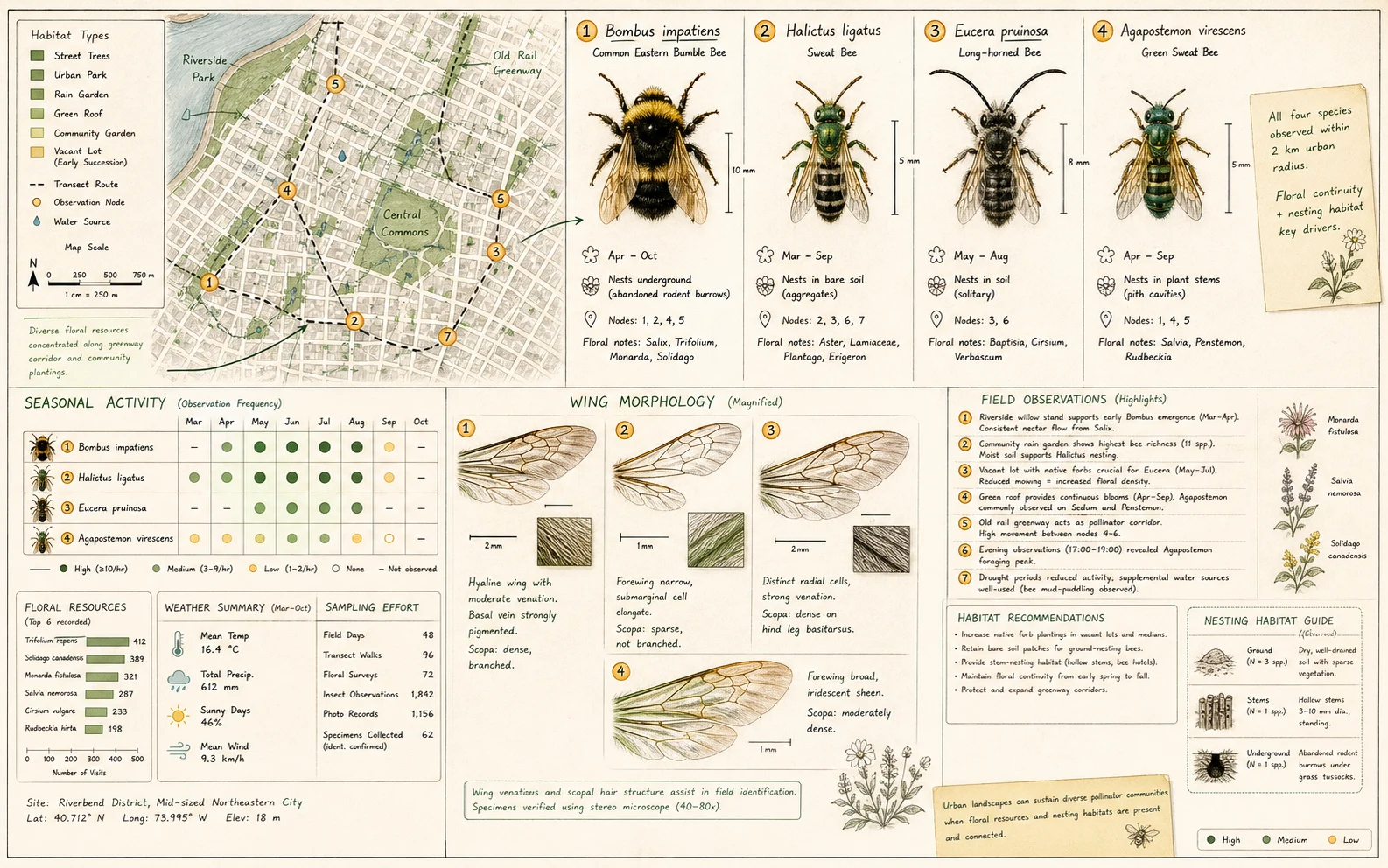
Qwen Image 3.0
Production-ready layouts
Use for dense layouts, multilingual text, realistic detail, and image edits.
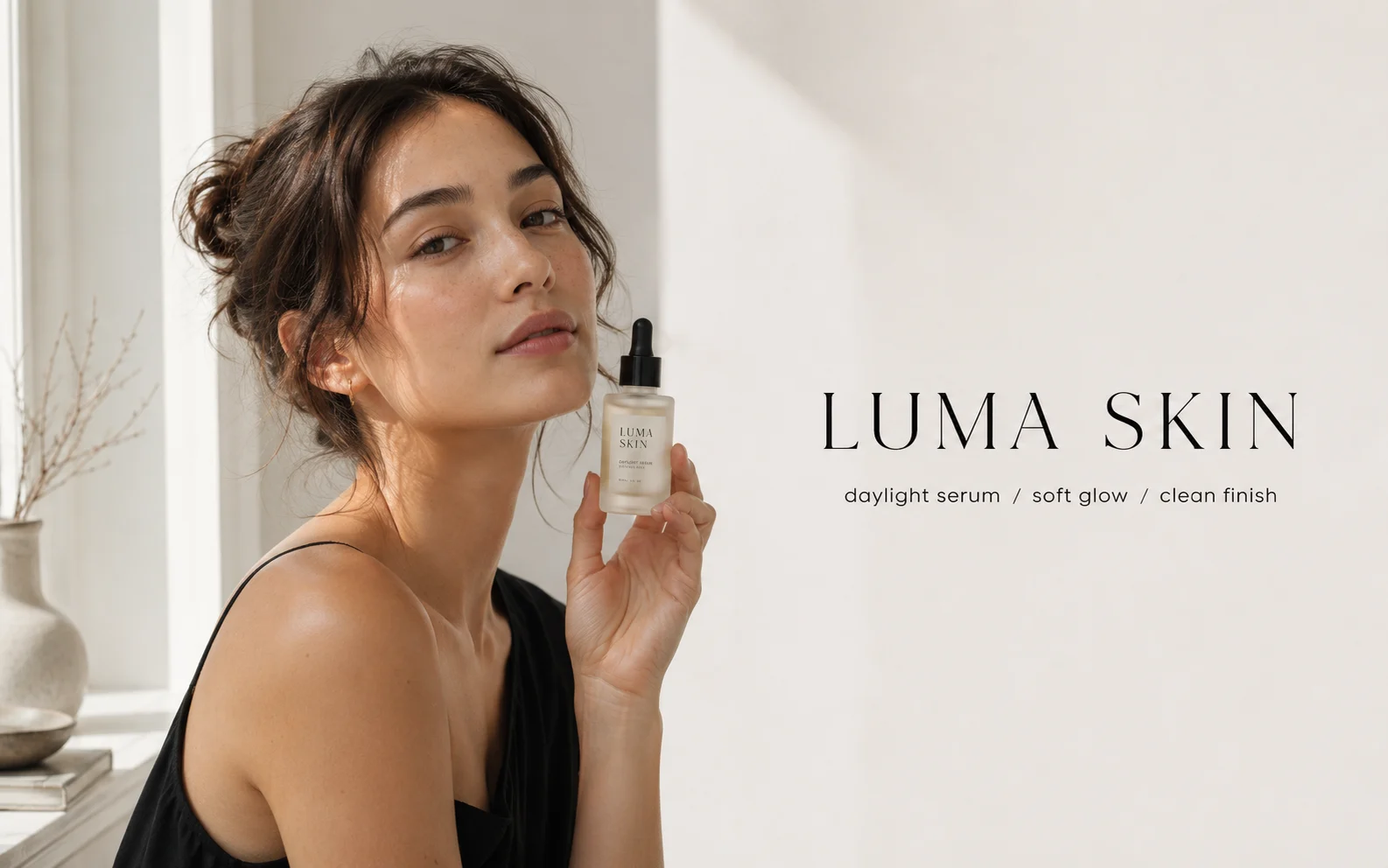
GPT Image 2
Polished visuals
Use for ads, product shots, and clean edits.

Nano Banana Pro
More control
Use for detailed prompts and readable text.
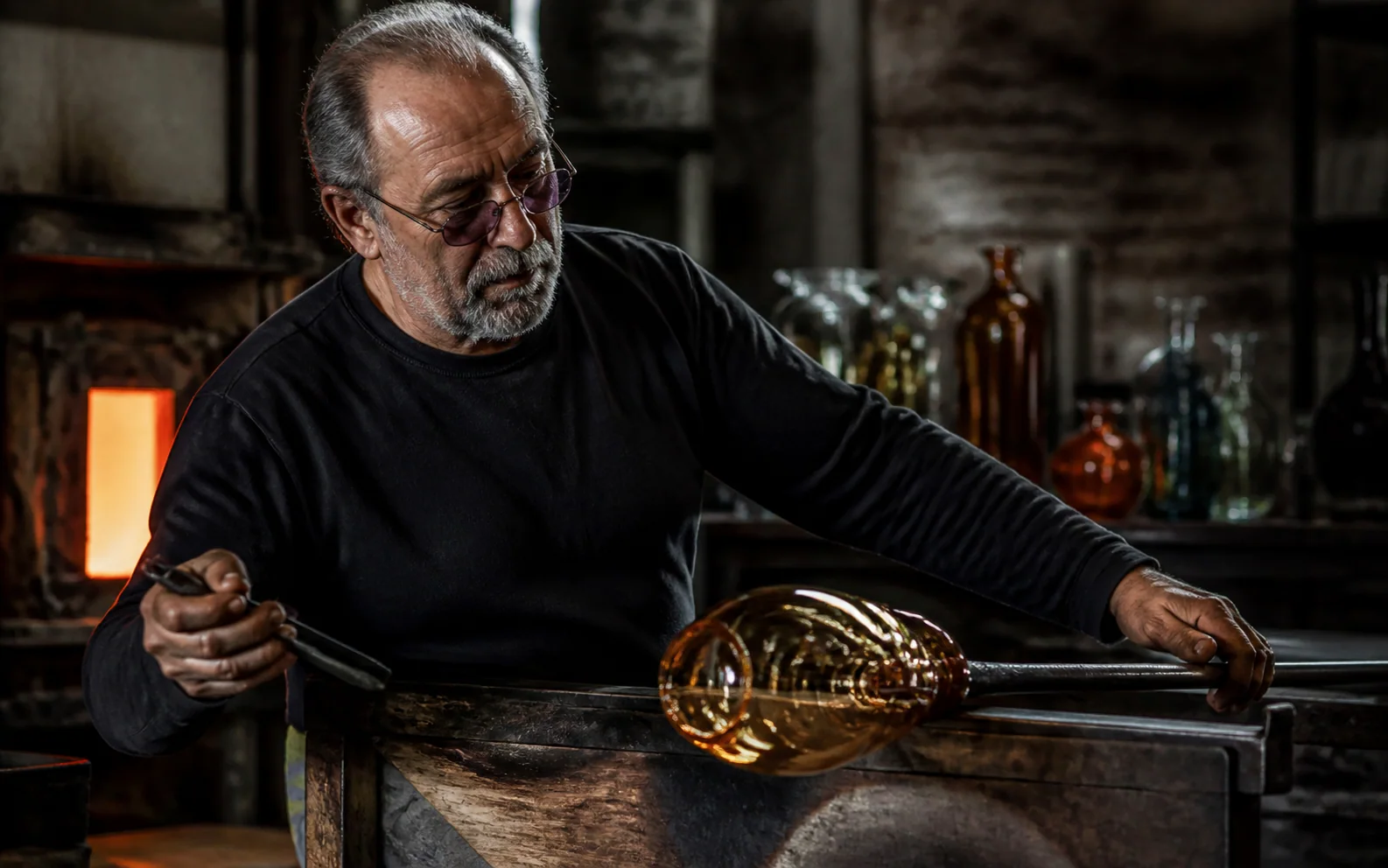
Grok Imagine Image 2.0
High-fidelity generation and edits
Use for high-fidelity scenes, flexible formats, image edits, and 1K or 2K output.

Nano Banana 2
Balanced image creation
Use for higher-resolution images, multiple references, and longer edit chains.
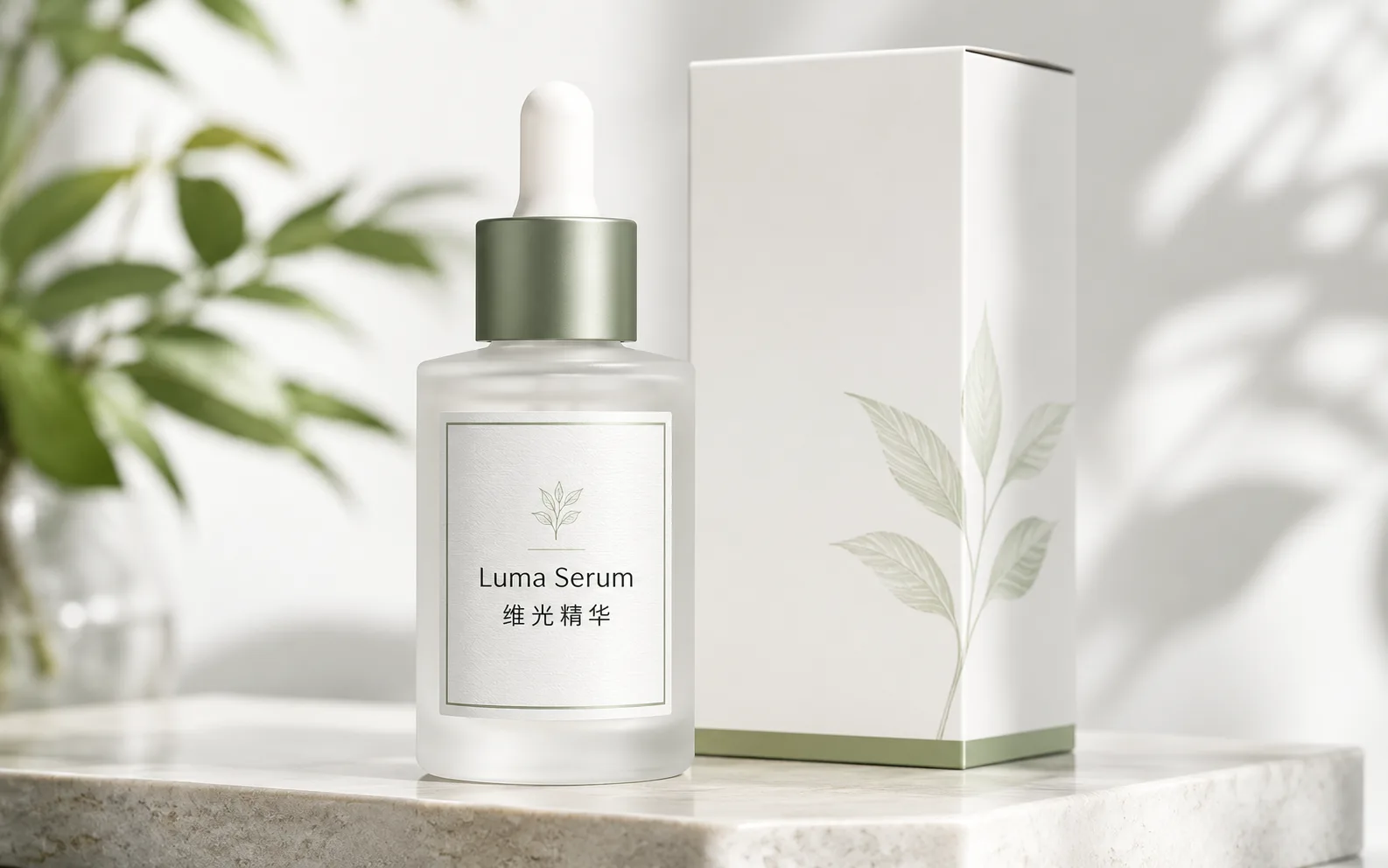
Qwen Image
Readable text
Use for labels, posters, and diagrams.
AI models
Compare models
Choose a better fit before you generate.
AI image tools
Create or edit images
Make, clean up, or upscale stills.
AI video tools
Turn images into motion
Animate a still or create a clip.
Qwen Image 3.0
Production-ready layouts
Use for dense layouts, multilingual text, realistic detail, and image edits.