
Free My Beloved Meme Generator
Create a My Beloved meme with your own photos and caption. Choose a ready-made design or upload your own layout, then drag photos and text into place. Download a watermark-free PNG with no sign-up; your images stay in your browser.
Drag a photo or caption to move it. Use the arrow keys for precise adjustments.
How to make a My Beloved meme
Build your meme in four steps, then drag photos and text directly in the live preview to fine-tune the result.
- 01
Choose or upload a layout
Choose a Classic or Art design, or open Custom to upload your own layout. In Custom, drag the photo and text areas into place and resize them as needed.
- 02
Add your photos
Upload the photo you want to place in the layout. Multi-photo designs show a separate upload area for each photo.
- 03
Add your caption
Write your caption, add line breaks where needed, choose its style, then drag it into position in the live preview.
- 04
Review and download
Drag each photo to reframe it, check the caption placement, and select Download PNG when the composition looks right.
Choose or upload a layout that fits the joke
Start with Open Locket, Film Strip, or another ready-made style. For full control, upload your own layout, drag its photo and text areas into place, then resize them to fit the design.
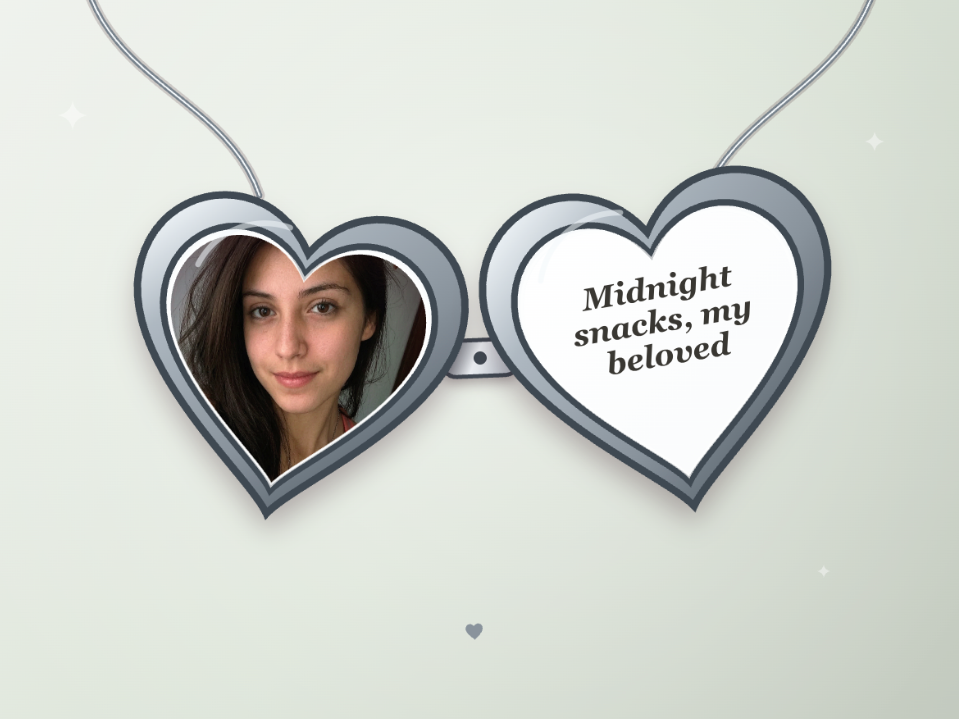
Open Locket for the classic format
Place one photo on the left and your message on the right. Choose a Ruby, Rose, or Silver finish while keeping the classic open-locket look.
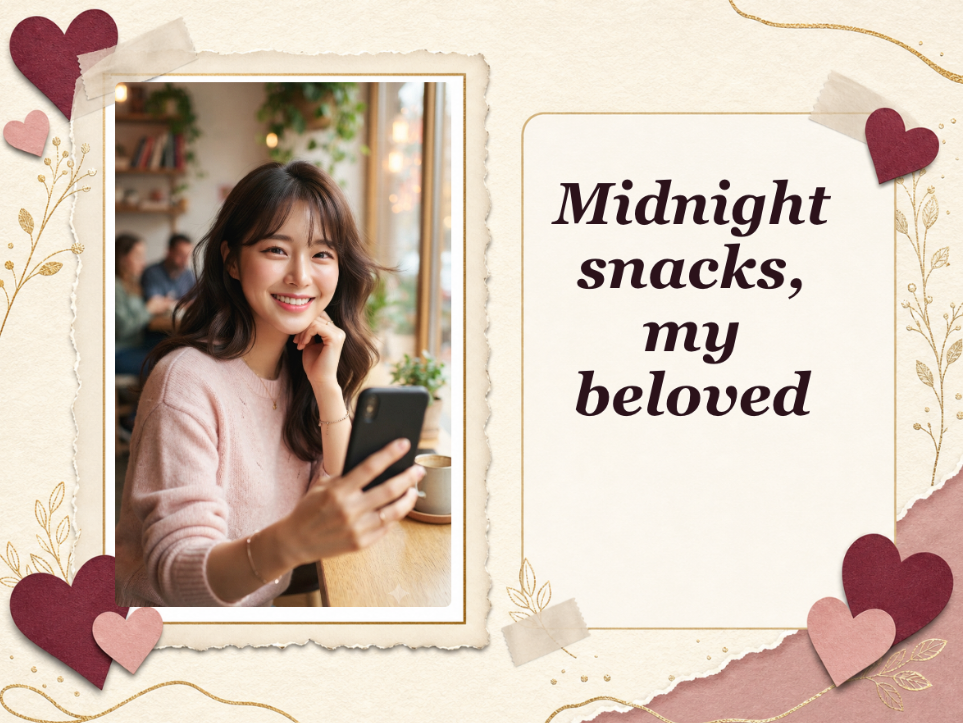
Choose a keepsake-style layout
Polaroid, Love Letter, Scrapbook, Postcard, Photo Album, and Heart Collage give the same photo-and-caption idea a softer keepsake look. Photo Booth and Vintage TV add a more playful retro frame.
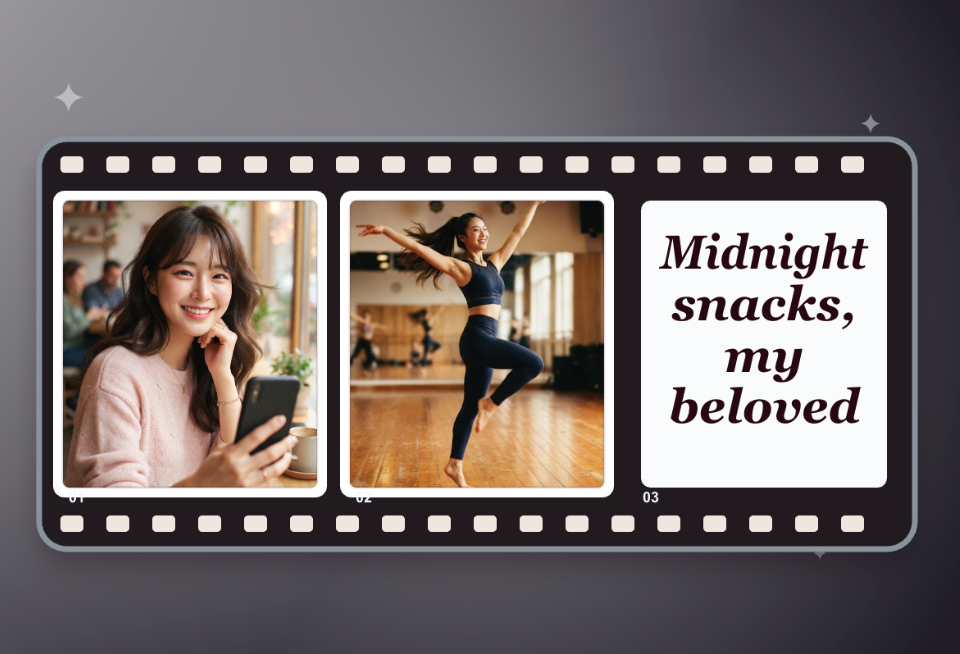
Use Film Strip when one photo is not enough
Place two photos side by side, drag each one to adjust its crop, and add your caption in the final frame. Use it for a before-and-after, a matching pair, or a setup and punchline.
Tips for a cleaner My Beloved meme
A clearer photo, a shorter caption, and strong text contrast can make the finished meme easier to recognize and share.
Choose a photo with room to crop
Leave some space around the subject when possible. Tight screenshots and edge-to-edge faces are harder to fit inside a fixed frame.
Improve a low-quality photo first
If your photo is dark, blurry, or heavily compressed, improve it with Image Enhancer before placing it in the meme.
Keep the caption easy to scan
Start with one short idea. Use a line break to separate the subject from “my beloved” when the caption feels crowded.
Check the text contrast
Use darker text on a light background or lighter text on a dark background. Check every line in the live preview before downloading.
Make it personal
Turn a person, pet, favorite thing, or running joke into a My Beloved meme
Choose a ready-made design or upload your own, then pair a recognizable image with one short caption.
My Beloved Meme Generator FAQ
Answers about custom layouts, supported files, privacy, downloads, and editor limits.
What is a My Beloved meme?
It pairs a photo with an affectionate or intentionally overdramatic caption, often written as “[name or thing], my beloved.” The classic version places the photo and message inside an open heart locket.
Is the My Beloved Meme Generator free?
Yes. The editor is free to use and does not require sign-up or credits. Your 1200 × 900 PNG download has no added watermark.
What image files can I upload?
You can upload JPG, PNG, or WebP files for photos and custom layouts, up to 20 MB per file. GIF files are not supported.
Do my uploaded images leave the browser?
No. The editor creates your meme directly in your browser. Your photos and custom layouts are not uploaded or sent to our servers.
What happens to extra photos when I change layouts?
Film Strip uses two photos, while Photo Booth and Heart Collage use three. If you switch to a one-photo layout, the extra photos stay in the editor and appear again when you return to a multi-photo layout.
What parts of the meme can I customize?
You can change the caption, text style, photo crop, and layout. Drag photos and captions directly in the live preview to position them. Classic layouts include finish and background controls. Art layouts use fixed designs. With a custom layout, you can also drag and resize the photo and text areas.
Why is part of my photo cropped out?
Built-in layouts use fixed photo openings, so the edges may be cropped. Lower Photo zoom, then drag the photo in the live preview to reframe the subject. With a custom layout, you can also drag and resize the photo area.
More to try
Explore your next creative step
Try another image tool, compare image models, or animate an image concept.

AI image tools
More image tools
Create, edit, clean up, or upscale stills.

AI models
Compare image models
Pick a better model before making more versions.

AI video tools
Make it move
Animate a still or turn it into a clip.
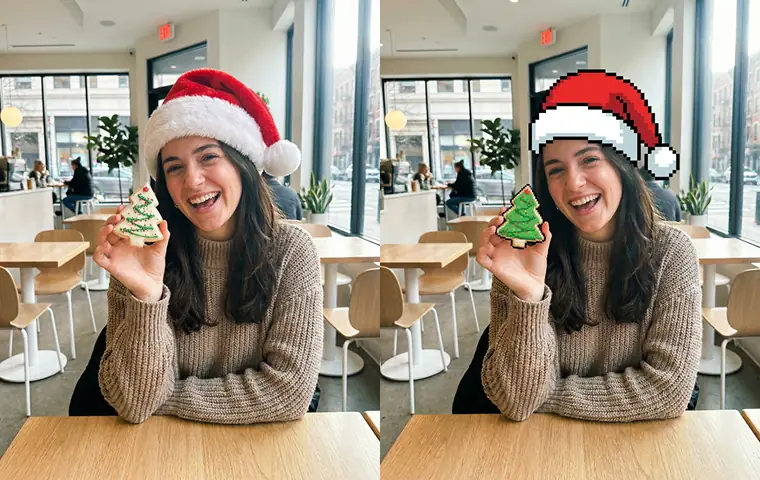
AI Image Generator
Start from any idea
Create a fresh image from a prompt.
Text to Image
Prompt-first creation
Turn a written idea into an image.

Image to Image
Use a reference
Restyle or revise an existing image.
Image to Prompt
Describe a reference
Turn visible image details into a reusable AI prompt.
AI Logo Generator
Brand marks
Create logo ideas from a short brief.
Product Picture Generator
Product visuals
Create polished product photos and campaign scenes.
AI image tools
More image tools
Create, edit, clean up, or upscale stills.
AI models
Compare image models
Pick a better model before making more versions.
AI video tools
Make it move
Animate a still or turn it into a clip.
AI Image Generator
Start from any idea
Create a fresh image from a prompt.