
Reference Image *
AI Image Variation Generator
Upload one reference image, choose portrait, landscape, or square, and generate similar image variations without writing a prompt.
Variation Examples
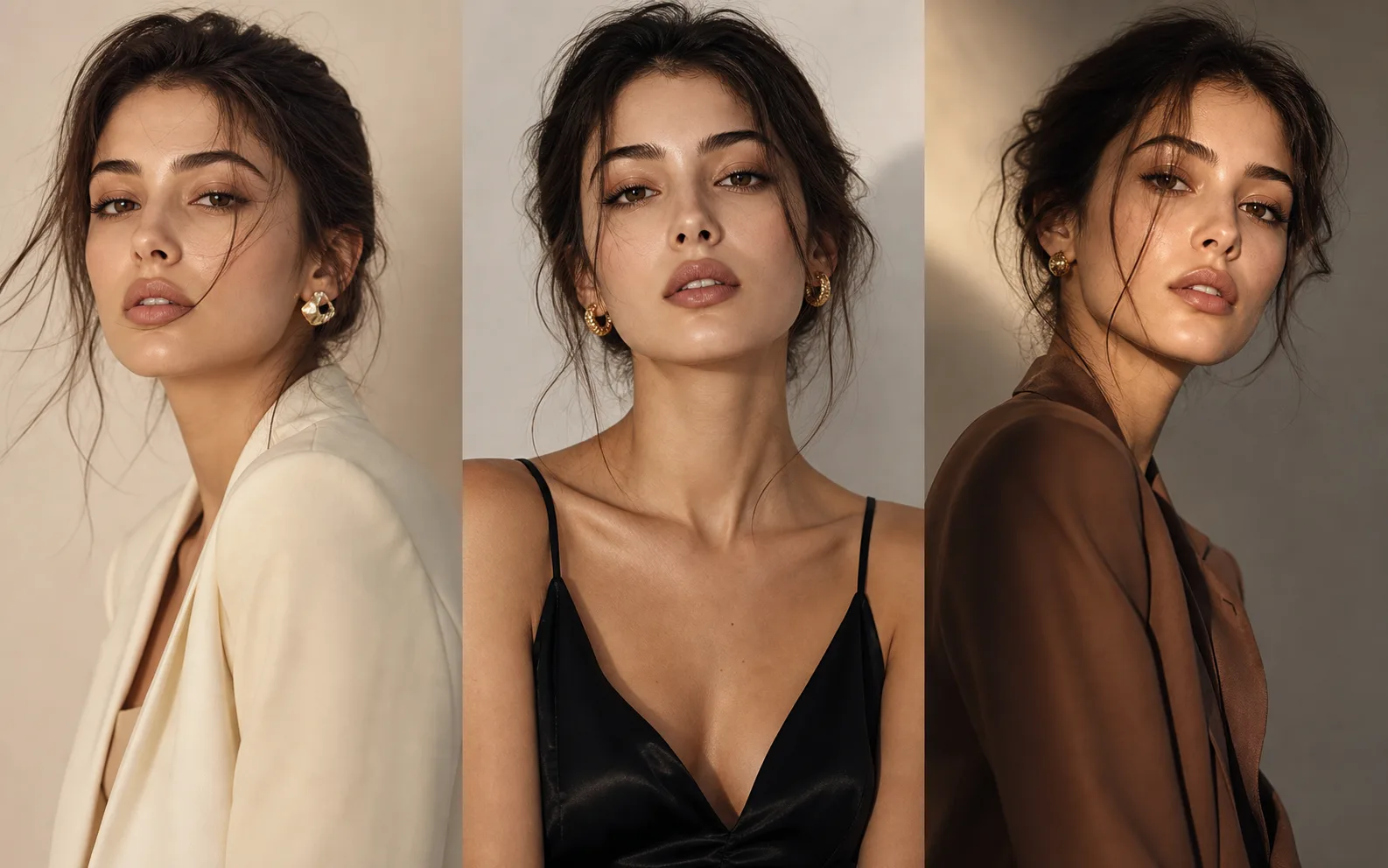
Generate image variations from one reference image
Start with an image that already has the subject, framing, or mood you want to keep. Then choose a layout and generate nearby options you can compare or download.
- 01
Start with a clear reference image
Upload an image with the subject, framing, or visual mood you want to keep. Clear inputs produce results that are easier to compare.
- 02
Choose the layout before generating
Pick portrait, landscape, or square before you generate so the output matches the crop, channel, or composition you need.
- 03
Generate nearby variations
Create several related options from the same reference image without writing a prompt or rebuilding the concept.
- 04
Compare and download the best results
Review the outputs, keep the strongest versions, and download the images you want to use or edit next.
Generate variations around the same subject
Use one reference image to keep the main subject recognizable while exploring alternate people, product, or reusable asset directions.
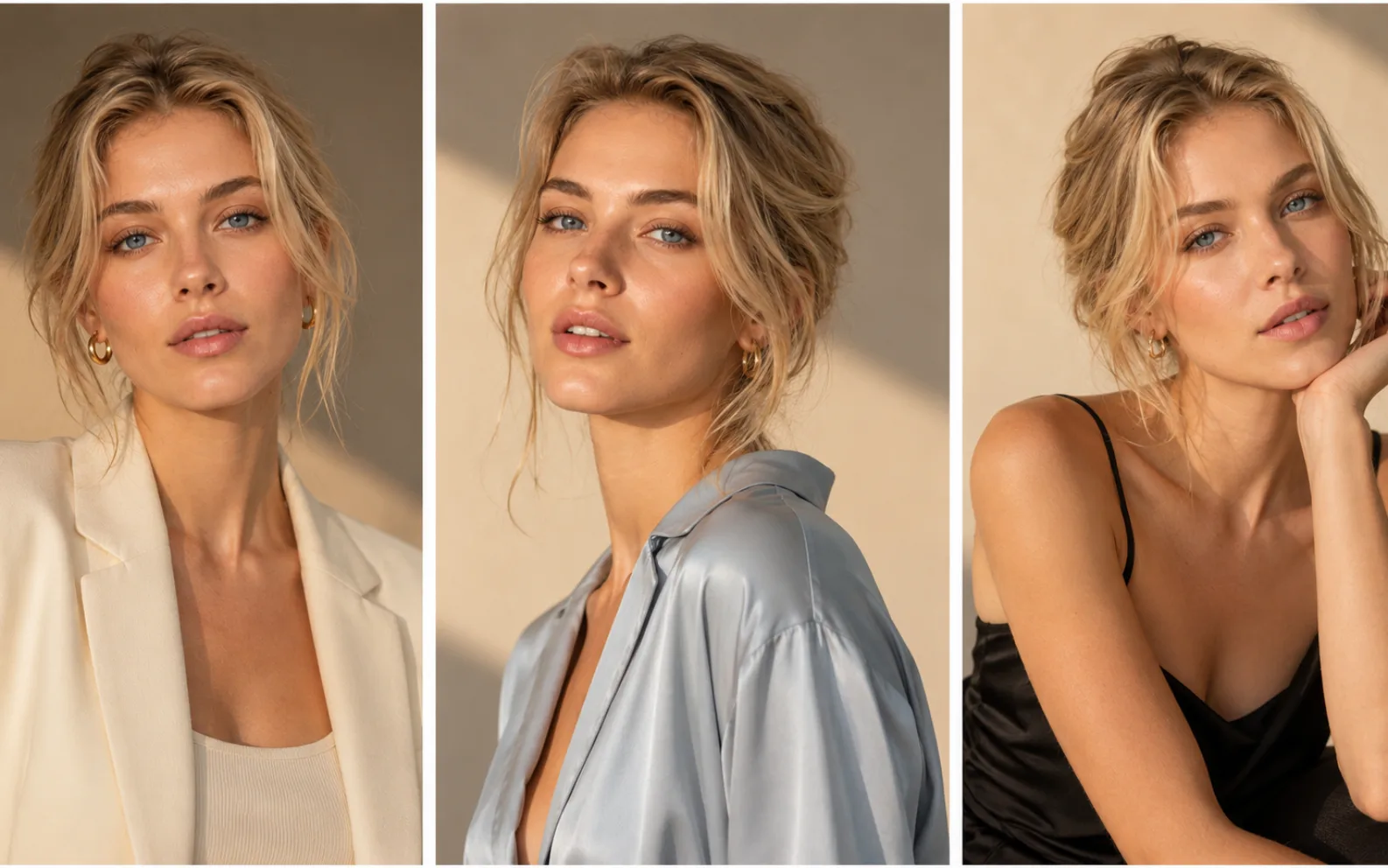
People and fashion variations
Keep the person as the focus while generating related options for styling, pose, expression, and social-ready looks.
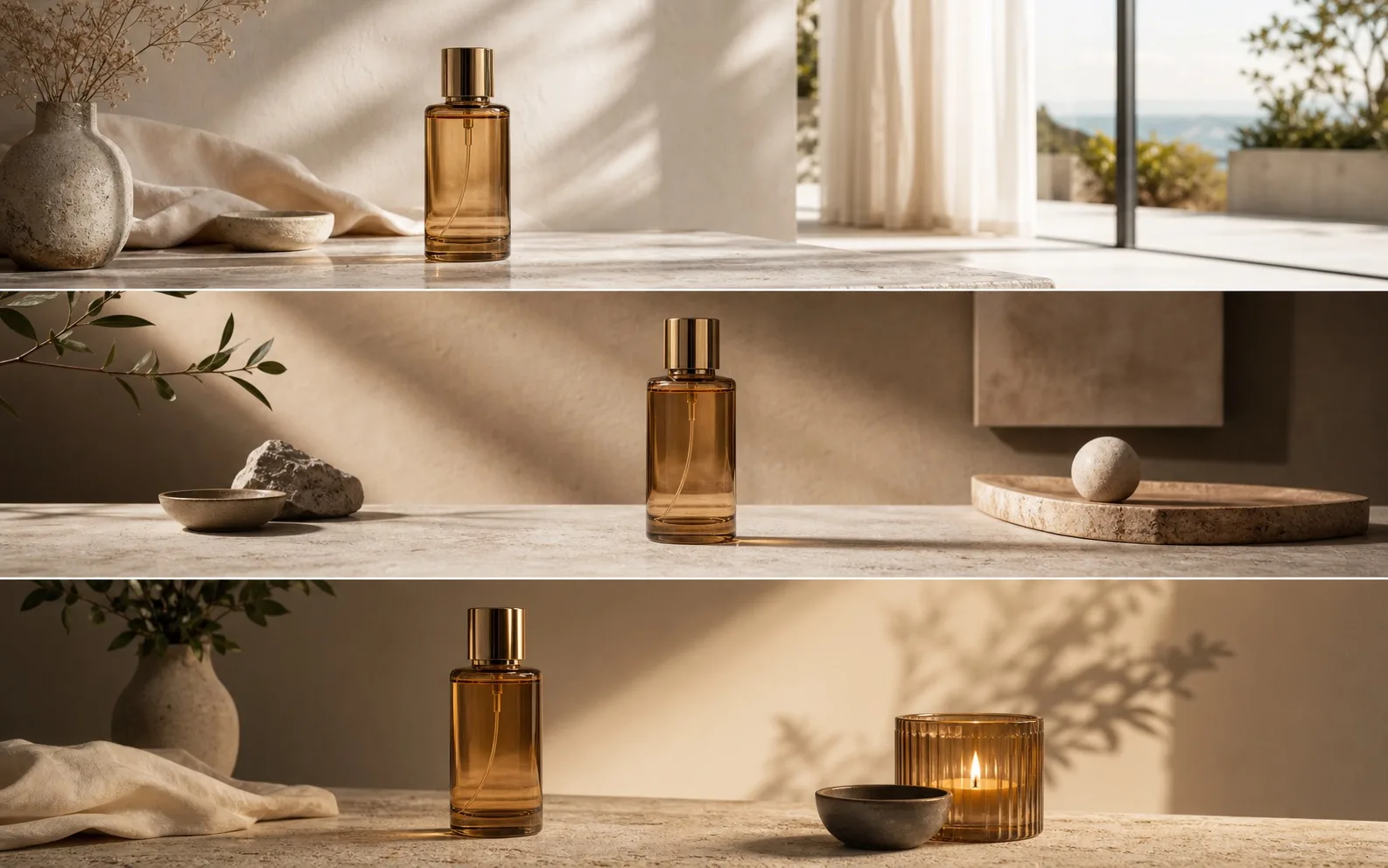
Product scene variations
Keep the product as the hero while creating alternate scenes with different props, lighting, backgrounds, and campaign compositions.
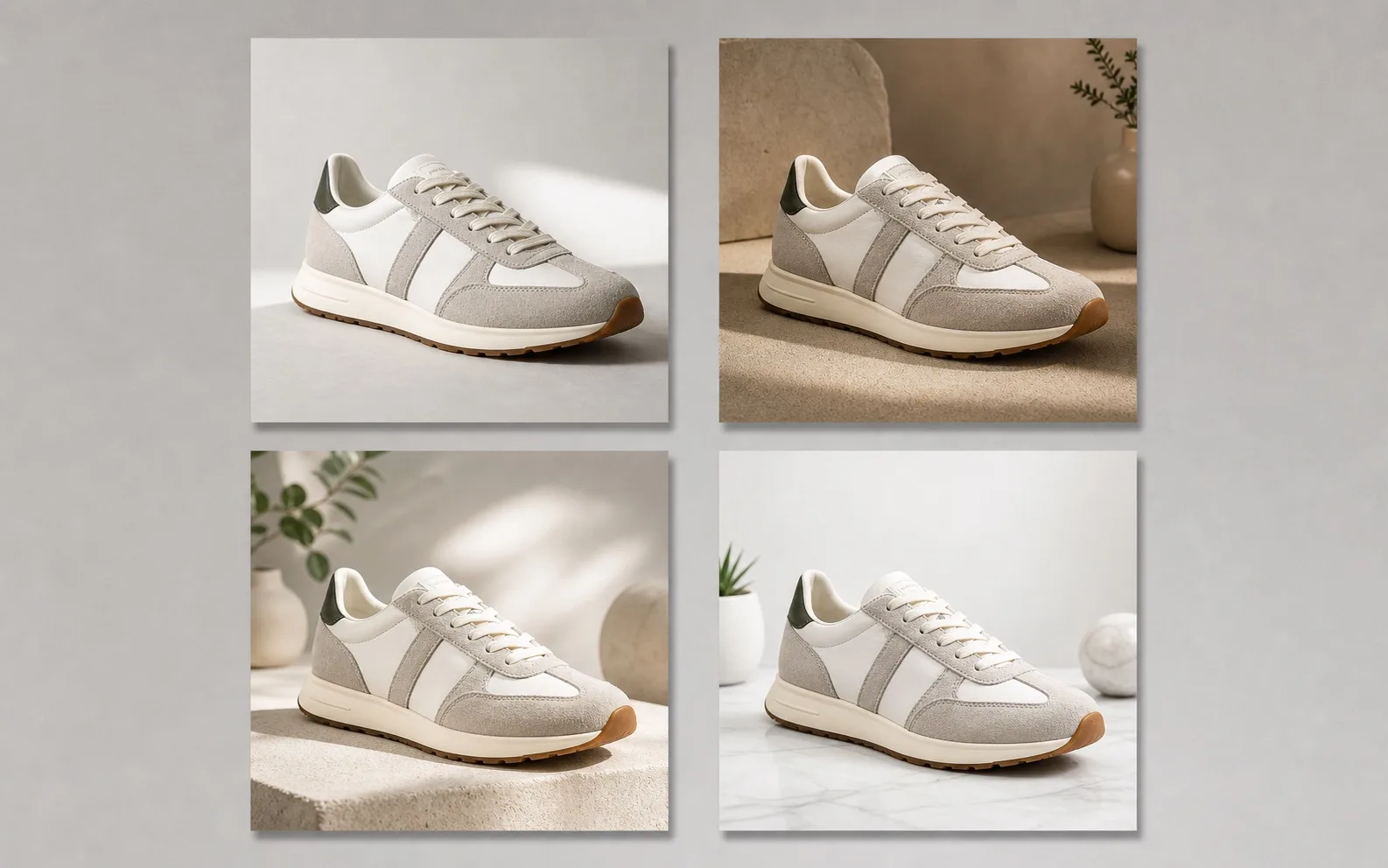
Reusable object variations
Keep the object clear and easy to compare while producing clean options for marketplaces, feeds, thumbnails, and galleries.
Get better variations from a strong reference
Image variation works best when you want controlled alternatives, not a new concept. Start with a clear subject, keep distractions low, and switch tools when the change needs to be bigger.
Start from an image that already works
Use variation when the subject, product, or scene is already close to what you need. The tool is strongest at creating related options, not replacing the whole idea.
Make the subject easy to read
Clean lighting, a clear silhouette, and less background clutter make variations easier to compare. Busy or low-quality references usually create weaker options.
Switch tools for a new concept
For a stronger transformation, use Image to Image to describe a larger restyle instead of asking variation to solve a new direction.
Improve weak inputs first
If the source is dark, soft, or compressed, improve it first with Image Enhancer so the next variation step starts from a clearer reference.
Ready to create variations
Start with one image and generate related options.
Upload a clear reference image, keep the main subject recognizable, and compare variations you can download or edit next.
AI Image Variation Generator FAQ
Answers about reference images, subject consistency, prompts, and when to use image variation instead of a broader restyle.
What is an AI image variation generator?
An AI image variation generator creates related versions of an existing image while keeping the main subject, composition, or overall mood recognizable.
Do I need to write a prompt to generate image variations?
No. This tool generates variations from your uploaded reference image and selected output size, so you can explore related options without writing a prompt.
Will the variations keep the same subject?
The tool is designed to keep the main subject recognizable, especially when the reference image is clear. Very busy, dark, or low-quality inputs may produce less consistent results.
When should I use image variation instead of Image to Image?
Use image variation when the reference is already close and you want related options. Use Image to Image when you need a larger restyle, a new concept, or more direct creative control.
Which source images work best for AI image variations?
Clear images with a readable subject, clean lighting, and limited background clutter usually work best. Strong references make it easier to compare the generated options.
How should I choose portrait, landscape, or square?
Choose the output size based on where you plan to use the result: portrait for vertical subjects, landscape for wider scenes, and square for balanced reusable assets.
What happens when I click Generate Variations?
The tool creates related image options from your reference. You can review the results, keep the strongest versions, and download or edit the ones that fit your direction.
Next up
Choose your next image step
Try a nearby image workflow, compare models, or turn your result into video.

AI image tools
More image tools
Create, edit, clean up, or upscale stills.

AI models
Compare image models
Pick a better model before making more versions.

AI video tools
Make it move
Animate a still or turn it into a clip.
AI Image Generator
Start from any idea
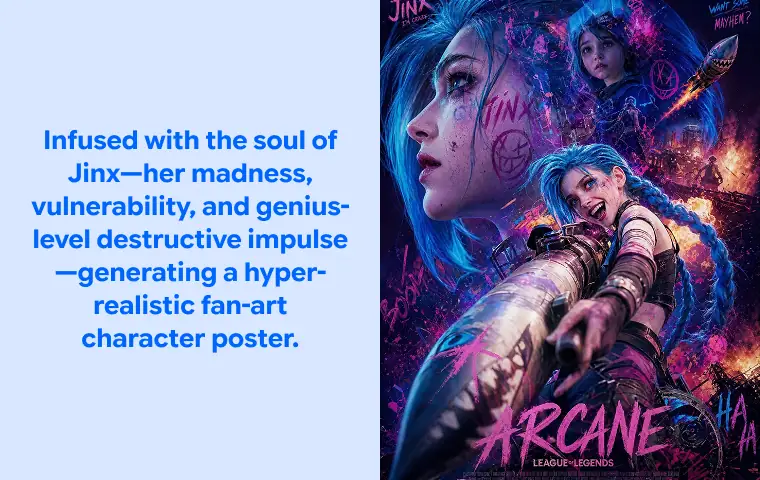
Create a fresh image from a prompt.
Text to Image
Prompt-first creation
Turn a written idea into an image.
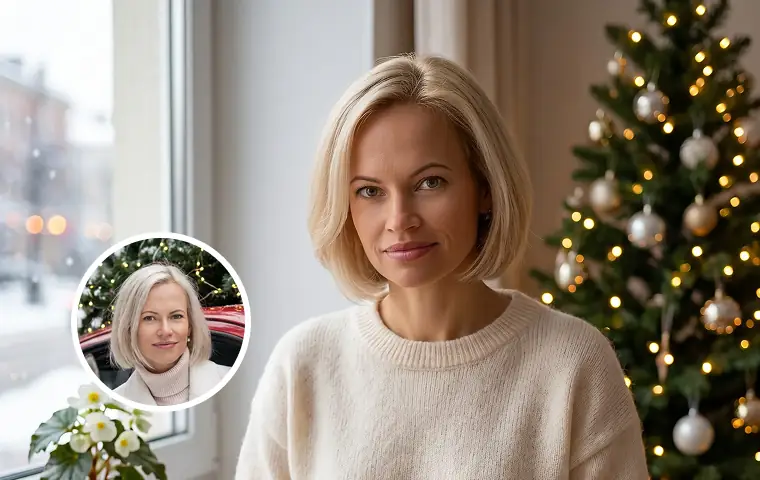
Image to Image
Use a reference
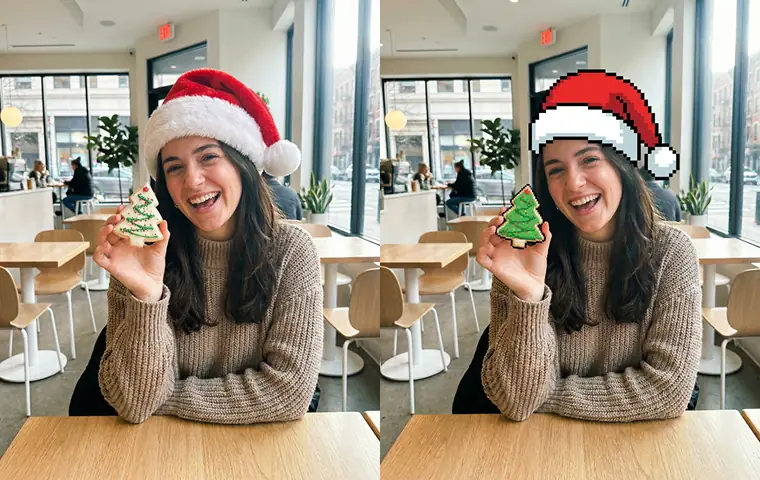
Restyle or revise an existing image.
Image to Prompt
Describe a reference
Turn visible image details into a reusable AI prompt.
AI Logo Generator
Brand marks
Create logo ideas from a short brief.
Product Picture Generator
Product visuals
Create polished product photos and campaign scenes.
AI image tools
More image tools
Create, edit, clean up, or upscale stills.
AI models
Compare image models
Pick a better model before making more versions.
AI video tools
Make it move
Animate a still or turn it into a clip.
AI Image Generator
Start from any idea
Create a fresh image from a prompt.