
Lip Sync AI for New Lines in the Same Video
Upload a 5 to 10 second talking video, add typed speech or audio, and sync the mouth movement for dubbing, localization, or line changes without reshooting.
Create
Upload Video
53/120
Sample videos
How to lip sync a video in Ezier
- 01
Upload a talking clip
Start with a 5 to 10 second MP4 or MOV under 100MB. Choose a clip where the speaker is visible and the line happens in one continuous moment.
- 02
Add the new speech
Type the line with Text to Speech, or upload an audio file when you already have the narration, dub, or approved take.
- 03
Set voice and speed if needed
In Text to Speech mode, choose a voice style and adjust speech speed before creating the synced video.
- 04
Create and review the result
Generate the lip sync video, play it back, then download the result when the mouth movement, pauses, and timing match the new speech.
What Lip Sync AI can do with a talking video
Lip Sync AI lets you keep the original face, framing, and performance while changing what the speaker appears to say. Use typed speech or uploaded audio to replace lines, create dubbed versions, update short creator clips, or revise presenter videos after the edit is already finished.
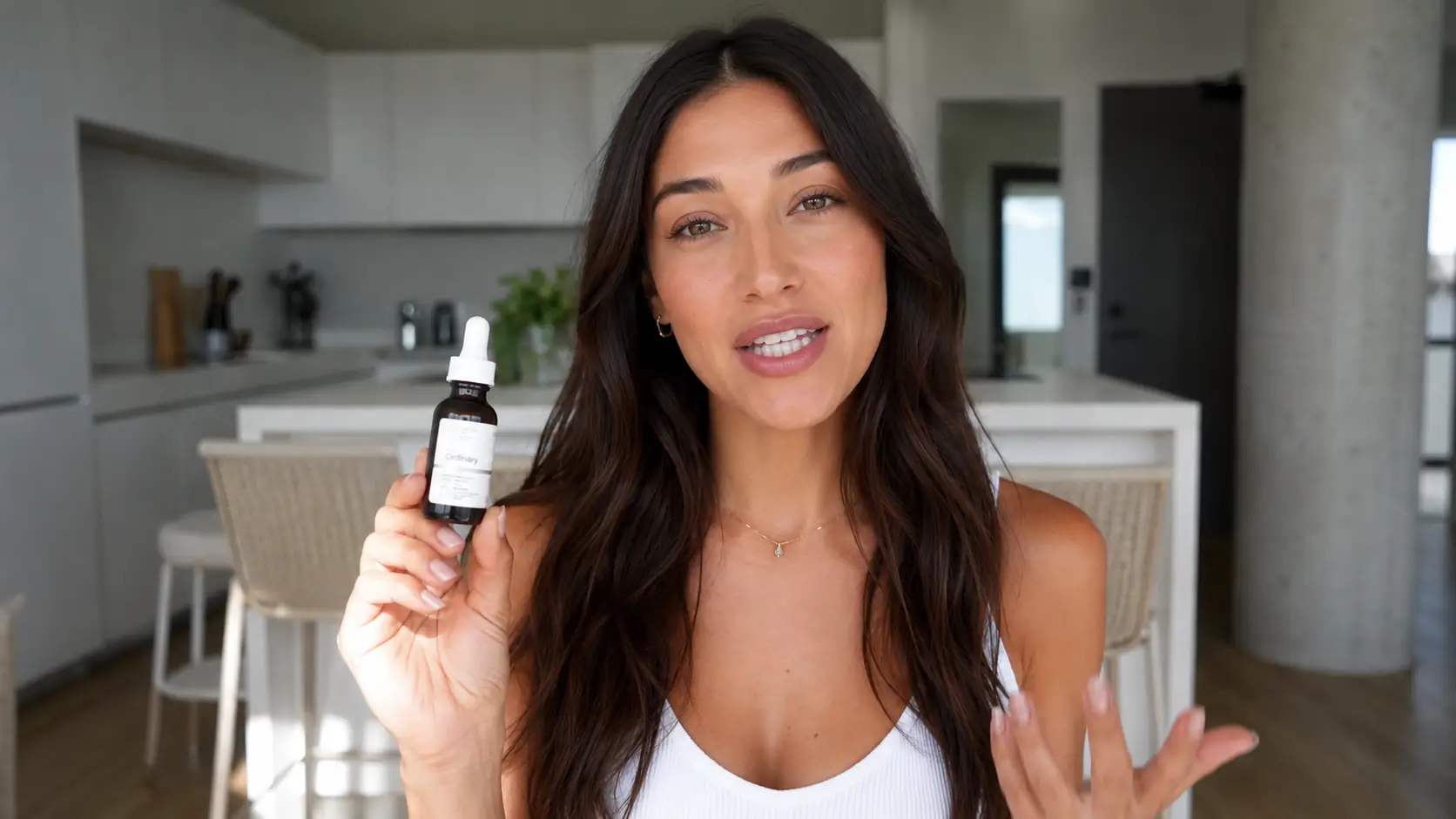
Replace a line without reshooting
Change a hook, offer, product mention, or call to action while keeping the same creator clip and visual performance.
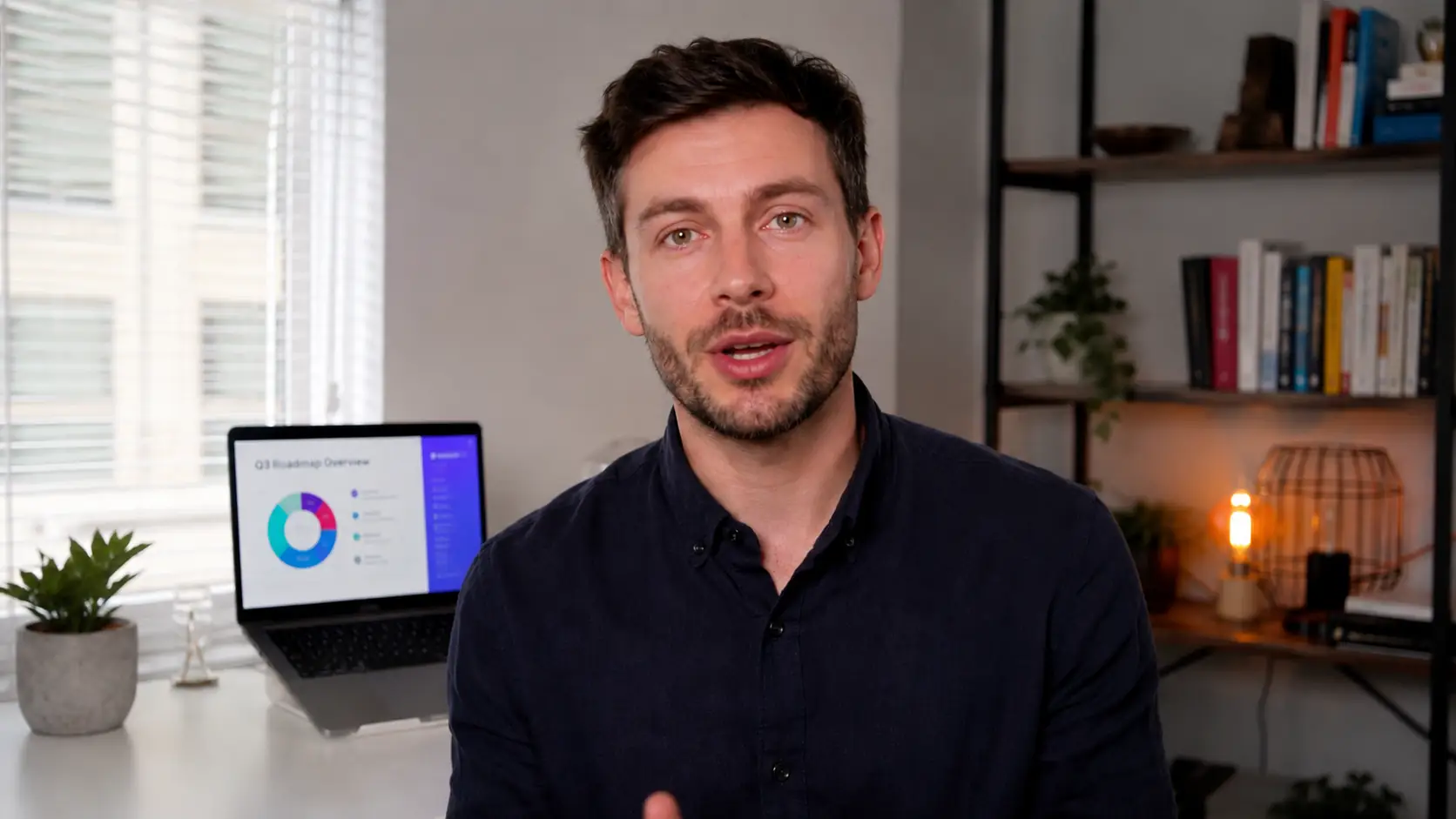
Make dubbed versions feel closer to the face
Pair translated speech, rewritten narration, or a new voice track with mouth movement that follows the updated audio.
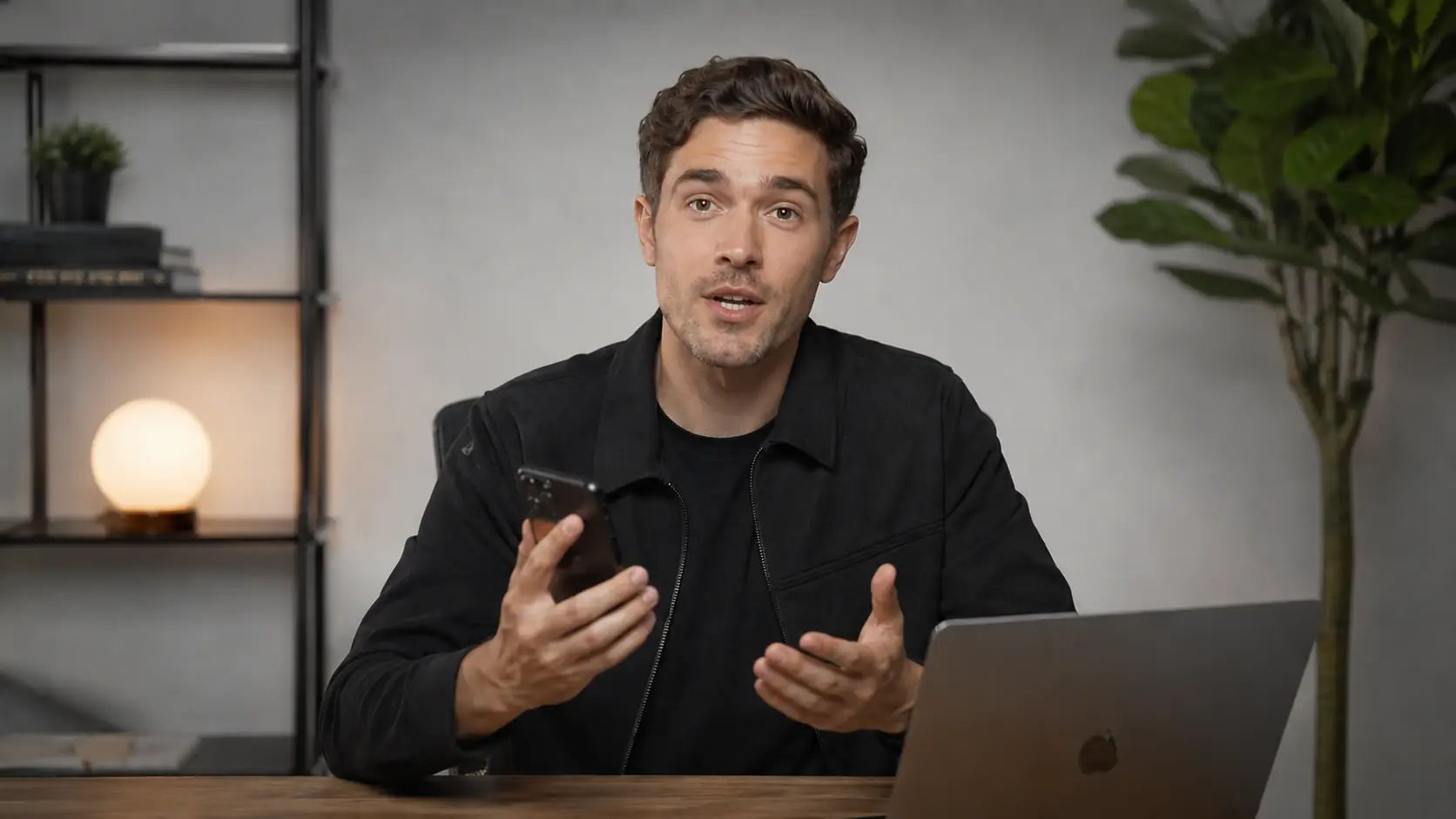
Revise presenter videos after approval
Fix facts, pronunciation, pricing, training details, or sales language in a finished short clip without reopening the whole production.
Help the lip sync feel natural
Good lip sync comes from matching three things: a clear mouth, a line that fits the visible speaking moment, and speech that moves at a believable pace. Check these before you render another version.
Fit the line into the speaking moment
Keep the new speech close to the time the speaker is visibly talking. If the line runs long, shorten it or split the idea into another clip.
Use Text to Speech for drafts
Text to Speech is faster for testing hooks, rewrites, and early localization lines. Upload Audio is better when the voiceover, translated dub, or final narration is already approved.
Start with a clear view of the mouth
Near-frontal clips with fewer fast cuts, hands, microphones, or side profiles give the model more to match. If the clip is usable but visually rough, clean it first in Video Enhancer before you ask the model to match a new line.
Adjust pacing before rewriting
If the result feels off, change speech speed or audio timing before rewriting the whole script. The words may be fine; the delivery may be moving too fast or too slowly for the video.
Ready to sync a new line?
Make a talking video speak the updated line.
Start with a short clip, add the new speech, and preview a synced result without setting up another shoot.
Lip Sync AI FAQ
Answers about source videos, speech inputs, dubbing, and what to change when the result feels off.
What does Lip Sync AI change in a video?
It updates the visible mouth movement so an existing speaker appears to say the new speech you provide. It keeps the original clip structure instead of generating a new avatar, restyling the footage, or replacing the whole video.
Can I use typed text or my own audio?
Yes. Use Text to Speech when you want to type a line and test it quickly. Upload audio when you already have a voiceover, translated dub, or approved narration that should drive the mouth movement.
What source video works best?
Use a short clip with one clearly visible speaker. Near-frontal faces, steady framing, and an uncovered mouth usually give the model more usable information than side profiles, fast cuts, or heavy motion.
Can I use Lip Sync AI for dubbing and localization?
Yes, when you provide the translated text or audio. Lip Sync AI handles the mouth-sync part of the dubbed version; it is not a full automatic video translation tool.
Is this the same as a talking avatar or talking photo tool?
No. Lip Sync AI starts from an existing talking video. Avatar and talking photo tools create or animate a speaker from a different kind of source, while this page edits the mouth movement in footage you already have.
What files can I upload?
Upload an MP4 or MOV source video between 5 and 10 seconds, up to 100MB. If you use audio instead of Text to Speech, upload an MP3, WAV, M4A, or AAC file up to 5MB.
Why can lip sync look unnatural?
The usual causes are a line that is too long, audio that moves too fast, a speaker who turns away from camera, or a mouth that is hidden. Check the source clip and pacing before rewriting the whole script.
Do I need to reshoot a video to update one spoken line?
Often, no. If the original take already has the right framing, expression, and mouth visibility, lip sync can update a short spoken segment without filming it again. If the new line is much longer or the face is hard to see, reshooting may still be cleaner.
Related paths
Refine the clip another way
Try another video step when the next move is a new source, a different model, or a cleaner result.

AI video tools
More video tools
Generate, edit, clean up, or improve clips.

AI models
Compare video models
Pick a better model before rendering again.

AI image tools
Prepare source images
Create a stronger still for the next video run.
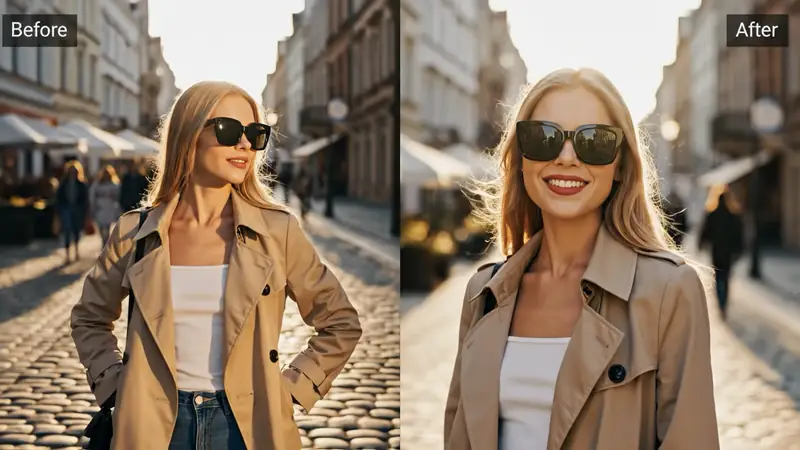
AI Video Editor
Edit with prompts
Revise a clip without a timeline.
Video to Video
Restyle footage
Change the look of an existing clip.
Video Enhancer
Improve quality
Sharpen, denoise, and restore clips.
Video Upscaler
Make it larger
Upscale clips for bigger screens.

AI Video Generator
Start a video
Create a clip from a prompt or image.

Image to Video
Animate a still
Turn an image into a short clip.
AI video tools
More video tools
Generate, edit, clean up, or improve clips.
AI models
Compare video models
Pick a better model before rendering again.
AI image tools
Prepare source images
Create a stronger still for the next video run.
AI Video Editor
Edit with prompts
Revise a clip without a timeline.