
Upload Image
Remove Filter From Photo and Restore Natural Color
Upload a filtered photo to reduce color casts, heavy saturation, faded tones, and harsh contrast while keeping the subject and composition intact.
Samples
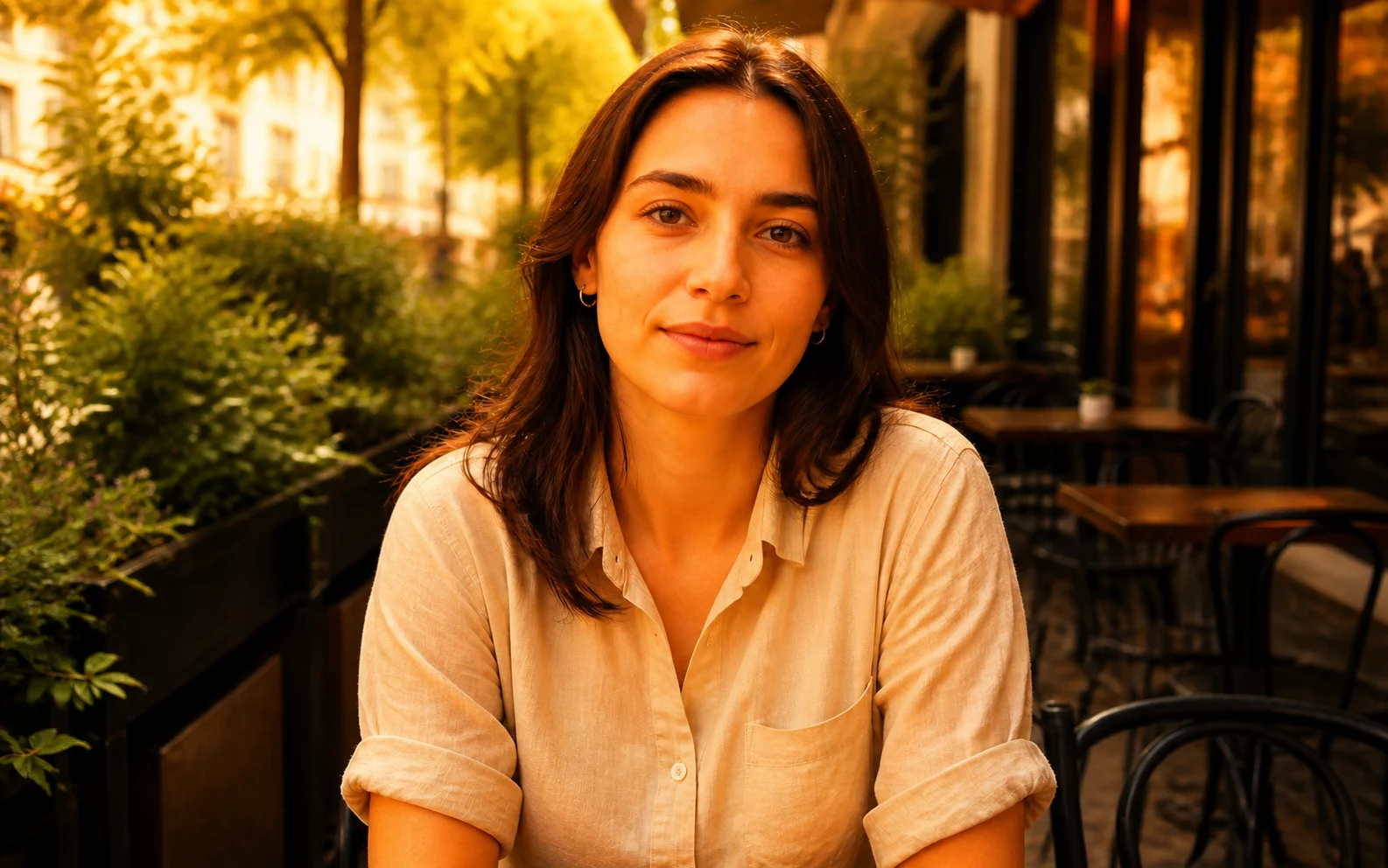
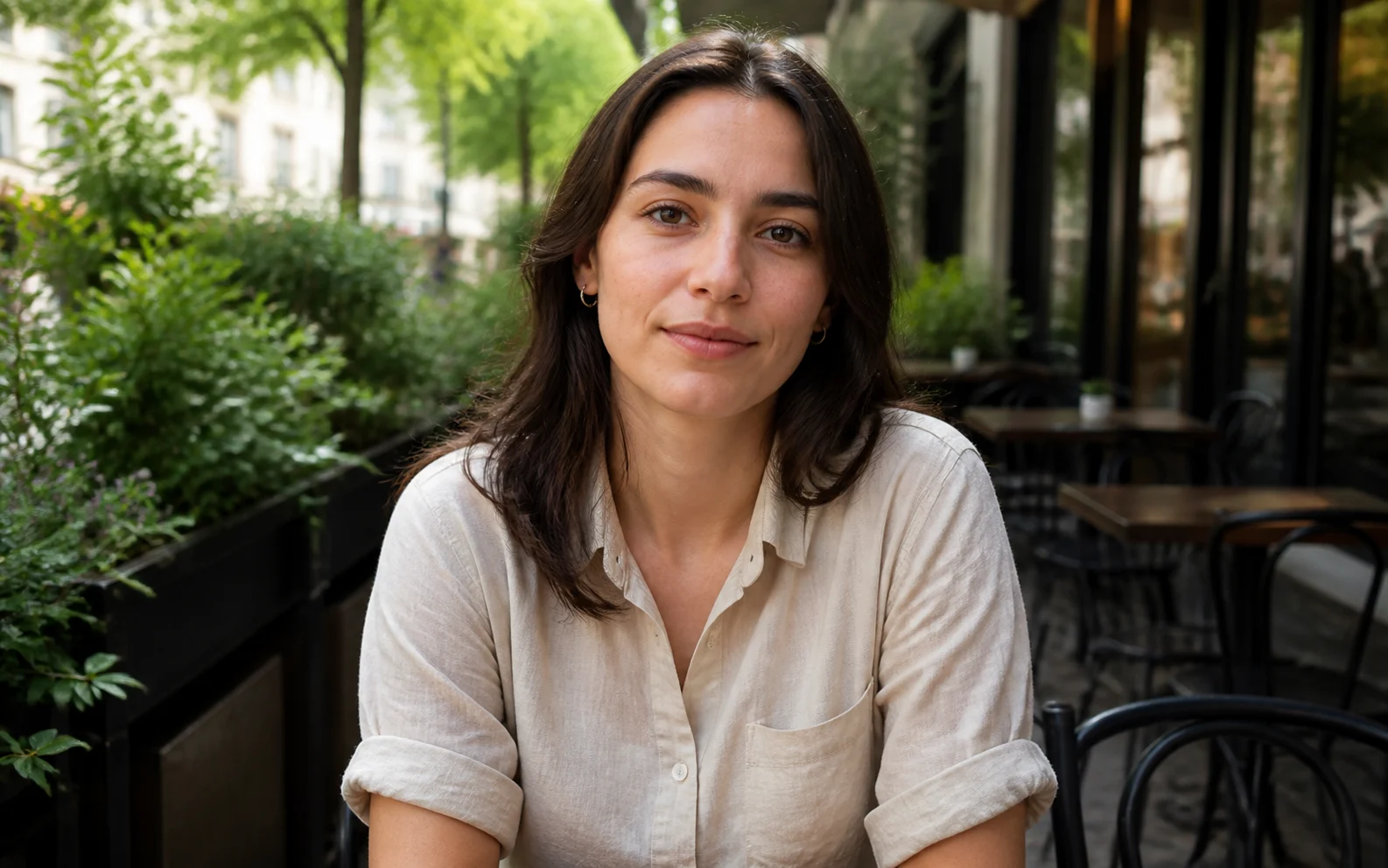
Remove a photo filter in four steps
No manual curves or color wheels. Start with one filtered image, run the correction, and compare the result before downloading.
- 01
Upload a filtered photo
Choose a JPG, PNG, WEBP, or GIF with the color effect you want to reduce.
- 02
Remove the photo filter
Select Remove Photo Filter to rebalance color, saturation, contrast, and overall tone.
- 03
Compare the result
Drag across the preview to check skin tones, neutral colors, shadows, highlights, and fine details.
- 04
Download the corrected image
Save the result when it looks natural, or try another source if the original filter hid too much detail.
Remove filters from more than portraits
Color filters affect memories, food, rooms, landscapes, and product photos differently. The goal is a cleaner, more believable result for each one.
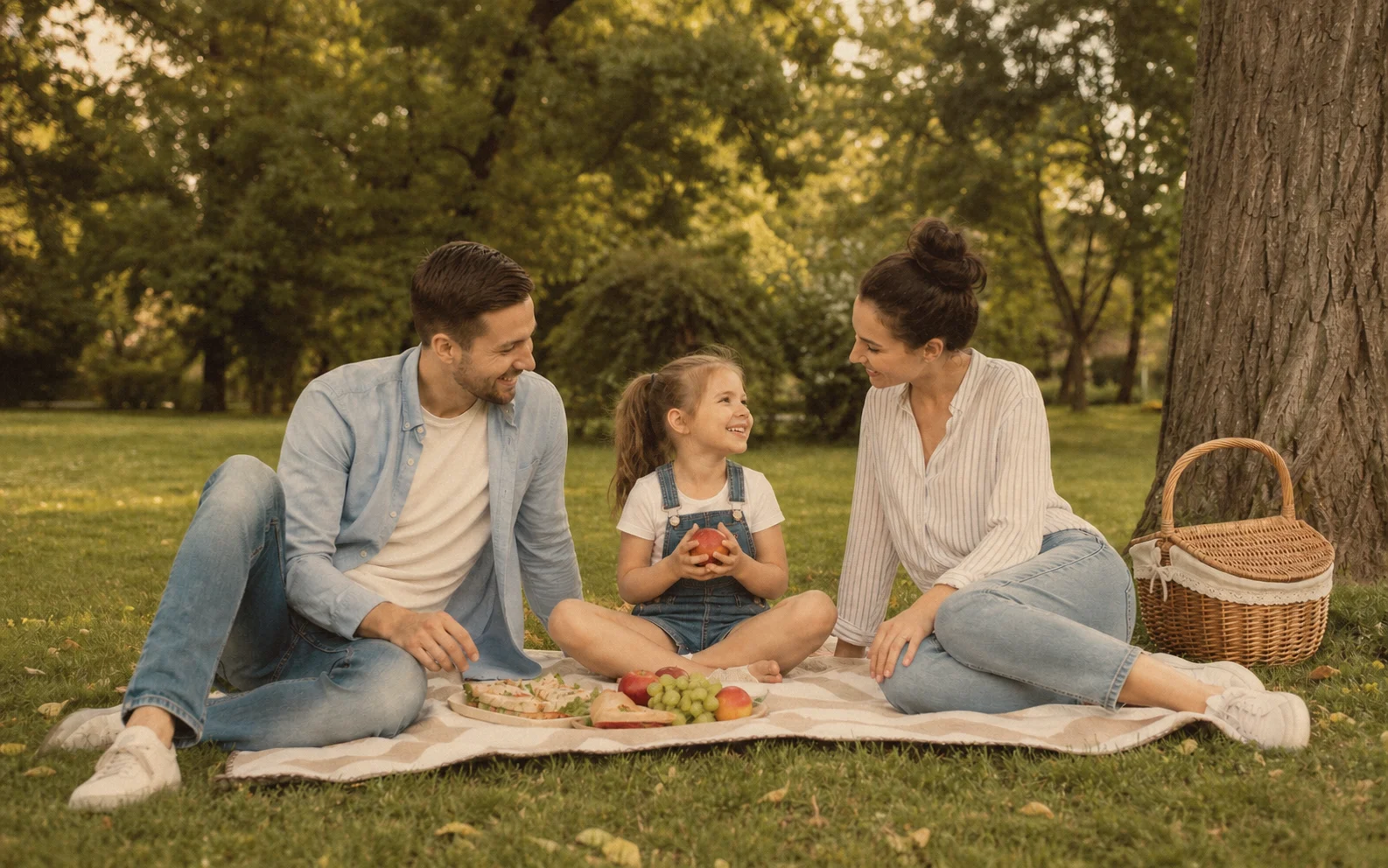
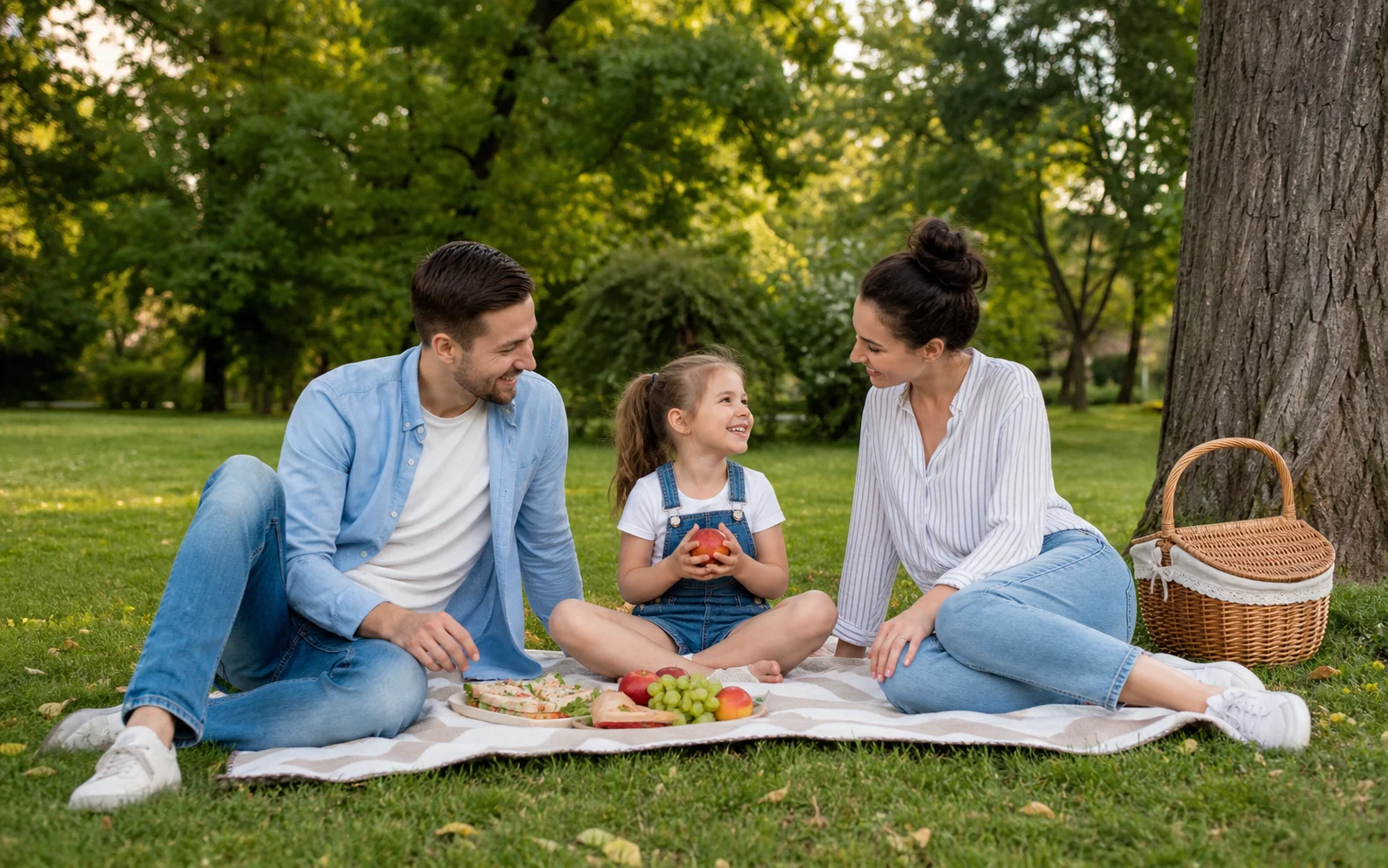
Refresh vintage family photos
Reduce sepia casts and faded color from older edits while keeping faces, clothing, and the scene familiar.
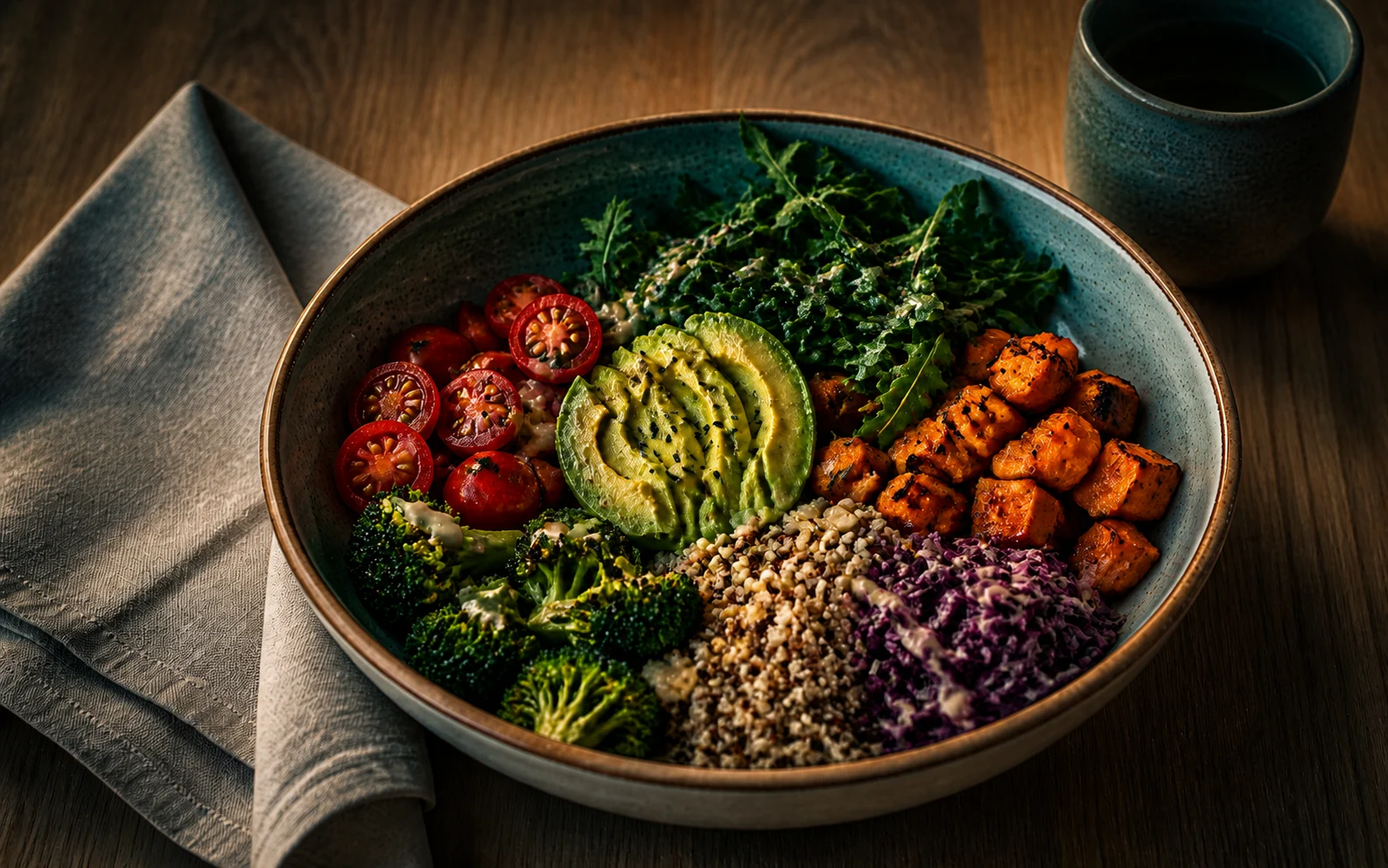
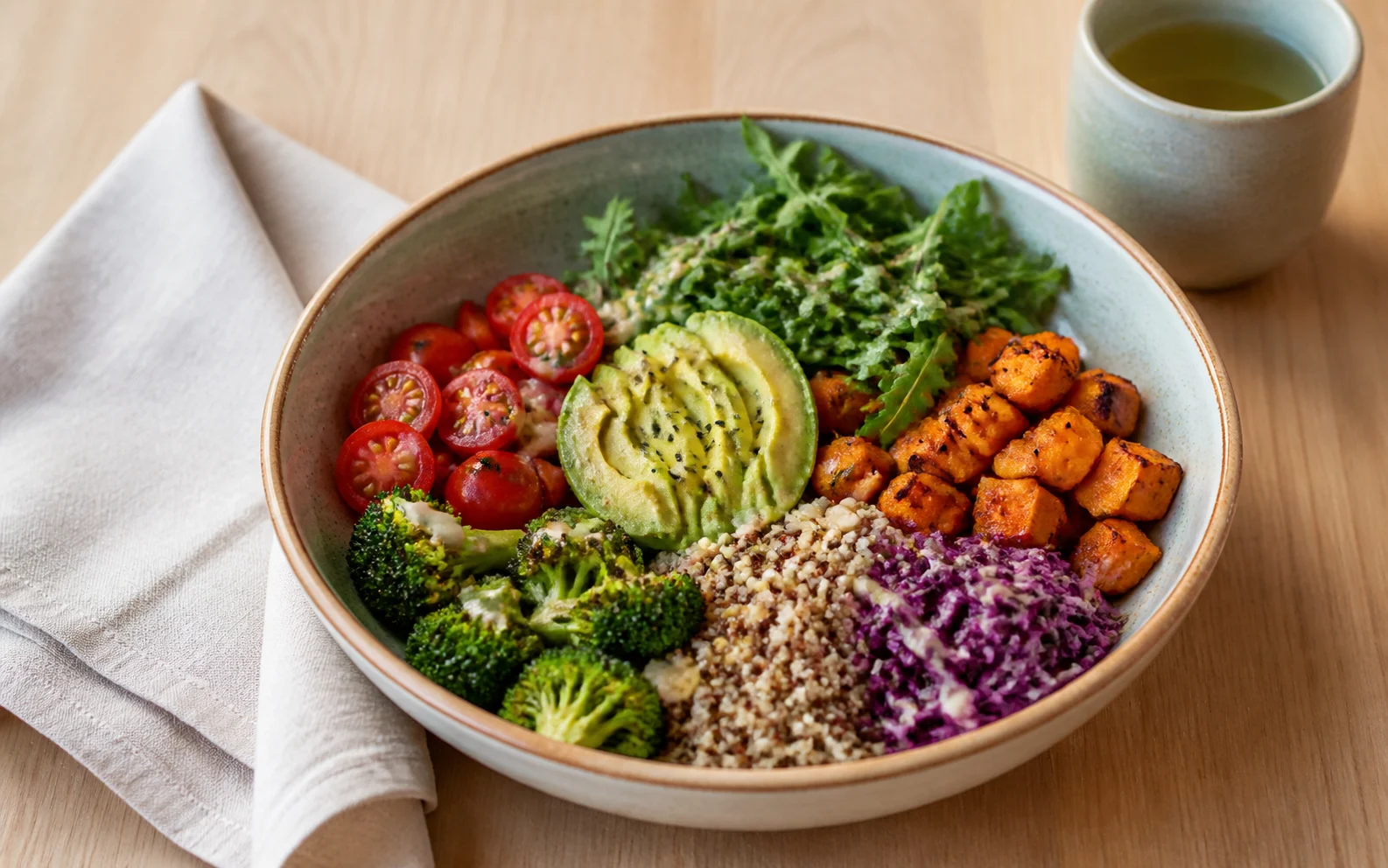
Recover believable food color
Pull back dark, high-contrast food filters so ingredients look distinct and the lighting feels less artificial.
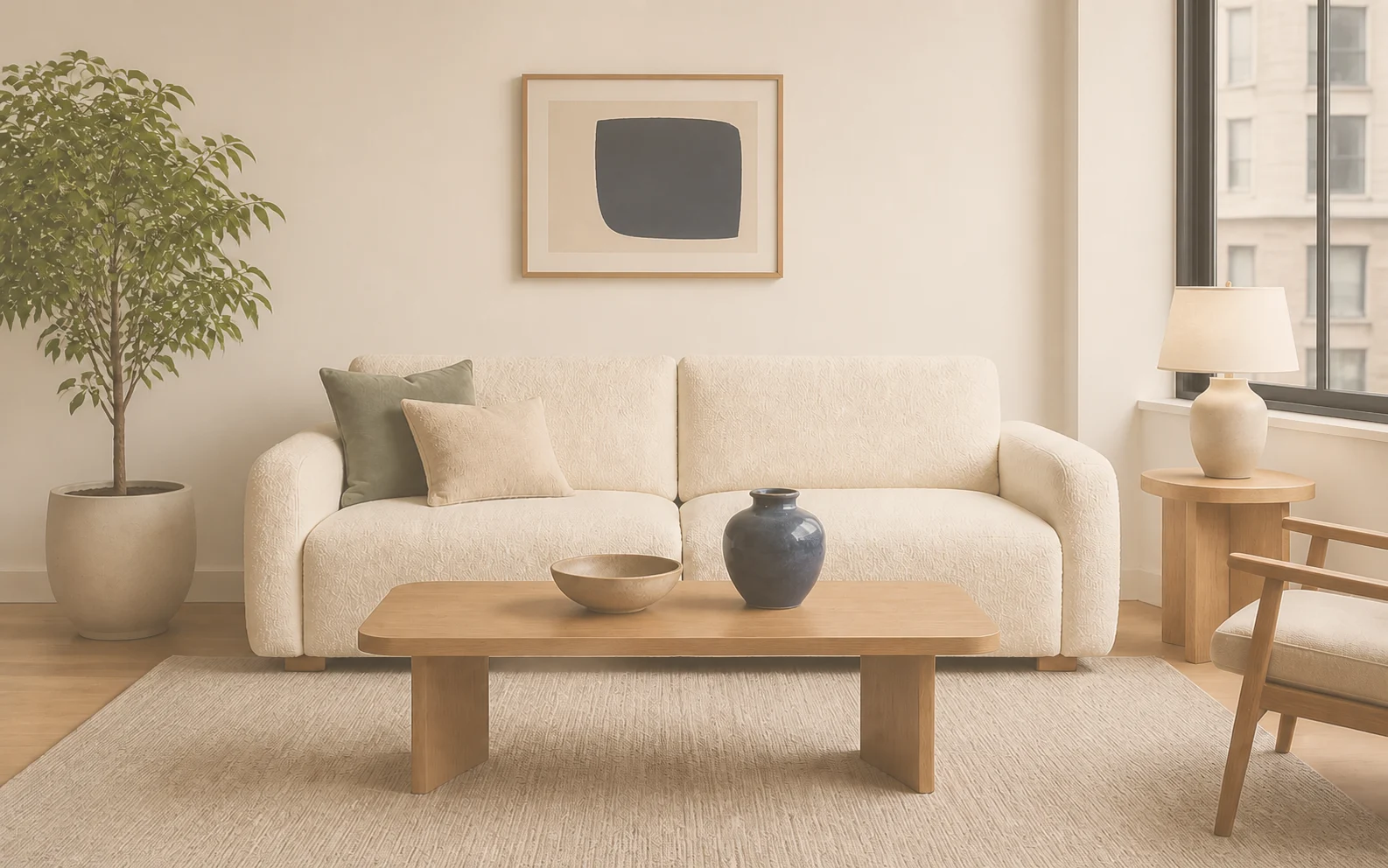

Neutralize faded interior edits
Restore cleaner whites, deeper contrast, and more accurate material colors in room and property photos.
Get a more natural result
A clear source and a careful comparison make it easier to judge whether the corrected photo is ready to keep.
Start with the largest available file
A higher-quality upload gives the tool more color and texture information to work with.
Check neutral areas first
White clothing, gray walls, clouds, and natural skin are useful reference points for unwanted color casts.
Inspect highlights and shadows
Strong filters can clip bright or dark areas. Confirm that the corrected result still has believable detail.
Keep recovery expectations realistic
AI can reduce a visible filter, but it cannot guarantee the exact unedited original when color data was permanently lost.
Ready to restore the color
Turn a heavily filtered photo into a more natural-looking image.
Upload one photo, remove the filter, and compare the color, contrast, and important details before you download.
Remove Filter From Photo FAQ
Answers about supported filter styles, image quality, and what AI can realistically recover.
Can AI really remove a filter from a photo?
AI can analyze a filtered image and reduce artificial color casts, saturation, contrast, fading, and tonal effects. It can make the photo look more natural, but it cannot guarantee the exact original pixels.
Which photo filters can this tool reduce?
It is designed for warm, cool, blue, vintage, faded, dark, high-contrast, and oversaturated filters. Results depend on how strongly the effect changed or removed the source color information.
Will removing the filter change the subject or composition?
The tool is designed to preserve the subject, framing, and composition while correcting the overall look. Always compare the result closely before downloading, especially around faces and product details.
Can it restore natural skin tones?
It can reduce warm, cool, or oversaturated casts that make skin look unnatural. A clear, well-lit portrait usually gives the tool the best reference for a balanced result.
Can I remove an Instagram, Snapchat, or vintage filter?
Yes, if the main effect is a color or tone change. Decorative overlays, stickers, face reshaping, and details hidden by the filter may need a different editing tool.
Can the exact original photo be recovered?
Not always. If a filter clipped highlights, crushed shadows, replaced colors, or the file was heavily compressed, that missing source data may not be recoverable. The result is an AI-guided natural correction, not the original raw file.
More to try
Explore your next creative step
Try another image tool, compare image models, or animate an image concept.

AI image tools
More image tools
Create, edit, clean up, or upscale stills.

AI models
Compare image models
Pick a better model before making more versions.

AI video tools
Make it move
Animate a still or turn it into a clip.
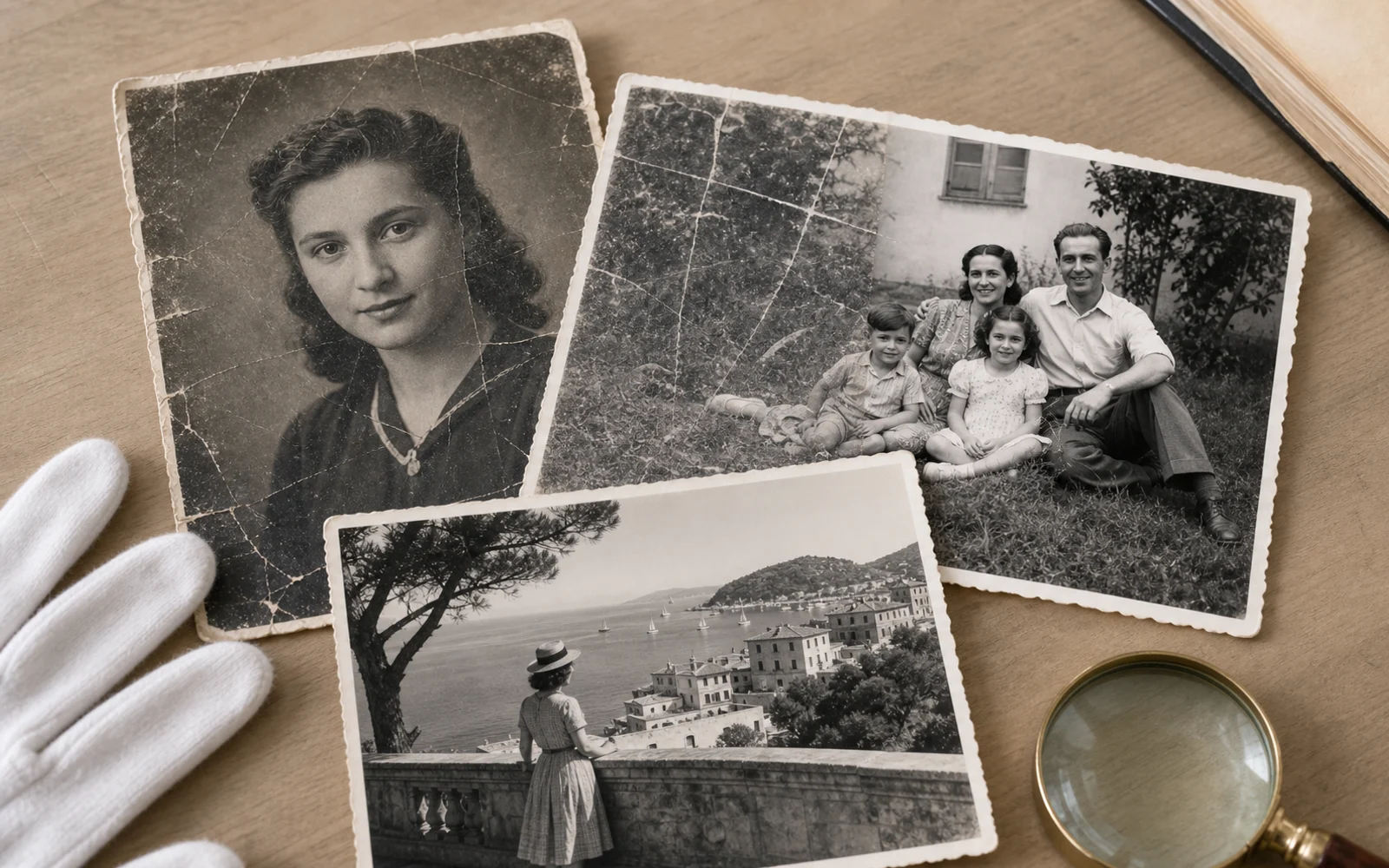
Old Photo Restoration
Repair aged photos
Reduce scratches, fading, blur, and scan damage.
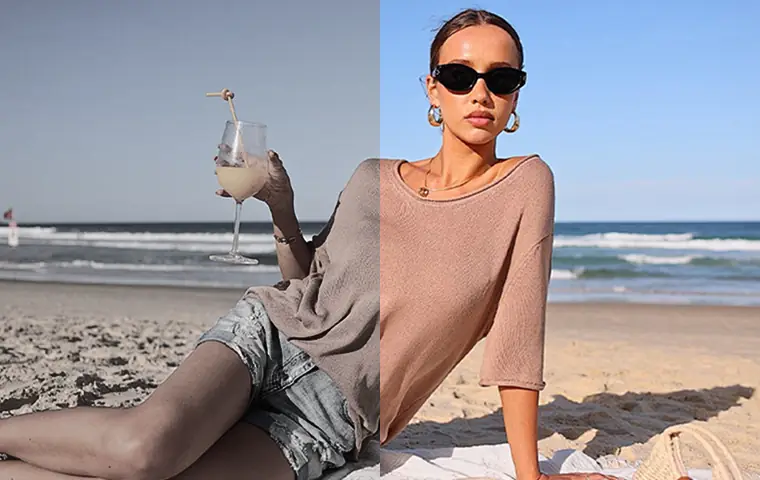
Image Enhancer
Improve quality
Recover detail, color, and clarity.
AI Image Editor
Prompt-based edits
Change an image without starting over.
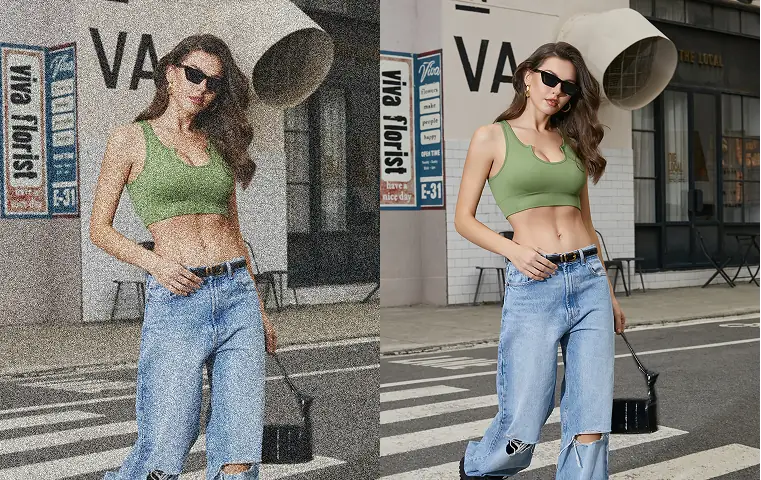
Image Sharpener
Sharpen detail
Make soft edges and small details clearer.
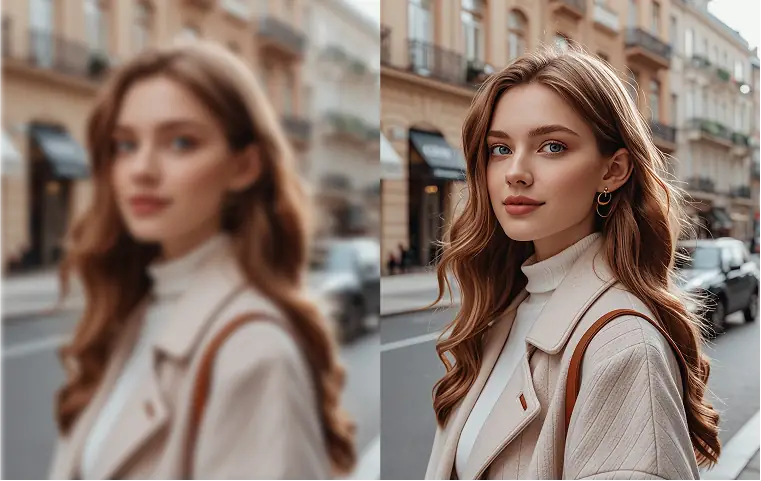
Unblur Image
Fix blur
Recover focus in blurry photos.
Image Upscaler
Make it larger
Increase size for export or reuse.
AI image tools
More image tools
Create, edit, clean up, or upscale stills.
AI models
Compare image models
Pick a better model before making more versions.
AI video tools
Make it move
Animate a still or turn it into a clip.
Old Photo Restoration
Repair aged photos
Reduce scratches, fading, blur, and scan damage.