
360 Microwave Effect Video Generator From One Image
Upload one clear portrait or full-body character image and create a short video that orbits the person for a 360° view.
Create
Upload Image
Sample videos
Create a 360 microwave effect video in four steps
Start with one clear portrait. The tool turns it into a short orbit-style clip without a manual 3D setup.
- 01
Upload one image
Choose a clear portrait or full-body render with one person as the main subject.
- 02
Check the available settings
Review any options provided for the effect and confirm the source image has finished uploading.
- 03
Create the orbit clip
Generate a short video that moves around the subject to reveal a 360-style view.
- 04
Review and download
Watch the result for shape and detail consistency, then download it or try another source image.
Show one person from every side
The 360 microwave effect works best when the person has a clear outline and enough room to rotate inside the frame.
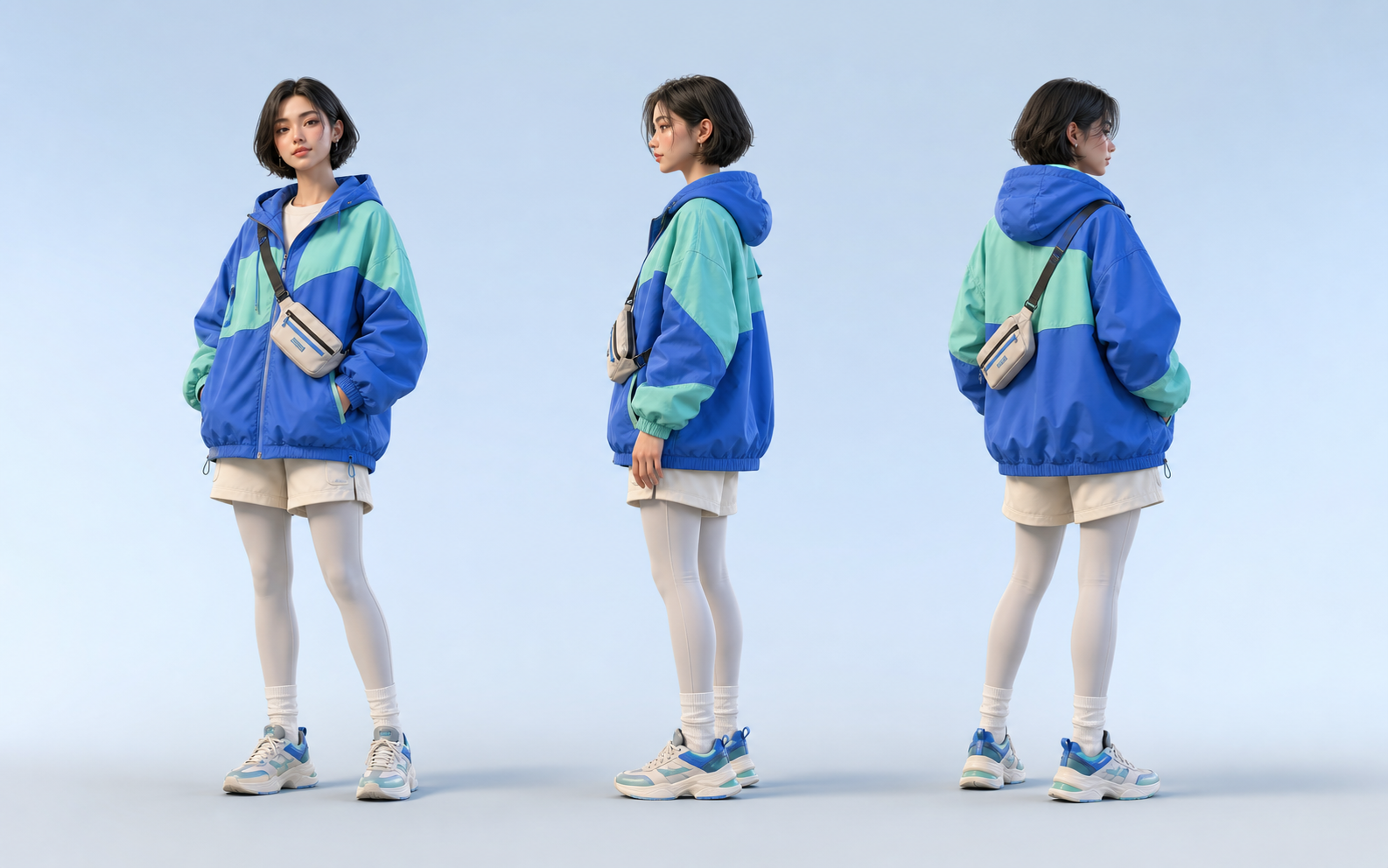
Portraits with a readable silhouette
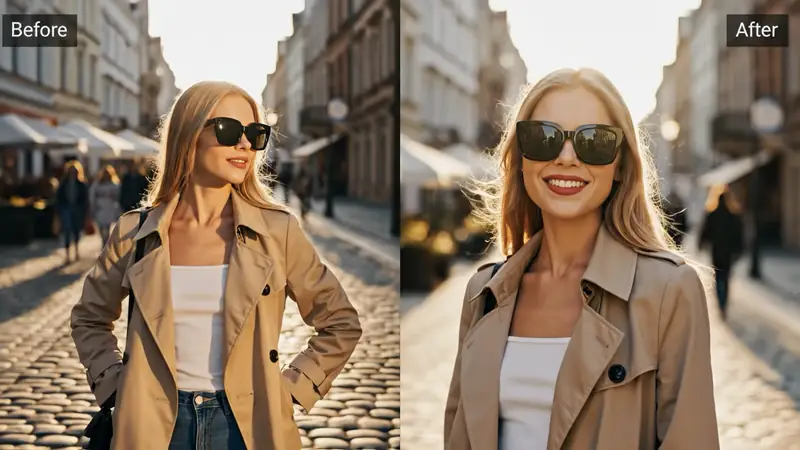
A centered person with a clear pose gives the camera move enough room to reveal the hairstyle, clothing, and full outline.
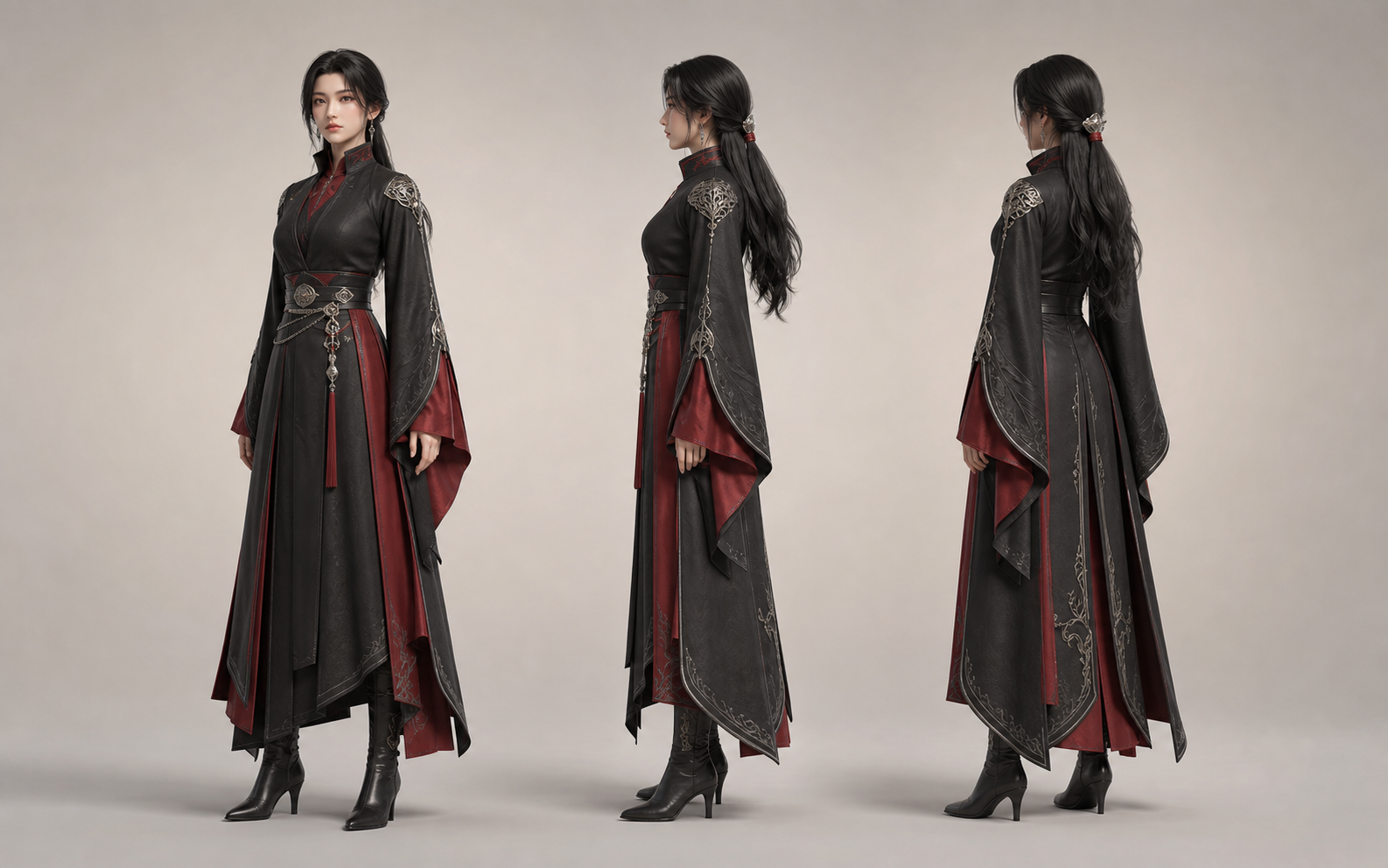
Fashion and costume turnarounds
Use the effect to reveal layered outfits, long hair, and costume details that are hidden in the starting portrait.
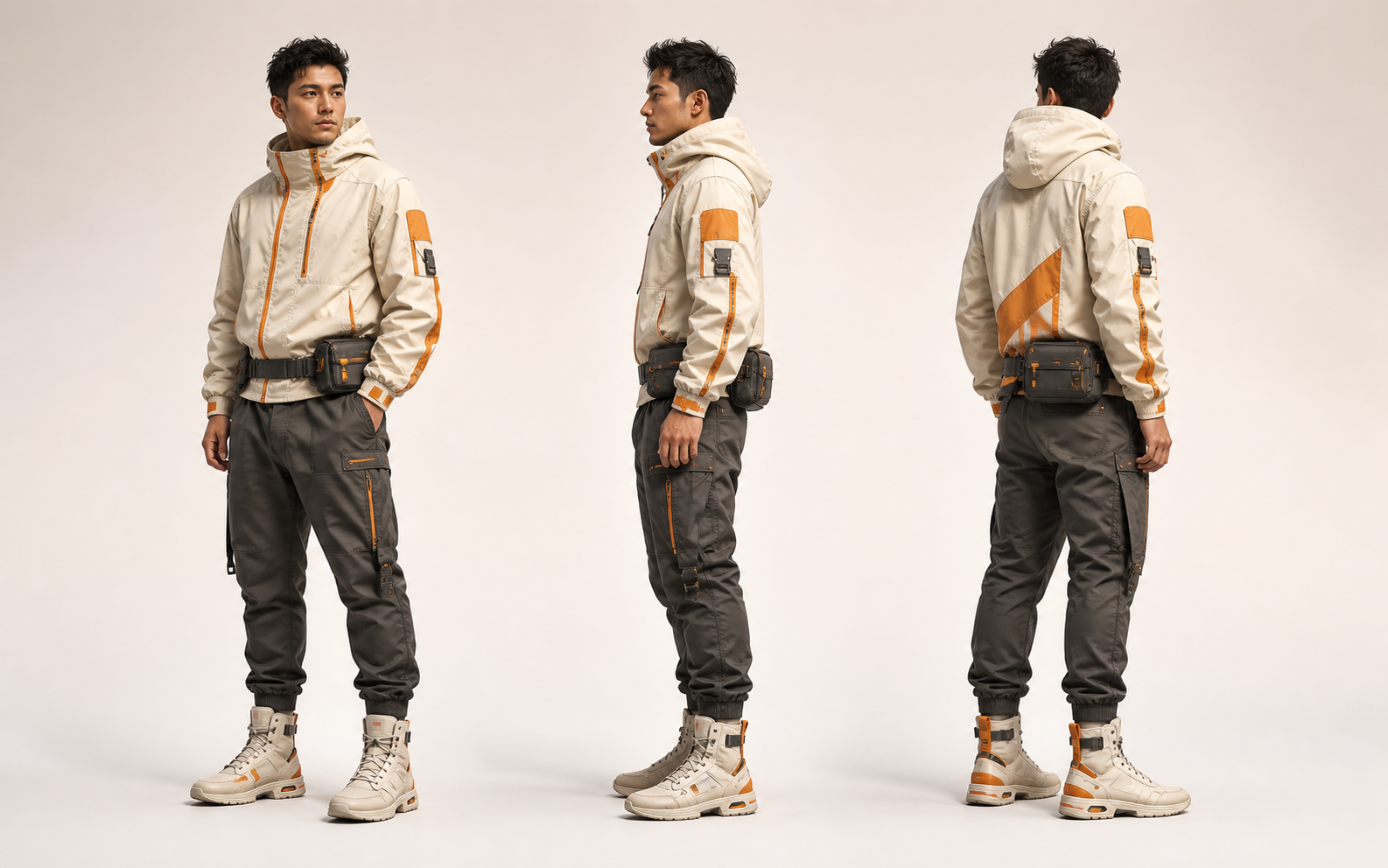
Creator looks and character concepts
Turn a styled portrait, avatar, or character design into a short rotating clip while keeping the person at the center of the frame.
Choose a portrait that can turn cleanly
A simple portrait gives the effect more visual information to work with and makes the orbit easier to follow.
Keep one subject in focus
Busy group scenes make it harder to tell who should rotate. Use a frame with one obvious person.
Leave space around the edges
A little breathing room helps the generated camera move without crowding or cropping the person.
Use a sharp, well-lit image
Clear contours and visible surface details give the effect a stronger starting point for unseen angles.
Avoid hidden or tangled shapes
Simple poses and visible clothing edges are more likely to stay consistent as the view moves around the person.
Ready to see the other side?
Turn one image into a 360° orbit video
Upload a clear image, create the effect, then review the full rotation before downloading your clip.
360 Microwave Effect FAQ
Answers about the effect, source images, output, and credits.
What is the 360 microwave effect?
It is an AI video effect that turns one portrait into a short clip with a camera move around the person, creating a 360-style view.
Why is it called the microwave effect?
The name describes the popular rotating visual effect. The person appears through multiple angles as the camera moves around them.
Do I need photos from several angles?
No. Upload one source image. The tool generates the additional views needed for the orbit-style motion.
What images work best for a 360 microwave effect video?
Use a sharp portrait with one centered person, a clear outline, even lighting, and enough empty space around the edges.
Can I use the effect for avatars or character videos?
Yes. It can create quick avatar, fashion, character, and social clips, but you should review faces, hands, and clothing details before publishing.
Does the 360 microwave effect use credits?
Yes. The current credit estimate appears on the Create video button before you generate.
More to try
Find the right next tool
Find the next tool for generation, restyling, cleanup, extension, or model comparison.

AI video tools
More video tools
Generate, edit, clean up, or improve clips.

AI models
Compare video models
Pick a better model before rendering again.

AI image tools
Prepare source images
Create a stronger still for the next video run.
AI Video Generator
Start a video
Create a clip from a prompt or image.
Text to Video
Prompt-first video
Turn a written scene into motion.
Image to Video
Animate a still
Turn an image into a short clip.
Video to Video
Restyle footage
Change the look of an existing clip.
AI Video Extender
Extend a clip
Continue a short video into a longer scene.
AI Video Editor
Edit with prompts
Revise a clip without a timeline.
AI video tools
More video tools
Generate, edit, clean up, or improve clips.
AI models
Compare video models
Pick a better model before rendering again.
AI image tools
Prepare source images
Create a stronger still for the next video run.
AI Video Generator
Start a video
Create a clip from a prompt or image.