
Upload image *
Free Image Simplifier for Tonal Value Studies
Turn a reference photo into clear, paintable value shapes. Compare the study with the original, inspect individual value groups, and download a PNG. Your image stays in your browser.
SamplesDetailed · 5 values
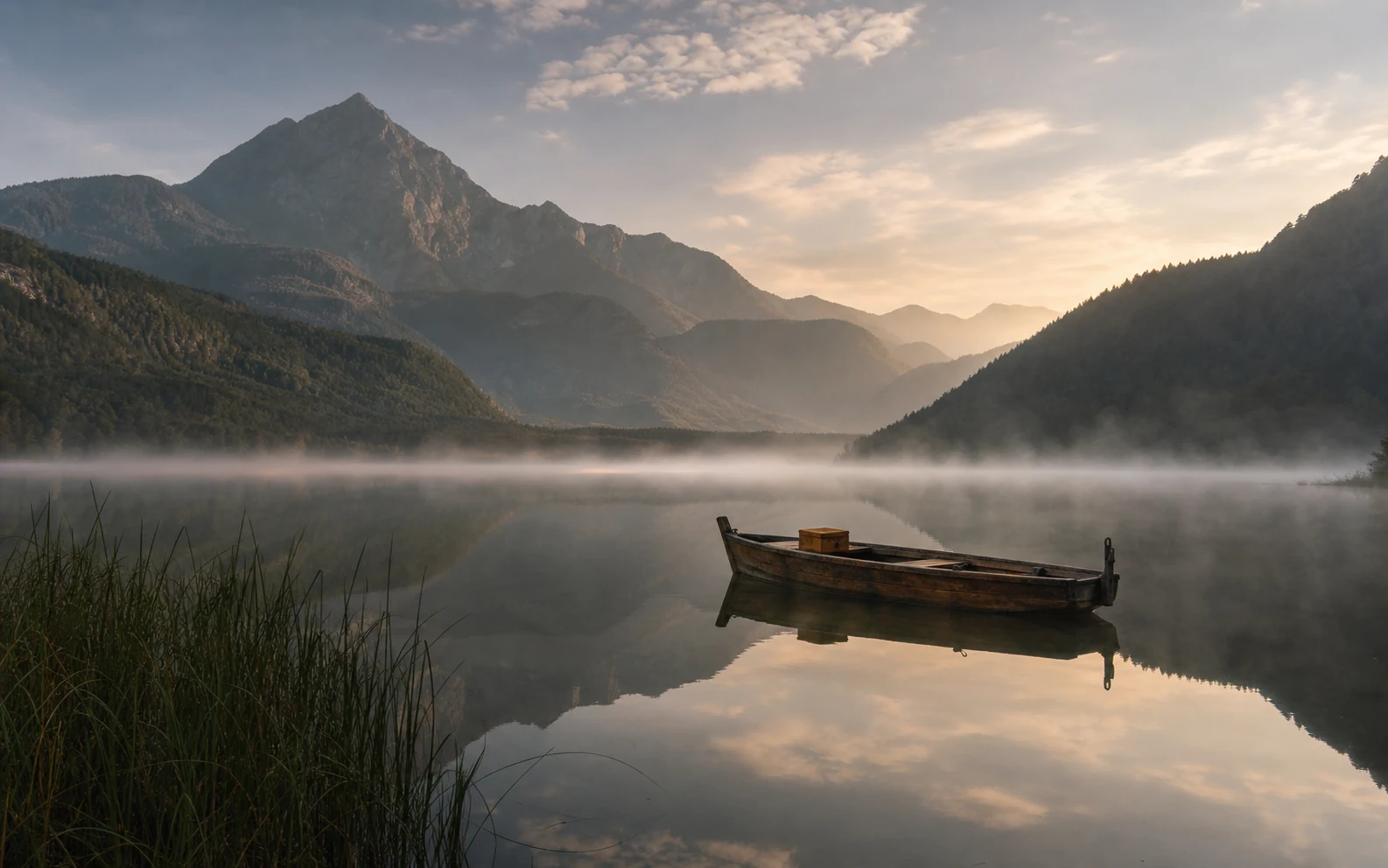
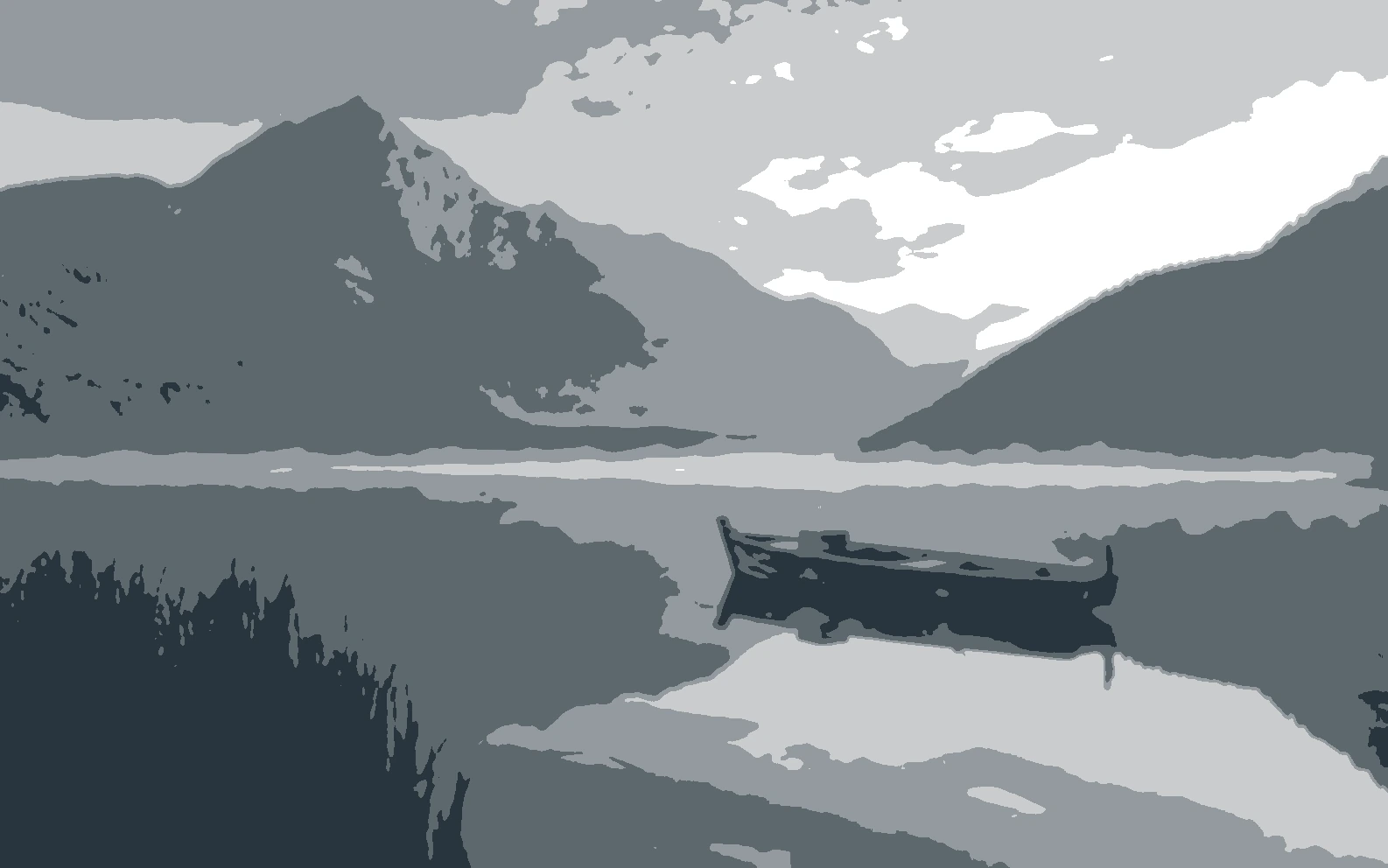
Create a value study in four steps
Follow the workflow from selecting a reference to saving a study you can use beside your artwork.
- 01
Upload a reference image
Select the JPG, PNG, or WebP reference you want to study.
- 02
Choose the number of values
Move the Tonal values slider until the image breaks into a useful number of light and dark groups.
- 03
Shape the simplification
Choose a simplification style and value range, then add optional detail control, color, or outlines.
- 04
Inspect, refine, and export
Compare the original with the value study, highlight individual groups if needed, and download the finished PNG.
Choose how the image simplifies
Use each control for a distinct part of the study: reduce visual noise, shape the larger masses, then inspect how the values connect.
Quiet small, distracting details
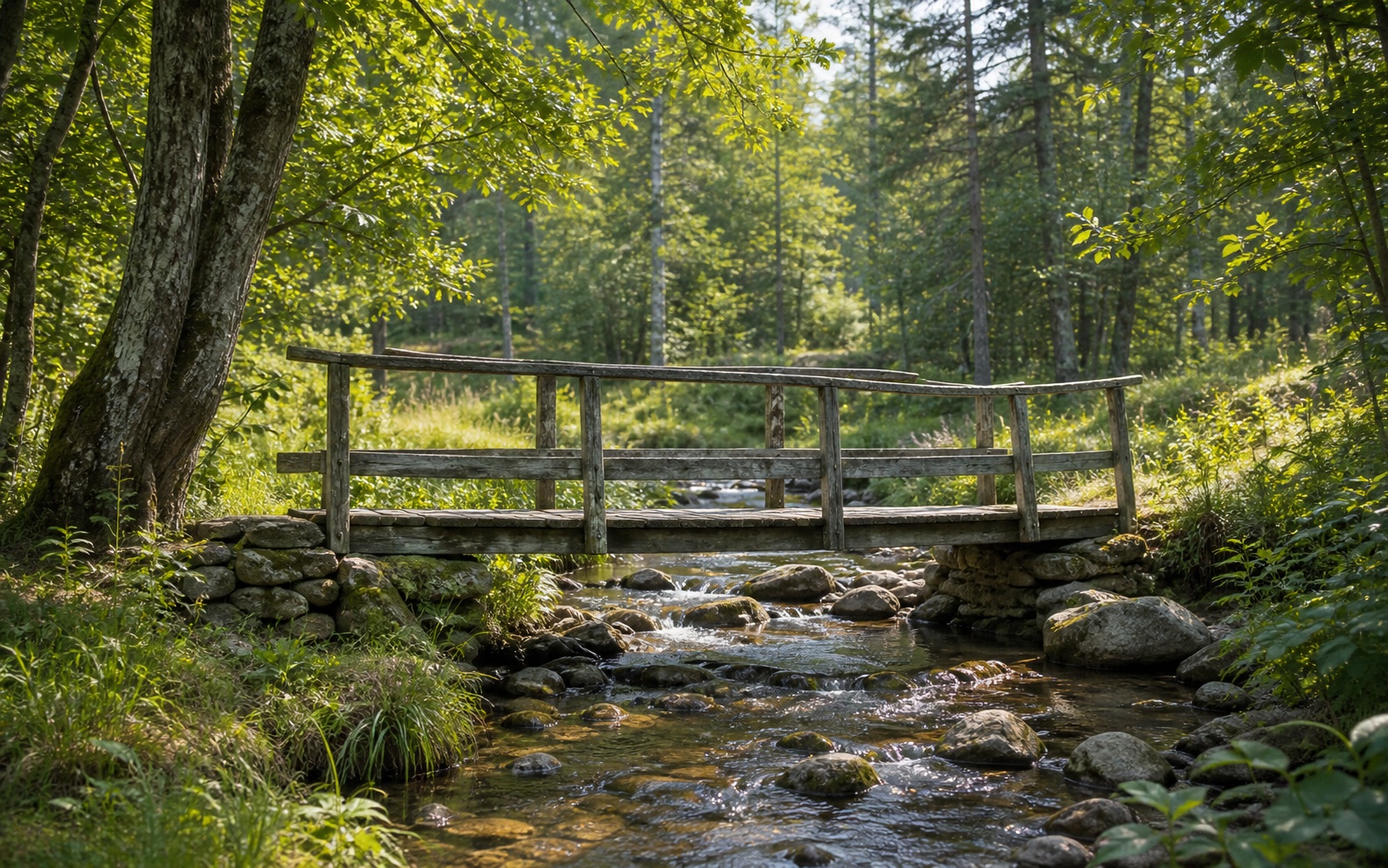
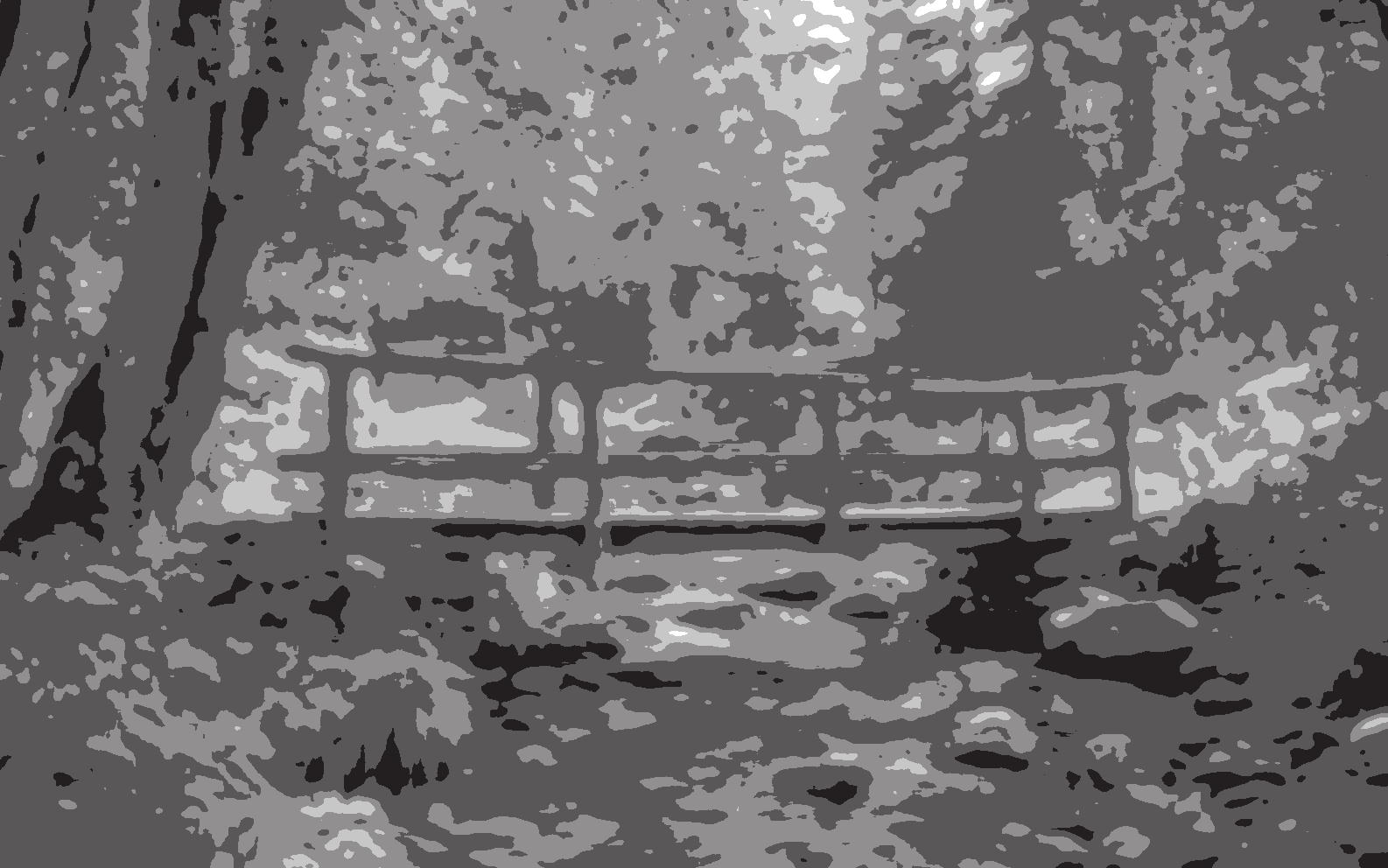
Simplify Detail smooths small changes in brightness before values are grouped. Raise it when foliage, hair, fabric, or compression noise breaks into too many pieces.
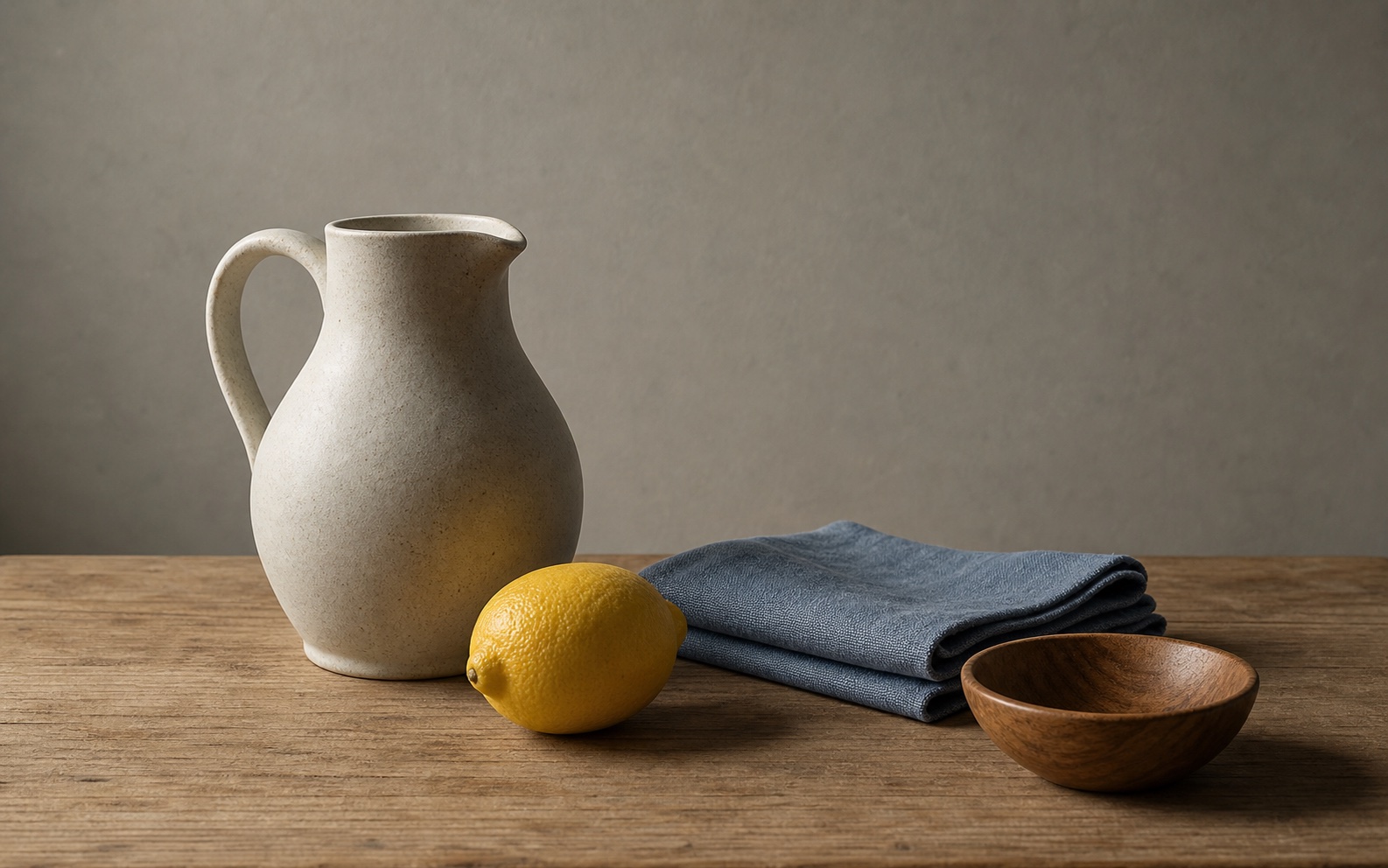
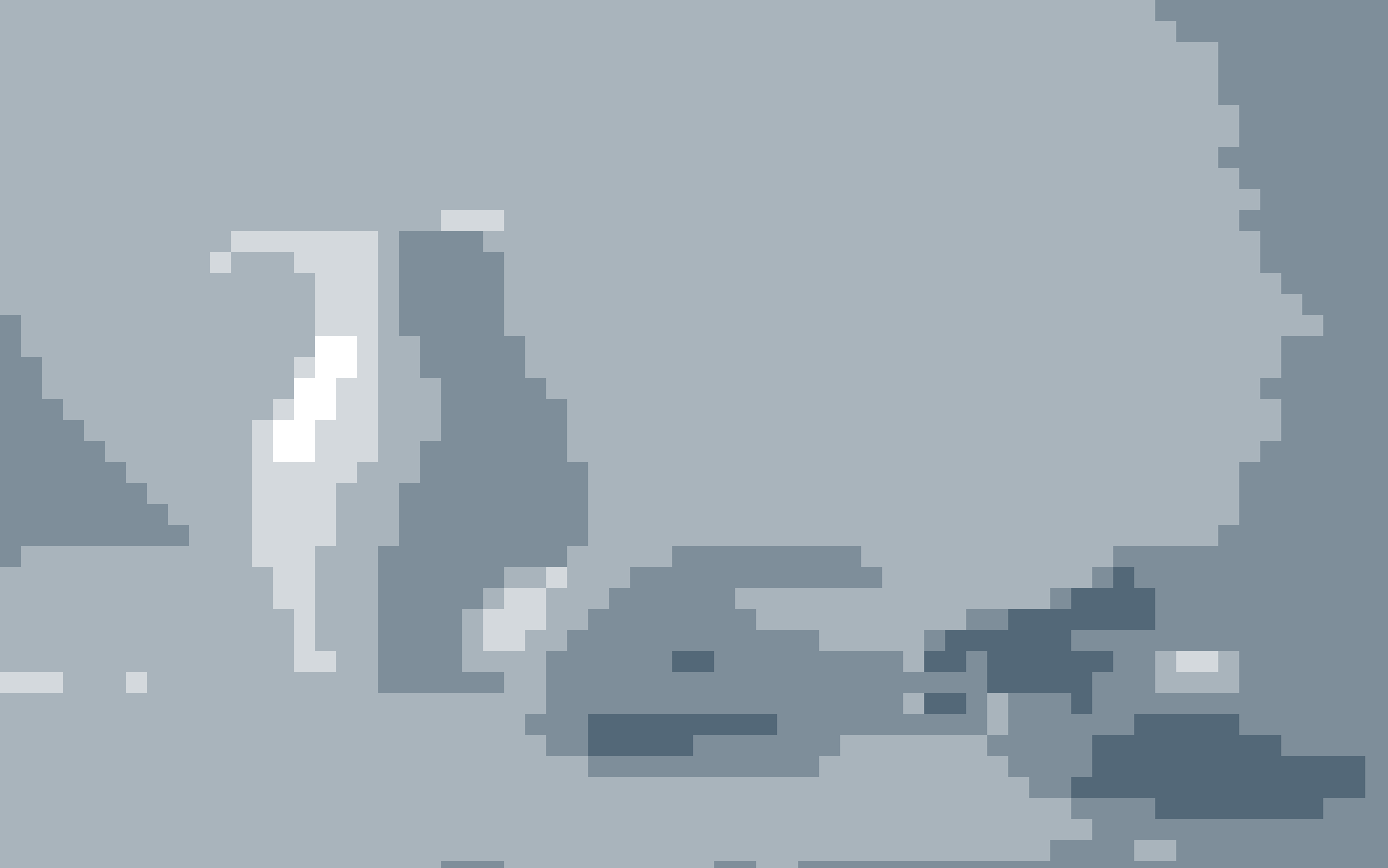
Choose a shape treatment
Detailed keeps the most information from your reference. Blocks builds the study from adjustable squares. Grouped joins nearby tones into broader, calmer shapes.
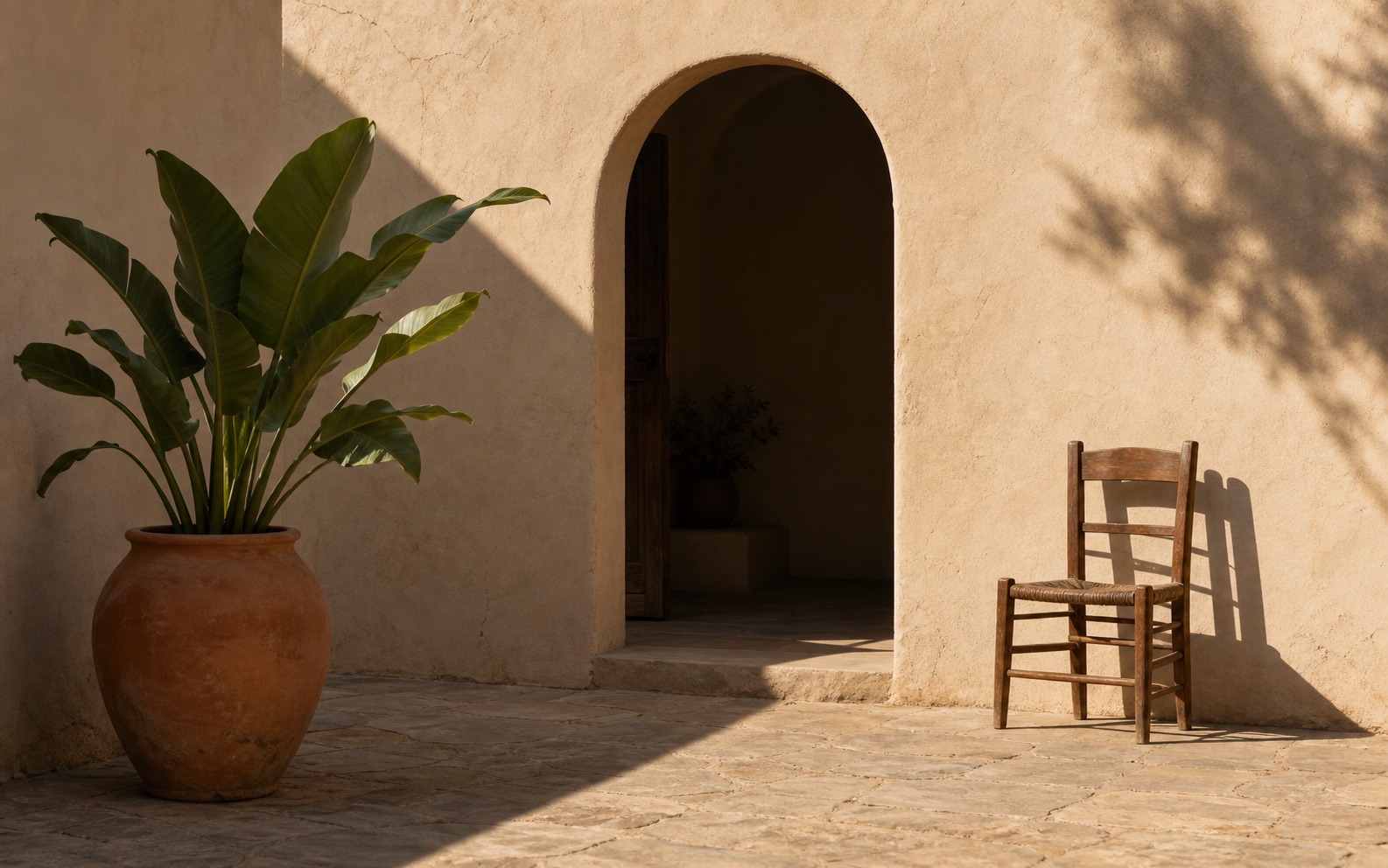
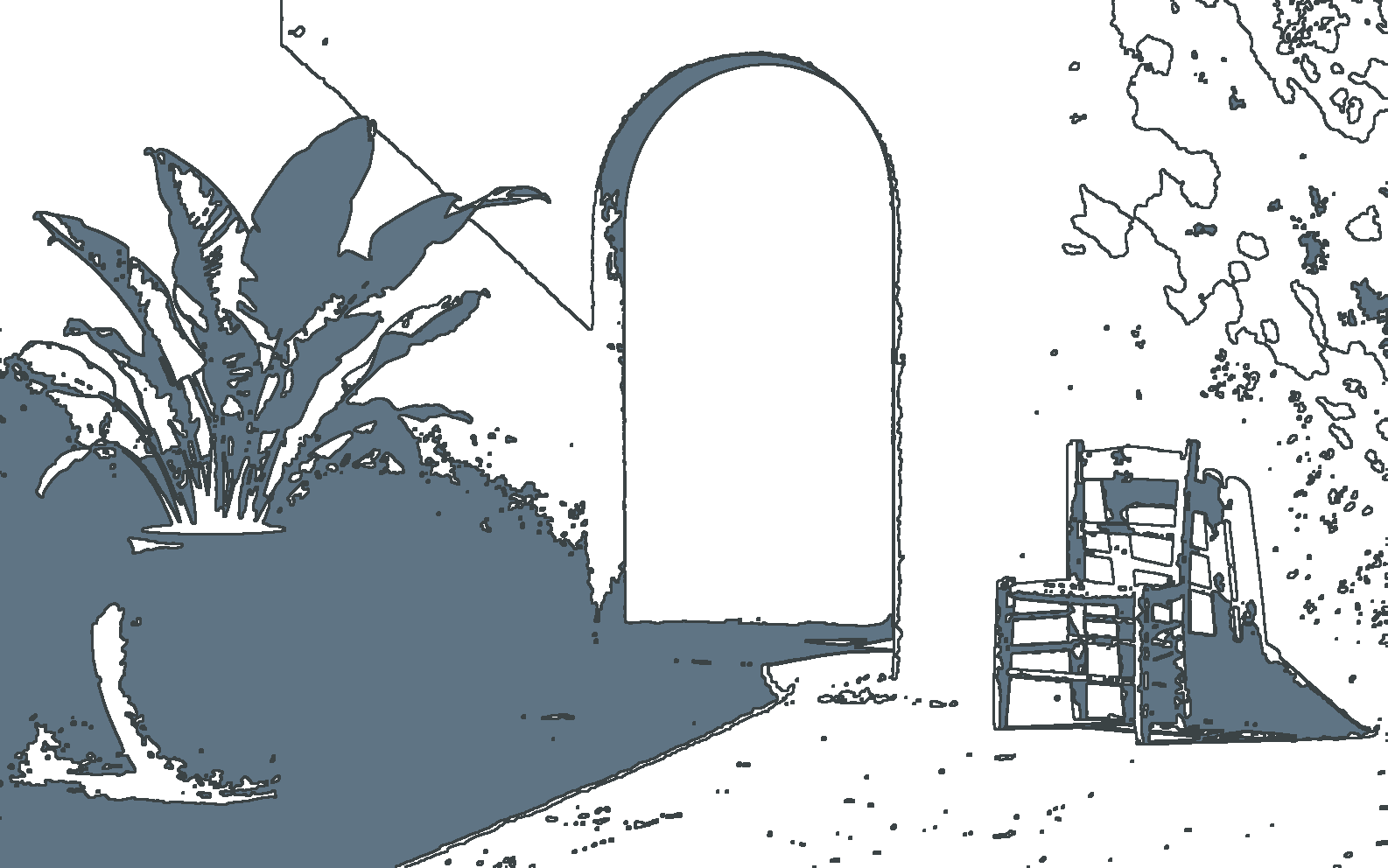
Check one value group at a time
Choose a base color, trace the edges between values, or isolate one group to see whether its shapes connect across the composition.
Make the value study useful at the easel
Treat the simplified image as a planning aid: test the big pattern first, then decide what deserves more detail.
Start with the fewest useful values
Try 2–3 values to judge the main light and dark pattern. Add another value only when it helps explain the subject’s form.
Judge the image at thumbnail size
If the focal point and main value masses still read when the preview is small, the composition is usually clear enough to block in.
Change one control at a time
Make one adjustment, check the preview, and keep it only if the large shapes become clearer. This makes it easier to undo an over-simplified result.
Remove distractions first
If an object or background should not be part of your value plan, remove it with AI Image Editor before simplifying the reference.
Ready to simplify?
Build a value study you can paint from
Keep the study beside your canvas to place the largest light and dark shapes before you commit to smaller details.
Image Simplifier FAQ
Answers about tonal studies, custom colors, transparency, privacy, file limits, and working across different art mediums.
What does an image simplifier do?
An image simplifier groups a photo’s light and dark areas into a limited number of values. The result makes large shapes easier to see when you plan a drawing, painting, notan, or value study.
Is an image simplifier the same as grayscale or posterizing?
Not quite. Grayscale removes color but keeps every shade between black and white. This tool groups brightness into 2–16 distinct values, then maps them from your selected base color to white. Unlike color posterizing, it builds a tonal value study.
Can I use a color other than black?
Yes. Choose a custom Darkest Value or use one of the preset colors. The lightest value remains white, with the other values spaced between the selected color and white.
Does the image simplifier preserve transparency?
Yes. Transparent areas in a PNG or WebP remain transparent in the value study and downloaded PNG.
Does the tool edit my original file?
No. Every adjustment changes only the preview and downloaded PNG. The original file on your device is not modified.
Are my reference images uploaded?
No. The image simplifier creates the tonal study on your device. Your reference image never leaves your browser when you preview or download the result.
Which files are supported, and is there a size limit?
You can use JPG, PNG, or WebP files up to 20 MB. To keep processing responsive, large images are resized so the longest edge of the preview and exported PNG is no more than 1,800 pixels.
Can I use this for watercolor, oils, acrylics, or digital painting?
Yes. The tool creates a reference study rather than a medium-specific effect. Use it to plan reserved whites and washes in watercolor, large block-in shapes in opaque paint, or value structure in a digital sketch.
Next up
Choose your next image step
Try a nearby image workflow, compare models, or turn your result into video.

AI image tools
More image tools
Create, edit, clean up, or upscale stills.

AI models
Compare image models
Pick a better model before making more versions.

AI video tools
Make it move
Animate a still or turn it into a clip.

AI Image Generator
Start from any idea
Create a fresh image from a prompt.
Text to Image
Prompt-first creation
Turn a written idea into an image.

Image to Image
Use a reference
Restyle or revise an existing image.
Image to Prompt
Describe a reference
Turn visible image details into a reusable AI prompt.
AI Logo Generator
Brand marks
Create logo ideas from a short brief.
Product Picture Generator
Product visuals
Create polished product photos and campaign scenes.
AI image tools
More image tools
Create, edit, clean up, or upscale stills.
AI models
Compare image models
Pick a better model before making more versions.
AI video tools
Make it move
Animate a still or turn it into a clip.
AI Image Generator
Start from any idea
Create a fresh image from a prompt.